SpaceSniffer Alternatives for Mac
Keep the visual way of finding storage usage: inspect the largest region, enter its folder, and identify the files inside.
If you liked SpaceSniffer on Windows, the familiar part is the picture: large rectangles show where to investigate, and opening a folder reveals the smaller items inside. You can keep that visual approach on Mac with a native treemap app.
This guide is published by DiskTreeSize's developer. Its screenshots were captured from DiskTreeSize on macOS using a prepared sample directory. They show a Mac alternative, not SpaceSniffer running on Mac.
Can you install SpaceSniffer on Mac?
On October 19, 2026, the official SpaceSniffer download page directed users to its designated distribution mirror, where the application is listed for Windows. That official download route did not list a native macOS release.
If your goal is inspecting files already on your Mac, start with a native Mac analyzer. DiskTreeSize is one option; it is independent of SpaceSniffer and does not reproduce every one of its controls.
Choose an alternative by the part you liked
| What you liked about SpaceSniffer | Mac option to consider | What to expect |
|---|---|---|
| Large rectangles that reveal the next folder level | DiskTreeSize | A treemap with an expandable size table and folder navigation |
| A tool centered on a configurable rectangle map | GrandPerspective | A native Mac treemap app with filtering options |
| A tree and map plus a file list with size conditions | WizTreeMac | The official WizTree Mac app, with Tree View and File View |
See the GrandPerspective website for its current requirements. For WizTreeMac's actual Mac interface and filtering example, read the WizTreeMac comparison.
Start with a folder whose files you recognize
In DiskTreeSize, click Choose Location, select Downloads or a project folder, then click Analyze. Use Allocated in the toolbar to start comparing the storage assigned to its items.
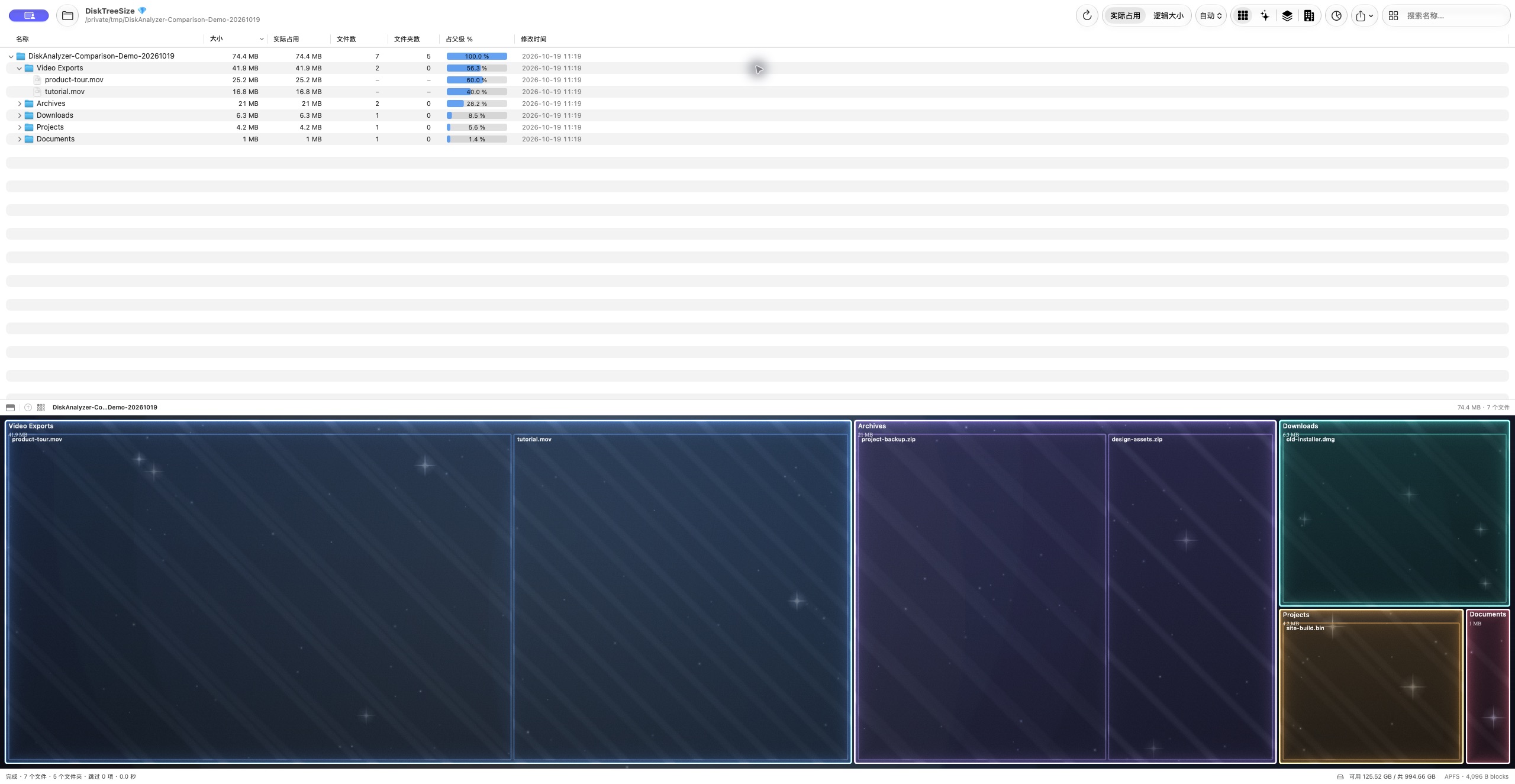
Actual DiskTreeSize screenshot with the Chinese interface. 实际占用 means Allocated. File names and capacities are demonstration data; open the image to inspect it at full size.
In this example, Video Exports is the largest branch. Its region is larger than Archives because its selected size value is larger. The folder tree provides the readable names and numbers while the map shows their proportions.
A rectangle is a place to investigate, not a recommendation to delete the whole folder. A collection of useful small files can occupy more space than a single obsolete export.
Focus the map on one large folder
To look inside the large branch:
- Expand Video Exports in the tree to see its two files.
- Right-click the folder and choose Show in Treemap.
- The lower map now focuses on that folder, showing its two files as separate regions.
- Use the Go up one level arrow or an earlier folder in the breadcrumb bar to return.
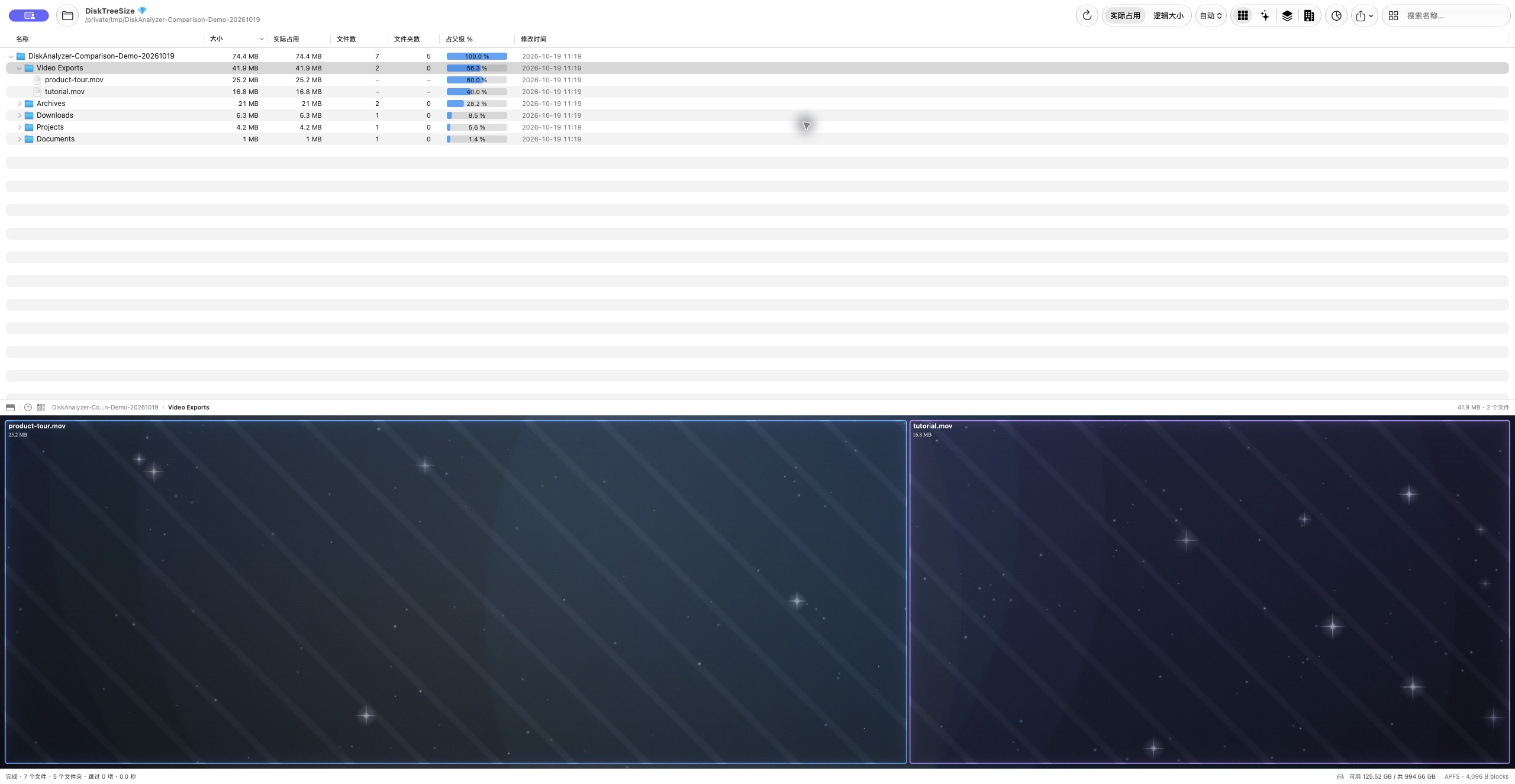
Actual screenshot after choosing 在 Treemap 中显示, the Chinese label for Show in Treemap. The sample files are about 25.2 MB and 16.8 MB. The upper tree still supplies context while the lower map focuses on the selected branch.
That is the core visual workflow: move from a large region to a specific file whose purpose you can check. You can also use the control at the left of the map's navigation bar to hide the upper tree when you want more room for the visualization.
Check filters before switching tools
SpaceSniffer's official product page describes expressions for file types, size, date and tags. Those are useful if filtering is central to your Windows workflow.
DiskTreeSize's Search name… field matches names; it does not interpret SpaceSniffer's filter expressions. Use File Types to compare extension totals, size sorting to find large branches, and name search when you recognize a file. These are different operations from filtering the map by size or age.
If you need a list satisfying a capacity condition, WizTreeMac is another native choice. Our WizTreeMac guide shows its real >10m file-list result rather than assuming all treemap tools share the same filters.
What is free in DiskTreeSize?
DiskTreeSize supports macOS 12 or later on Apple Silicon and Intel Macs. Its free analysis includes scanning, the folder tree, size sorting, four visual views, name search and file type statistics. Pro adds Finder navigation, CSV / JSON reports, and moves to Trash after confirmation.
Download it from the Mac App Store and start with a familiar directory. For the difference between the size shown in a map and the space a deletion might recover, continue with allocated versus logical size.
Frequently asked questions
Is there an official SpaceSniffer for Mac download?
As checked on October 19, 2026, the official SpaceSniffer site directs downloads to its designated mirror, which lists a Windows application. We found no native Mac release in that official download route.
Which Mac app offers a SpaceSniffer-style rectangle map?
DiskTreeSize, GrandPerspective and WizTreeMac provide native Mac treemap options. They are separate products with different navigation and filtering features, rather than official SpaceSniffer Mac editions.
Does DiskTreeSize accept SpaceSniffer filter expressions?
No. DiskTreeSize searches file and folder names. It does not interpret SpaceSniffer expressions for file type, size, age or tags. Use size sorting and the tree, or choose an app with the filters you need.