WinDirStat for Mac: What to Use
A folder tree tells you where to look; a treemap makes the large items visible. Here is how to use that combination on macOS.
If you used WinDirStat to investigate a full Windows drive, you may want the same three clues on Mac: a folder tree, a picture of the space distribution, and a breakdown by file type. DiskTreeSize brings those views together in a native macOS app.
This guide is published by DiskTreeSize's developer. It explains the everyday inspection workflow and links to other products so you can choose the view that suits you.
Can you download WinDirStat for Mac?
As checked on October 19, 2026, the official WinDirStat website describes WinDirStat as a disk usage analyzer for Microsoft Windows. A Windows installer is not a native Mac application.
DiskTreeSize is an independent alternative for macOS, not an official WinDirStat edition or a complete copy of its features. It runs on macOS 12 or later, on Apple Silicon and Intel Macs.
If you mostly want a rectangle map, GrandPerspective is another native option. If your priority is comparing folder rows and expanding their contents, start with DiskTreeSize. The broader Mac analyzer comparison explains these choices.
Start with the folder tree
Suppose a completed video project still occupies space. Start with its parent folder rather than searching every file on your Mac.
- In DiskTreeSize, click Choose Location and select that folder.
- Click Analyze in the system picker.
- Select Allocated in the toolbar and sort the size column from largest to smallest.
- Expand the largest branch to see which files or subfolders account for its total.
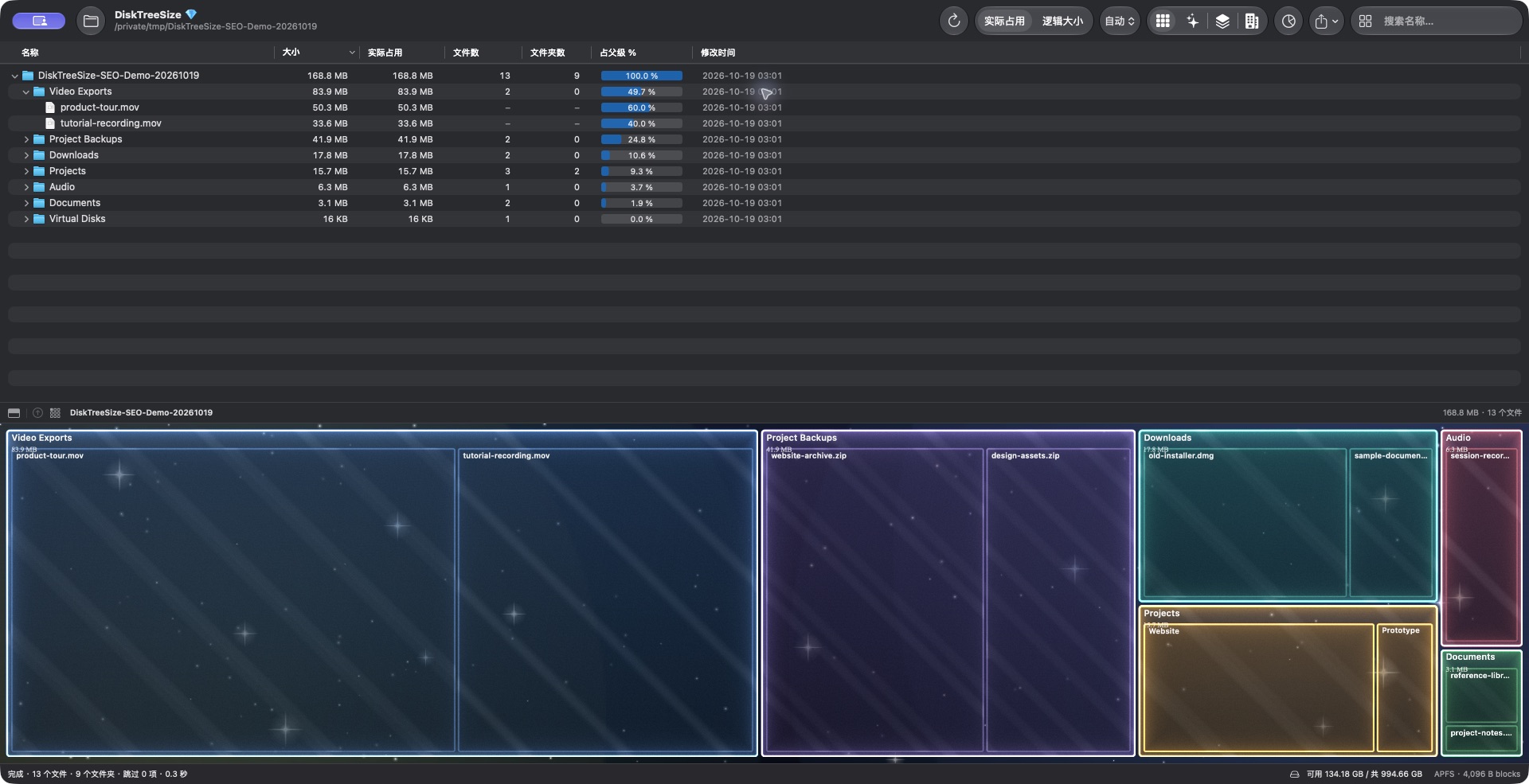
Actual DiskTreeSize screenshot using a prepared sample directory, with the Chinese interface shown. The toolbar's 实际占用 is Allocated. Example file names and capacities are demonstration data, not a benchmark or a claim about space you can recover.
In this example, Video Exports is the largest allocated branch. Expanding it separates the two recordings, which is more useful than treating the entire project as one cleanup candidate.
Use the treemap to spot the large areas
A treemap represents storage as nested rectangles. Larger areas correspond to larger values in the selected size mode. Use it to decide which branch deserves a closer look, then use the tree to read the names and sizes.
DiskTreeSize also offers Galaxy, 2.5D Tiles, and City views. The underlying question stays the same: which part of the selected location accounts for the space? You can continue using the ordinary tree and rectangle view if that is your preferred workflow.
Check which file types dominate
Click File Types to group the current scan by extension. If video and archive formats dominate, you have a practical starting point for reviewing old exports and backups.
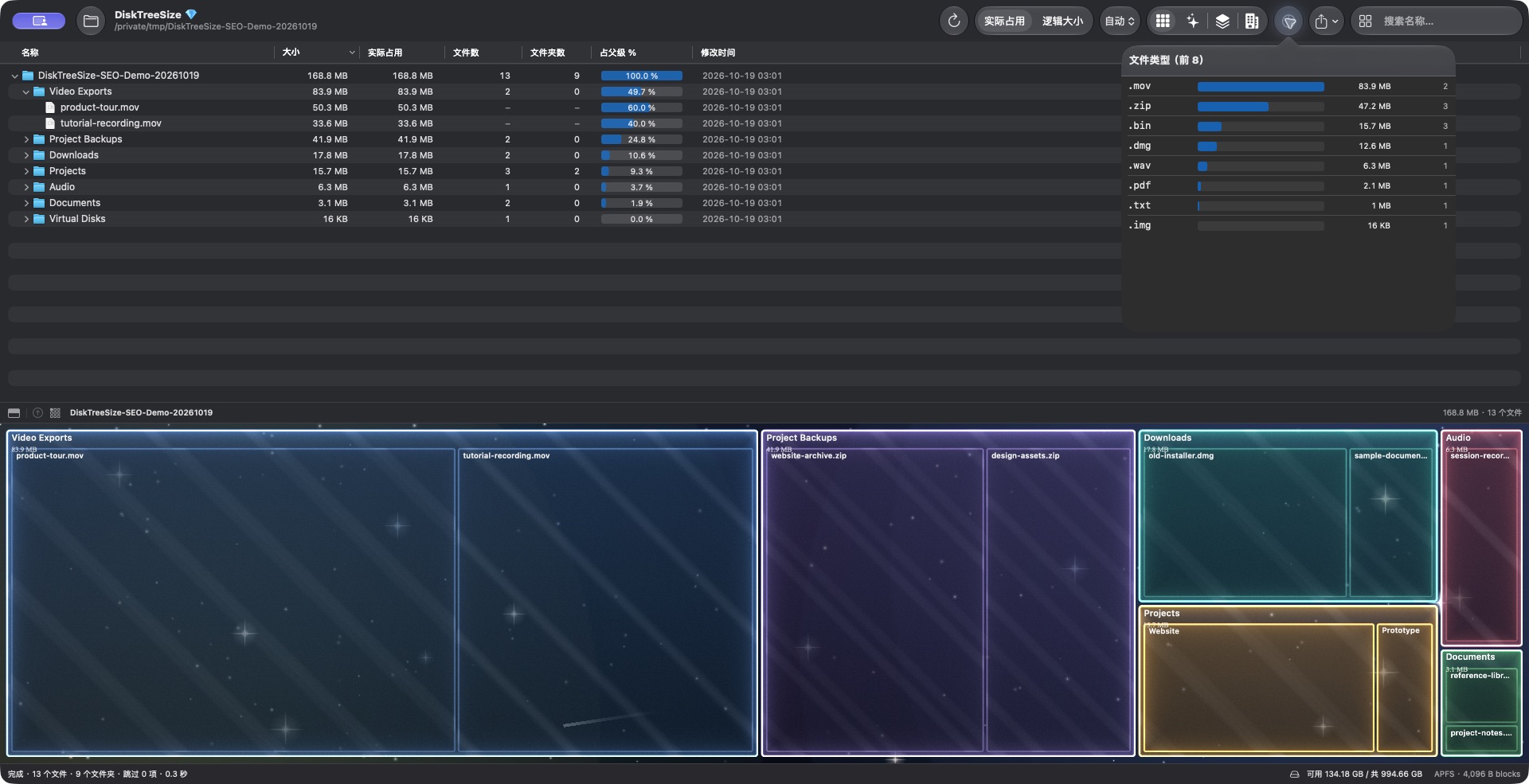
Actual screenshot of the same demonstration scan. 文件类型 means File Types. Extension totals cover the scan, rather than just the selected row. An extension identifies a format; it does not say whether its files are unnecessary or duplicated.
For a file you already recognize, enter part of its name in Search name… and press Return. For unknown large files, continue following the size-sorted branches. Name search does not accept file-size conditions.
Check the features your old workflow depended on
DiskTreeSize's free analysis includes the tree, size sorting, visual views, name search, and file type statistics. Pro adds Finder navigation, CSV / JSON reports, and moves to Trash after confirmation.
If you used WinDirStat's duplicate checks, advanced filters, or automation, evaluate those requirements separately. DiskTreeSize does not offer content-based duplicate detection, a “larger than 1 GB” search filter, or scheduled scan jobs.
The app measures the selected, accessible location. It cannot guarantee access to every protected folder or explain every byte in the system storage overview. For the difference between file length and disk usage, read allocated versus logical size.
Try the folder you actually want to understand
Download DiskTreeSize from the Mac App Store, scan Downloads or a project folder, and inspect its largest branches. You can use the free analysis before deciding whether you need Pro's file actions or reports.
Frequently asked questions
Is WinDirStat available as a native Mac app?
The official WinDirStat website describes it as a Microsoft Windows application. For a native macOS workflow, use a Mac disk analyzer such as DiskTreeSize or GrandPerspective. These are separate products.
Can DiskTreeSize find duplicate files like WinDirStat?
DiskTreeSize does not compare file contents or detect duplicates. It can show folder sizes, search names, and summarize file extensions; those tasks do not establish that two files are identical.
Are the tree, treemap, and extension statistics free?
Yes. DiskTreeSize includes these analysis features in the free download. Finder navigation, CSV / JSON export, and confirmed moves to Trash require Pro access or an active trial.