Choose a Mac Disk Space Analyzer
Use a folder tree for exact rows, a visual map for proportions, and the system storage overview for the disk-wide picture.
The right Mac disk space analyzer depends on the question you are trying to answer. “How much space is left?” needs a disk overview. “Which project is largest?” needs folder totals. “Where is that huge file?” benefits from a tree or visual map.
This comparison is published by DiskTreeSize's developer. Product descriptions were checked against official sources on October 19, 2026. The recommendations below concern workflow, not an independent speed benchmark.
Compare by the result you want
| Your task | Tool to consider | What you work with | Access model |
|---|---|---|---|
| Check disk-wide usage and storage categories | macOS Storage | System categories and storage recommendations | Built into macOS |
| Check one known folder | Finder Get Info | An information window for the selected item | Built into macOS |
| Compare a directory's immediate subfolders in text | Terminal du |
Paths and numeric totals | Built into macOS |
| Expand folders and compare size rows beside a map | DiskTreeSize | Folder tree, size columns, and four visual views | Free analysis; optional Pro actions |
| Explore storage primarily through rectangles | GrandPerspective | Treemap with configurable filters | Free official download; paid App Store distribution |
| Explore storage through a circular diagram | DaisyDisk | Visual navigation through files and folders | Paid app; trial offered on its website |
For competitors' current requirements and purchase terms, use the GrandPerspective and DaisyDisk websites. Different editions or distribution channels can have different capabilities. No single app in this table is the best fit for every storage problem.
Start with macOS when you need the overall picture
On macOS 13 or later, open System Settings → General → Storage. This is a useful first stop when you need the available capacity or a category overview. Apple's storage guide covers its built-in options.
If you already know which folder to inspect, select it in Finder and press Command-I to open Get Info. That may answer a one-off question without installing another app.
The next step is different: when one project contains many large subfolders, use a tool that makes those branches easy to compare. For a text-only approach, see the Mac du guide.
Choose DiskTreeSize when folder rows matter
DiskTreeSize is a practical starting point if you used TreeSize on Windows and want to expand folders, compare sizes, and keep a visual map nearby.
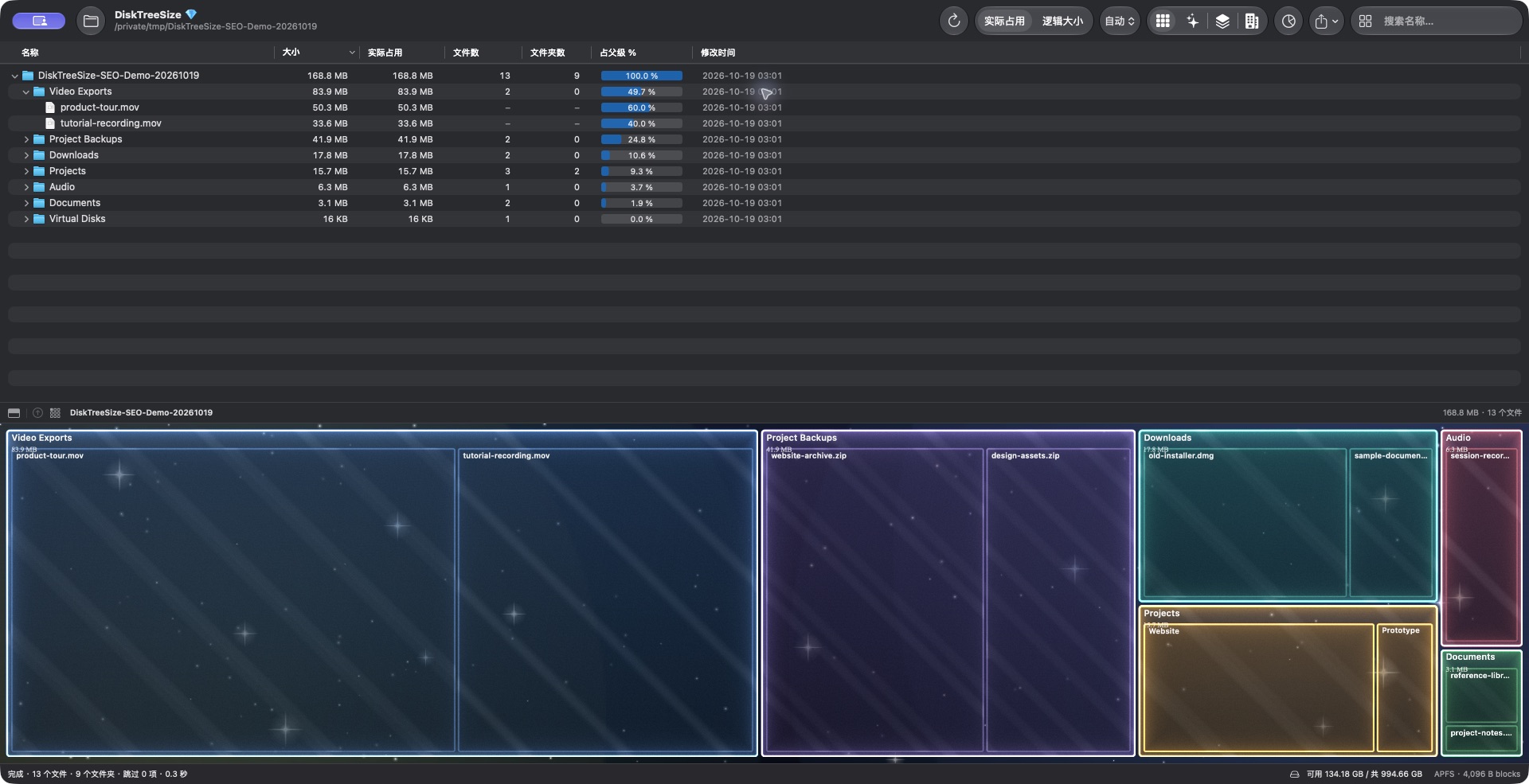
Actual screenshot of a prepared demonstration directory, shown with the Chinese interface. The folders and capacities are examples. 实际占用 corresponds to Allocated, and 逻辑大小 to Logical.
Click Choose Location, select Downloads or a project, then click Analyze. Sort by size and expand the largest branch. This lets you distinguish one large export from a directory containing many smaller files.
The free download includes scanning, the tree, size sorting, visual views, name search, and extension statistics. Pro adds Finder navigation, CSV / JSON reports, and confirmed moves to Trash. It requires macOS 12 or later and supports Apple Silicon and Intel Macs.
For size-range filtering, duplicate-content detection, or scheduled jobs, check other tools against your requirements: DiskTreeSize does not provide those features. If you want a closer walkthrough, read TreeSize for Mac.
Choose a map-led app when shapes are easier to read
GrandPerspective focuses on rectangular file maps and offers configurable filters. DaisyDisk uses a circular view for exploring storage. Try the style that makes folder relationships easiest for you to follow; a map preference is a usability choice, not evidence that one tool scans faster.
Compare the same familiar folder when evaluating tools. Check whether you can read its names, follow its largest subfolder, and return to the file's location. You do not need a full-drive scan to decide whether the navigation works for you.
Compare the same scope and size measurement
An app's folder total and macOS's disk-wide storage overview can differ because they cover different locations. Protected folders can also be unreadable.
File length and allocated storage are different measurements. Shared data and sparse files can make them diverge, so a displayed total is not a guaranteed cleanup result. The allocated versus logical size guide explains this with an example.
Start with the built-in tools for a quick total. Choose a tree when you want to compare branches, or a map when you prefer to explore visually. If a tree and map together suit your work, try DiskTreeSize's free analysis on the folder you want to understand.
Frequently asked questions
What is a free way to analyze disk usage on Mac?
Start with the built-in storage overview, Finder Get Info, or Terminal's du command. DiskTreeSize offers free folder scanning and visual analysis. GrandPerspective also offers a free download through its official SourceForge distribution.
Which Mac app should a TreeSize user try?
DiskTreeSize is worth trying if you want expandable folder rows, size sorting, and visual views together. It is independent of JAM Software's TreeSize and does not reproduce every Windows feature.
Will a disk analyzer automatically decide what is safe to delete?
A size measurement does not establish whether a file is still needed. Identify the file, its owning app, and any backup before deciding what to remove. DiskTreeSize does not automatically delete files.