Check Mac Folder Sizes with du
Use du for a total or a one-level comparison. Switch to an expandable tree when you want to keep investigating without rewriting paths.
You can check a Mac folder's size without installing an app. Open Terminal and use du, the built-in command that reports disk usage. For one folder total, this is often enough. For repeated exploration, a visual tree can make the next step easier.
The commands below only read folder information. Replace the example paths with the folder you want to inspect. You can read the manual for your installed macOS version by entering man du; press q to leave it.
Get one folder's total
To check Downloads, enter:
du -sh "$HOME/Downloads"
-s asks for a summary, and -h chooses a readable unit. $HOME expands to your home directory in Terminal. Double quotes keep a path together if it contains spaces.
For another location, use its full path:
du -sh "/Volumes/Work Drive/Completed Projects"
Replace the disk and folder names before running that example. The result describes the chosen folder, not the total capacity or free space of the disk containing it.
If you prefer Finder for a single check, select the folder and press Command-I. See Apple's Get Info instructions.
List the immediate subfolders
To see where the total comes from, use:
du -h -d 1 "$HOME/Downloads"
-d 1 displays one level below Downloads while still calculating each branch's contents. This is display depth, not a promise that the command will read only one level. A large directory can still take time to scan.
The total for Downloads appears too. For a deeper branch, repeat the command with that branch's path. Passing the directory itself also avoids a wildcard that might omit dot-prefixed folders.
Sort the branches from largest to smallest
For numeric sorting, use a fixed unit:
du -k -d 1 "$HOME/Downloads" | sort -nr
-k reports sizes in units of 1024 bytes. The | passes those lines to sort; -n compares numbers and -r puts the largest first. The parent total is included, so the first line is usually the selected folder itself, not an additional item to add to its children.
For example, these are selected lines from a prepared demonstration directory:
164880  /tmp/DiskTreeSize-SEO-Demo-20261019
81920   /tmp/DiskTreeSize-SEO-Demo-20261019/Video Exports
40960   /tmp/DiskTreeSize-SEO-Demo-20261019/Project Backups
17408   /tmp/DiskTreeSize-SEO-Demo-20261019/Downloads
These are sample measurements, not the contents of your Downloads folder. They suggest investigating Video Exports first. The command groups by directory; it is not a ranking of every individual file across the Mac.
Understand an incomplete or surprising result
If Terminal reports Permission denied or Operation not permitted, the result may be incomplete. Start with a location you can access; an unreadable branch is not an empty branch. Do not hide the messages merely to produce a cleaner-looking total.
By default, du measures allocated storage. A file can have a large stated length while occupying fewer blocks locally. Some disk image files allocate storage only where data has been written; APFS also supports shared data. These features help explain why folder sums are not a guaranteed measure of recoverable space. Apple describes these file-system features here.
Different units also matter. A binary unit of 1024 bytes and a decimal unit of 1000 bytes can describe the same storage with different-looking numbers. Compare the same path, measurement, and unit before treating a difference as a problem.
Use an expandable tree when you keep following branches
If each result leads to another path and another command, try the same folder in DiskTreeSize. Click Choose Location → Analyze, sort by size, and expand the branches directly.
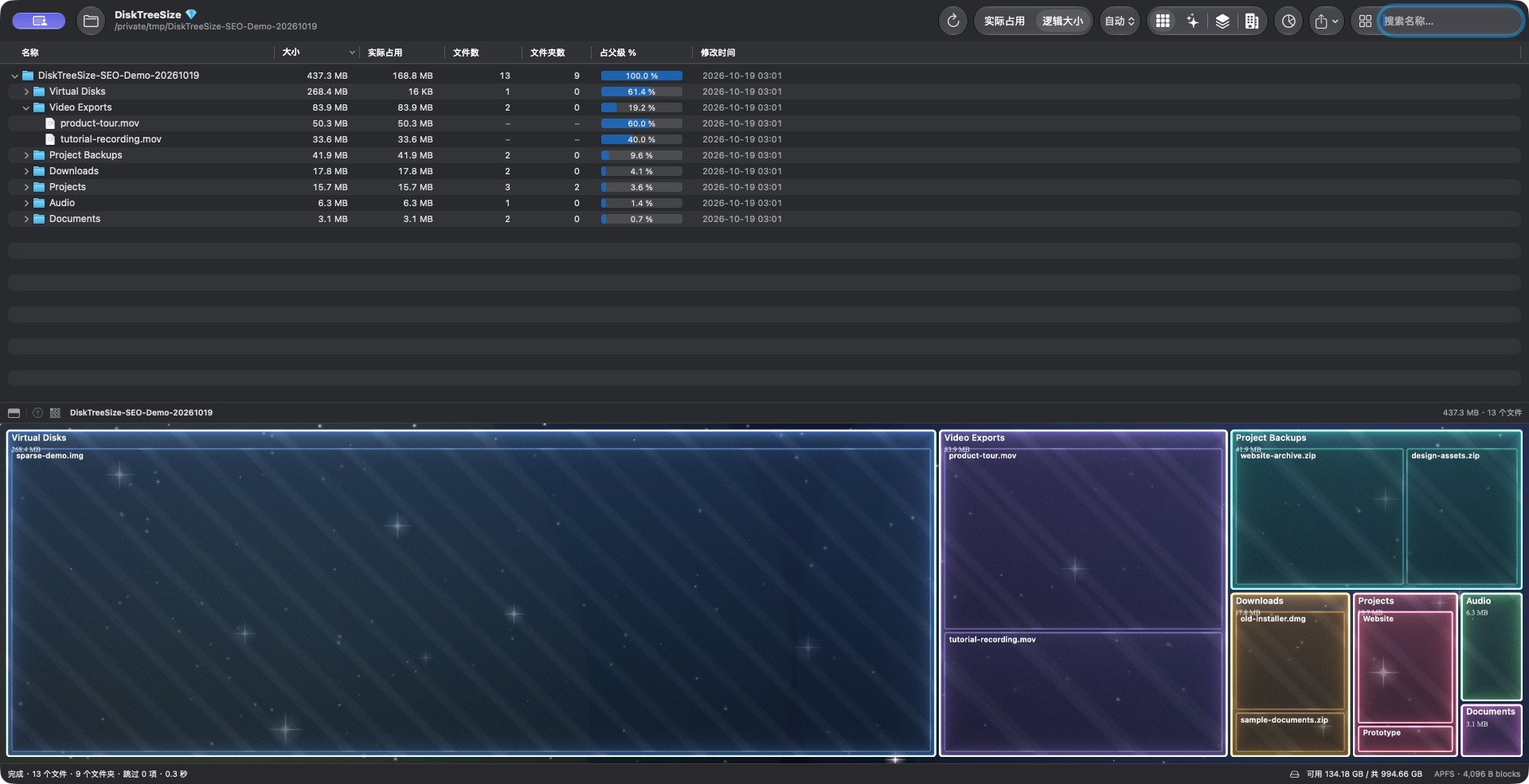
Actual screenshot of a prepared sample scan, using the Chinese interface. 逻辑大小 means Logical, and 实际占用 means Allocated. The sample Virtual Disks folder shows about 268.4 MB of file length and 16 KB of allocated storage. It demonstrates two measurements of the same item, not a cleanup opportunity.
DiskTreeSize's folder analysis is free. Pro adds Finder navigation, CSV / JSON export, and confirmed moves to Trash. Use the folder-size walkthrough if you want to continue visually, or keep using du when a quick text total is all you need.
Frequently asked questions
What command shows a folder's size on Mac?
Use du -sh followed by a quoted folder path. It prints a summary of allocated disk usage with a readable unit. The folder is read, not modified.
How do I sort Mac subfolders by size in Terminal?
Use du -k -d 1 followed by the quoted folder path, then pipe the output to sort -nr. Sizes are in 1024-byte units and the root total appears alongside its immediate subfolders.
Why does du differ from a file's stated size?
du normally measures allocated storage, rather than file length. Sparse files, shared storage, access permissions, and the scope of the selected folder can affect comparisons.