Forgot a Mac App Name? Give It a Memorable Alias
You installed a useful app and remember that it takes screenshots, compresses images, or organizes files. When you finally need it, its unfamiliar name is gone from memory. FableLauncher's aliases let you find an app by a name you will actually remember.
Call a screenshot app Screenshot Tool or an image editor Photo Editing. Next time, remembering its purpose gives you a clear search phrase instead of another guessing session.
Find it once and give it your own name
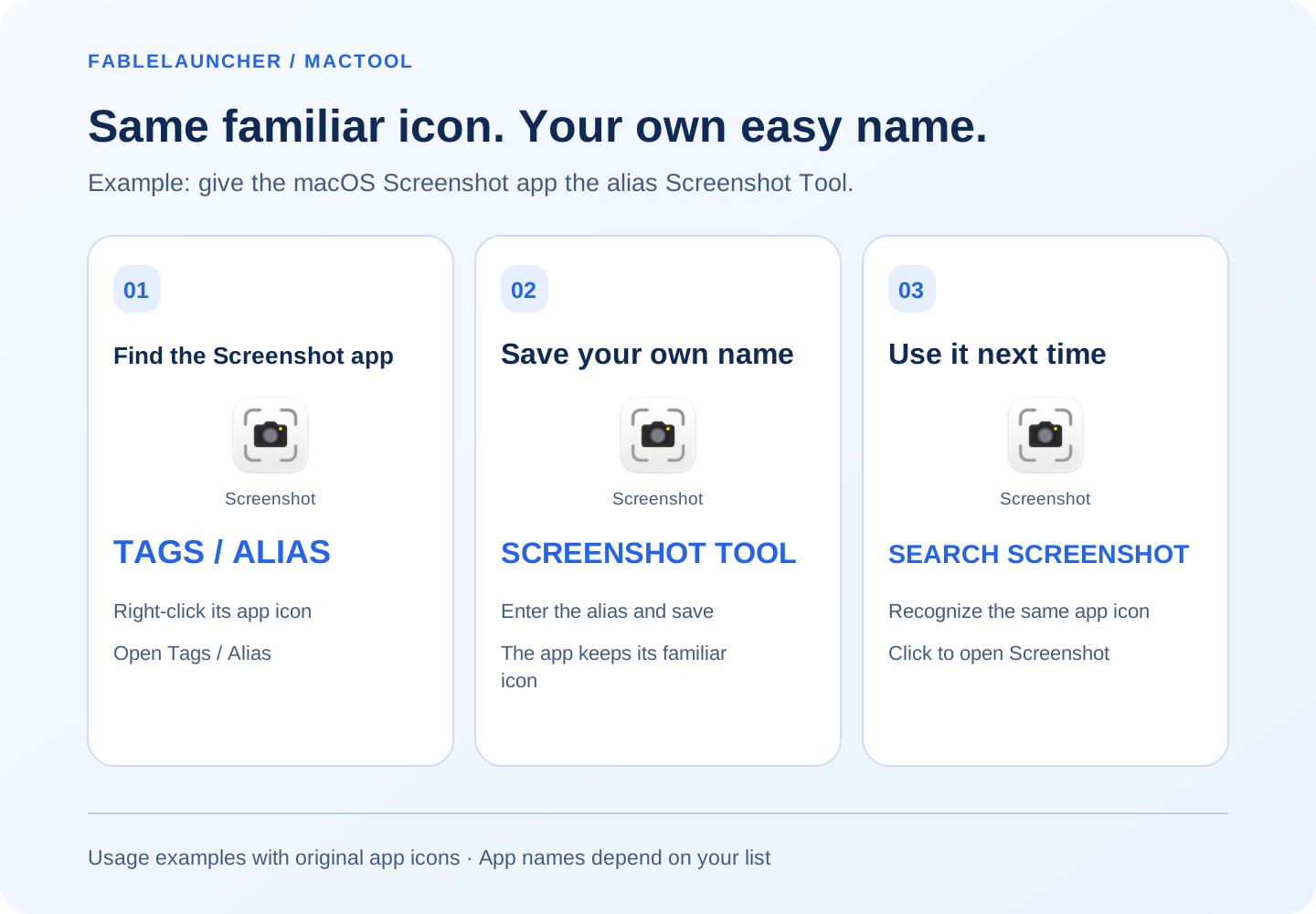
Find the app in FableLauncher, right-click its icon, and choose Tags / Alias. Enter your preferred alias and save.
Use a phrase you naturally associate with the app, such as Screenshot Tool, Image Compression, or Remote Connection. The name is for your memory, so it does not need to sound formal.
Try it with the Screenshot app built into macOS: find its icon, save the alias Screenshot Tool, then search screenshot next time. You will recognize the same icon and click it to open the same app. The illustration uses this real app as an example; you can follow the same steps for other screenshot tools.
Search its purpose the next time
Open FableLauncher and enter the alias or part of it. For Screenshot Tool, searching screenshot can match the saved alias. Click the app icon to launch it.
An alias is a name you assign to an existing app. It does not automatically infer every app's purpose: find the app once and set the alias first. You can still search a remembered part of its original name.
Make similar tools easy to tell apart
Screenshot Tool is enough for one screenshot app. With several, choose more specific names such as Scrolling Capture, Screen Recording, or Image Markup, based on how you use them.
Add tags when you want to see a whole category. The alias is what you call one app; a tag helps you browse related tools.
Keep the application filename and original search name
The alias changes display and search inside FableLauncher. The app's filename in Finder stays the same. Search also keeps the original name, so a colleague can give you the official name and you can still find it.
Return to Tags / Alias to change the name. Clear the alias and save to show the original name again.
A useful habit for occasional tools
Screenshot, compression, disk, and remote-connection utilities may go unused for weeks. Set a purpose-based alias when you install or rediscover one, and leave yourself an easy name for next time.
Launch related apps as a group, or search Chinese names by initials. Find features and downloads on FableLauncher's page.
Frequently asked questions
How do I find an app when I only remember its purpose?
Set a purpose-based alias in advance, such as Screenshot Tool, and search that familiar phrase next time.
Can I still search the original name?
Yes. FableLauncher searches both the original app name and your alias.
Does an alias rename the app in Finder?
No. It changes the name used inside FableLauncher, while the application filename stays the same.