Open Multiple Mac Apps Together with an App Group
Starting work often means opening a browser, an editor, chat, and notes one at a time. FableLauncher app groups keep that set together so you can choose the apps once and open them together.
Group the apps you regularly use together
Right-click the first app and choose Add to group. Enter a recognizable name such as Start Work and create the group. Add your browser, editor, and other regular tools to the same group.
Name groups after what you do: Writing for your writing and research apps, Design for creative tools, or Evening for music and entertainment. Choose a task instead of hunting through several categories.
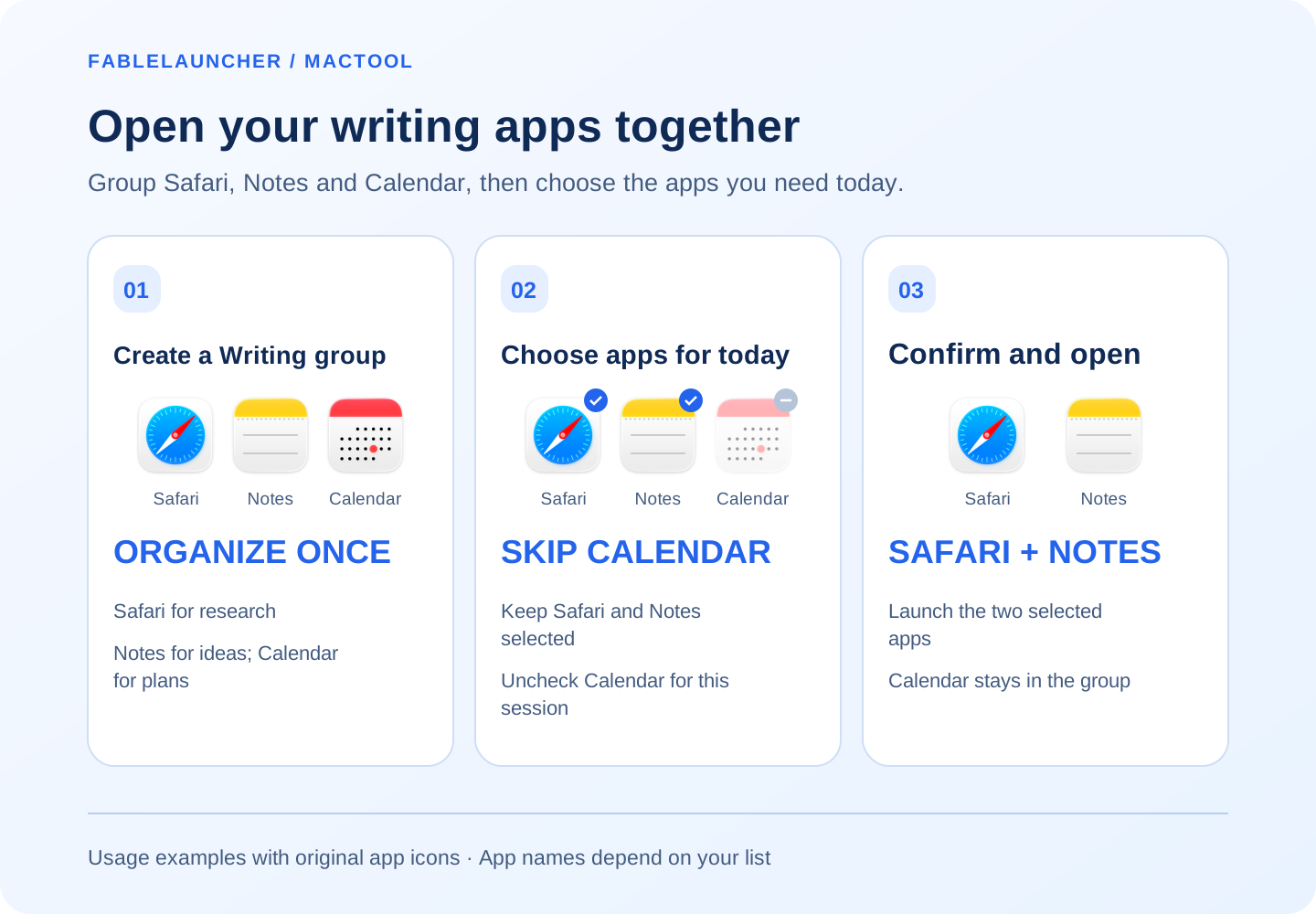
For example, put Safari, Notes and Calendar in a Writing group: research in Safari, jot down ideas in Notes, and check plans in Calendar. The illustration uses their original icons. Uncheck Calendar when you do not need it today, then confirm to open Safari and Notes together.
Choose today's apps before opening the group
Click the triangular launch button beside the group. The confirmation list selects the available group members by default. Uncheck anything you do not need today.
Click Open to launch the selected apps. You do not need to edit the permanent group simply because you want fewer tools for this session.
Assign a shortcut for a familiar set
Use the group's context menu to set a shortcut, press your preferred key combination, and save it. While FableLauncher is running, that combination can launch the group.
If another group, the launcher, or the system already uses the combination, choose another when prompted. Use the group button and checklist when you want to select only some members.
Organize once, then open by task
Rename groups and adjust their members as your work changes. Deleting a group removes its organization; it does not remove the installed apps.
A group opens applications. For a development session, it can open your editor, browser, and terminal. Opening a particular project, document, or window arrangement remains a task in those applications.
Use memorable app aliases for hard-to-remember names, or search by initials and partial names. Find downloads on FableLauncher's page.
Frequently asked questions
Can I open several Mac apps together?
Yes. Add them to a group, click its launch button, and confirm the selected apps.
Can I skip an app today?
Yes. Uncheck it in the launch list without removing it from the group.
Does a group restore project files and window layouts?
A group opens applications. Open project files and arrange windows in the relevant apps.