Set Up Animated Wallpaper on Mac with HeFeng
Want koi swimming on your desktop, moonlight moving across water, or blossoms and stars behind your Mac apps? HeFeng Wallpaper offers animated scenes you can switch and interact with. Choose a scene, then click Start Wallpaper to display it on your desktop.
The current Mac version is 1.2 and requires macOS 13 or later. Download it from the Mac App Store.
Choose a scene, then start it
Browse the scene cards in the main window. Try Lotus Pond or Pebble Creek for daylight water, Moonlit Lotus for a night scene, or Aquarium when you want to watch fish swim.
Select a card, adjust its lighting and controls, then click Start Wallpaper. The animated desktop begins only after that click. While it is running, selecting another scene switches the wallpaper without restarting the app.
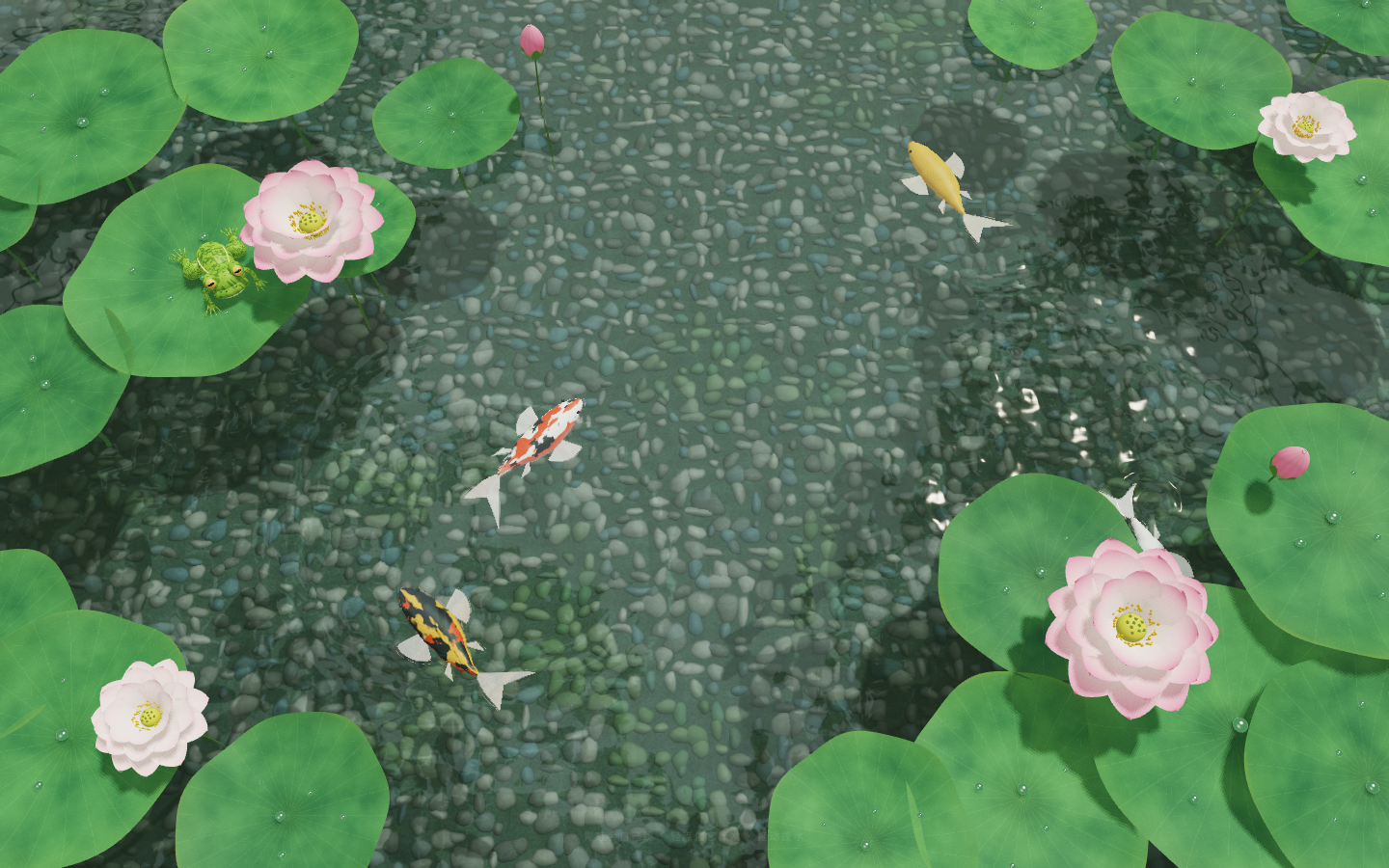
This is a scene image. Lighting, fish counts and water effects change with your settings and the animation.
Close the window and keep the wallpaper running
Closing the main window leaves a started wallpaper running. Use the water-wave menu-bar icon to adjust it, or choose Open Main Window to return to scene selection.
Pause Animation holds the current frame; uncheck it to resume. Stop Wallpaper removes the animated desktop while leaving the app in the menu bar. Quitting the app also stops playback. Both reveal your original system wallpaper.
Scenes do not appear in System Settings’ Wallpaper list. Keep HeFeng running when you want the animated desktop to remain visible.
Enable interaction when you want to stir water or feed fish
After starting the wallpaper, enable Interaction Mode in the main window or menu-bar panel and confirm the prompt. Return to an empty part of the desktop and click or drag. Responses vary: feed koi or make the frog jump in Lotus Pond, create ripples in Pebble Creek, or stir blossoms in Sakura.
Desktop icons, selection and right-click menus remain usable during interaction. Clicking an icon may also make the scene beneath it react. Interaction starts disabled each time the wallpaper is started.
Lotus Pond also provides Feed Fish and Make Frog Jump buttons in its controls. These buttons work without enabling desktop interaction.
Use a quieter playback setting when needed
Start with 30 fps and Balanced or Energy Saving rendering quality. On external power, try 60 fps for more continuous water movement. If your Mac gets warmer or playback feels uneven, return to 30 fps and lower the rendering quality.
Battery power and Low Power Mode cap playback at 30 fps. Rendering pauses when the display or Mac sleeps, when your login session is inactive, or when other windows almost completely cover the desktop. It resumes when the desktop is visible again.
Restore the wallpaper after signing in
Enable Launch at Login. If system approval is required, use the displayed button to allow it in macOS settings. The next login restores wallpaper in the background. Opening the app manually still shows its main window.
Multiple displays can each show the wallpaper. Each scene remembers its own visual settings, so switching back does not require adjusting everything again.
Built-in scenes work offline; download extra scenes when needed
Version 1.2 includes Lotus Pond, Moonlit Lotus, Flowing Moonlight, Pebble Creek, Aquarium, Sakura, Rainy Window and Nebula. Built-in and downloaded scenes are rendered locally on your Mac.
Get new scenes automatically is enabled by default. It retrieves the website’s scene catalog and installed-scene updates; a new scene with a download button must be downloaded before use. Disable the option if you want to keep using only scenes already on your Mac.
For an unusual image, click the water-wave menu-bar icon and then the circular-arrow reload button at the top right of its panel. Contact support if needed. See the privacy policy for network and local-setting details, or the product page for downloads.