
 DiskTreeSize.app
Mac Disk Space Analyzer & Large File Finder
Find large files and folders on Mac with DiskTreeSize. Sort a folder tree by size, compare allocated and logical size, and explore visual disk usage maps locally.
Requires macOS 12 or later. Supports Apple Silicon and Intel Macs.
Start with a folder and trace its disk usage
Choose a location
Click Choose Location, select Downloads, Documents, or a project folder, then click Analyze. The app scans the location you authorize.
Follow the largest folders
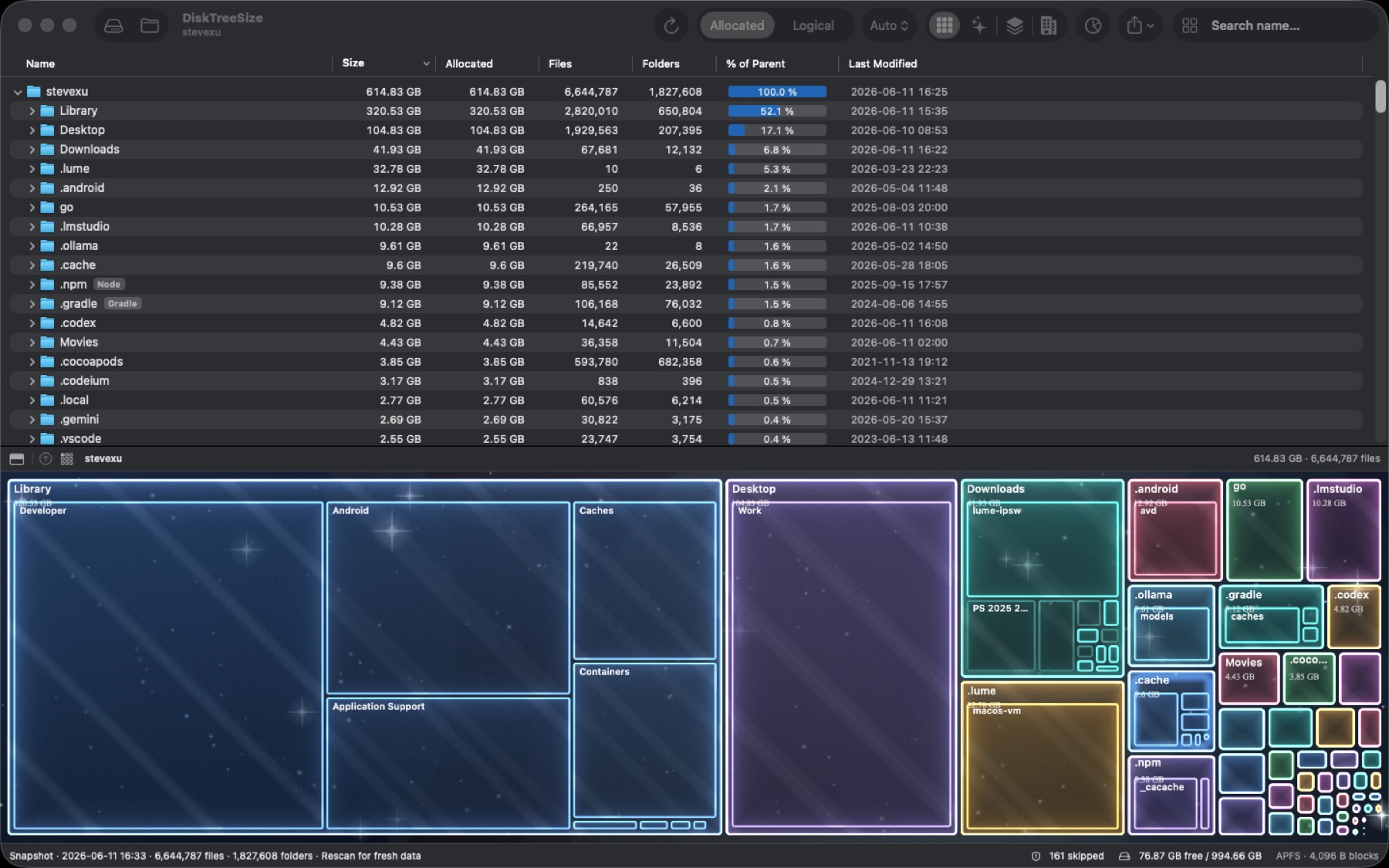
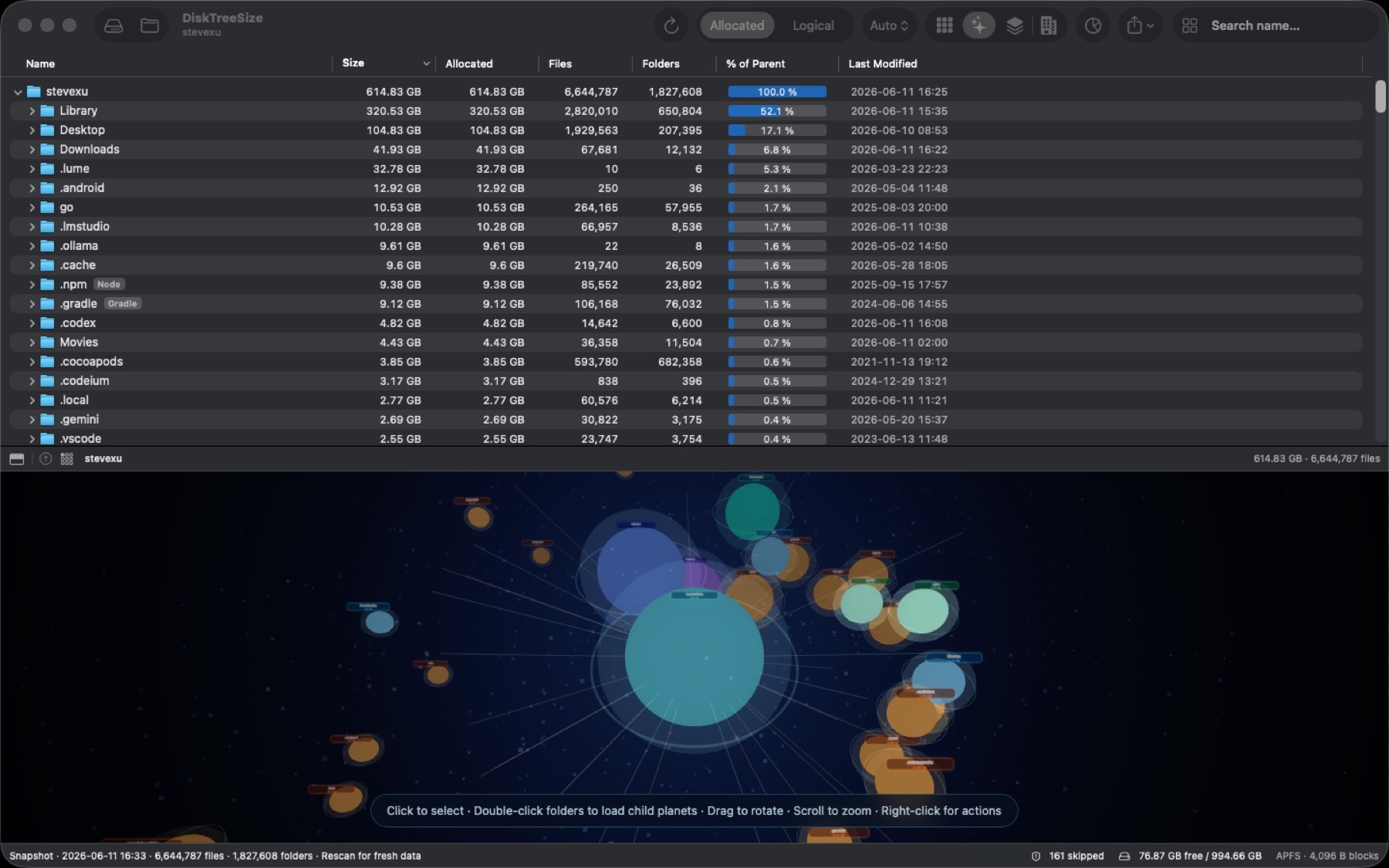
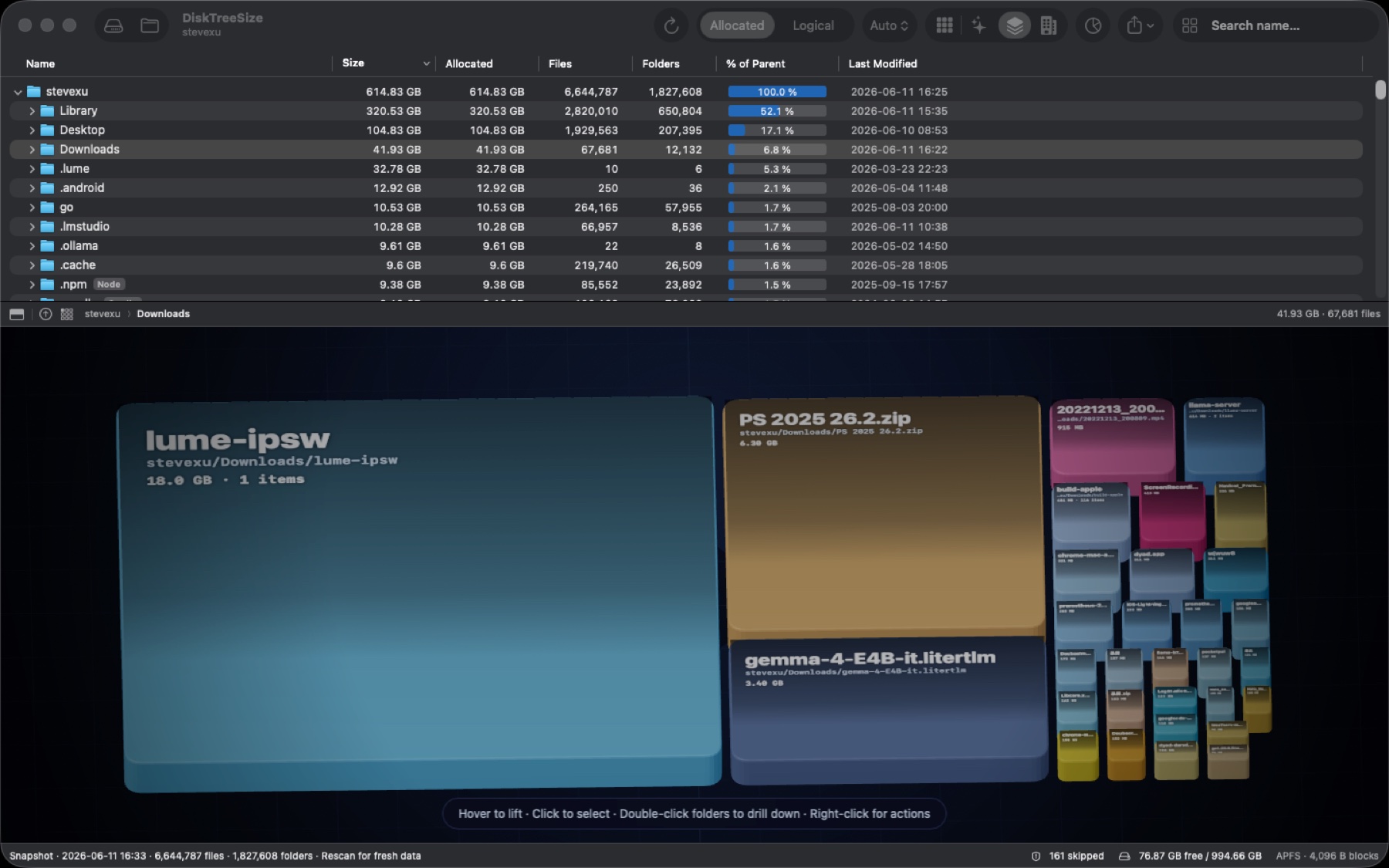
Sort the Size or Allocated column from largest to smallest and expand the largest folders. Four visual views help explain the space distribution.
Identify files before acting
Search a known name or copy a path to check its location. Pro adds Finder navigation, report export, and confirmed moves to Trash.
Free analysis and Pro features
The free download includes folder scanning, an expandable tree, size sorting, four visual views, name search, and file type statistics.
Pro can reveal items in Finder and open folders in Finder, export CSV / JSON reports, and move items to Trash after confirmation. See the purchase window for the current price.
When you first request a Pro feature, you can choose a 30-day trial. It does not automatically charge you when it ends, and free scanning and analysis remain available.
At a glance
- Platform
- macOS
- Category
- Utilities
- Version
- 1.0.8
- Updated
- 2026-06-27
- Download
- Mac App Store ↗
- Privacy Policy
- Privacy Policy
Screenshots
Key Features
Frequently asked questions
Does DiskTreeSize automatically clean caches?
No. It shows the space used by files and folders without deciding which files are safe to remove. Moving an item to Trash requires your action and a separate confirmation.
Can I filter files larger than 1 GB?
The current version has no file-size range filter. To find large files, sort by size and expand folders. The search field matches file and folder names only.
Why does the result differ from Storage in System Settings?
DiskTreeSize measures the selected, accessible folder. System Settings covers the disk and uses its own categories. Protected or inaccessible locations can be skipped, so the totals need not match.
Does moving a file to Trash immediately free the displayed space?
Not necessarily. Trashed files remain on disk and can be restored before the Trash is emptied. Allocated size is not a promise of recoverable space. Empty the Trash only after deciding you no longer need its contents.