Mac System Data Too Large
When System Data occupies hundreds of GB, inspect accessible folders to identify large application data or caches, then confirm how to manage them in the app that owns them.
System Data can show tens or hundreds of GB in Mac Storage settings without an expandable list explaining where it all went. To investigate, turn the category into specific questions: which application data, caches, or project folders are largest, and are they still needed?
DiskTreeSize helps compare those folders. It analyzes locations you authorize; it does not label its results as macOS System Data or decide that a large folder is disposable.
What does System Data mean?
Apple uses System Data for content outside its more specific categories, including some runtime resources, logs, caches, and application support data. The category can change with the Mac's current state. See Apple's Storage settings explanation.
There is no single folder called “System Data” to empty. Also, your user Library at ~/Library differs from /System/Library, which contains system resources. This guide starts with your own application data and work folders.
First, check available storage
In macOS 13 or later, open System Settings → General → Storage. Earlier versions show Storage under About This Mac. Note the disk's available capacity as well as the category size, so you can compare the result afterward.
If the category is large but the disk has sufficient available storage, investigate its sources before changing unfamiliar folders merely to shrink the category.
Next, choose user Library or a known location
In Finder, choose Go → Go to Folder and enter ~/Library. The ~ represents your user home folder. See Apple's folder navigation guide.
In DiskTreeSize, click Choose Location, press Command-Shift-G in the system selection dialog, enter the same path, and confirm the folder. You can narrow the scan by choosing one of these existing locations instead:
| Location to investigate | Why inspect it? | How to identify the contents |
|---|---|---|
~/Library/Application Support |
Applications can retain substantial local data | Expand the application folder and check its own data or download controls |
~/Library/Caches |
Compare cache usage across applications | Check the owning app's management controls and whether the data is in use |
~/Library/Developer |
Xcode users may accumulate build, archive, and simulator data | Separate build products, release archives, and simulator data |
~/Library/Application Support/MobileSync/Backup |
Local iPhone or iPad backups can occupy space | Identify the device and date in Finder's backup manager |
| Your work folder | Media exports, dependencies, and old projects can grow | Confirm the project, backup, and recovery method |
These are investigation locations, not a guarantee that every item belongs to System Data or exists on every Mac. Local device backups, for example, may appear in the separate iOS Files category. If a directory is absent, investigate another existing location.
The app can read only items you authorize and macOS permits. Selecting Library does not make every protected subfolder accessible.
Follow the largest folders
- Start analysis and wait for the scan to finish.
- Sort Size or Allocated from largest to smallest.
- Expand the largest branch until you identify an app, project, or file.
- Record the path, size, and modification date and identify the owner.
For example, expand a large Application Support folder into the individual application's data rather than moving the entire parent folder. See the folder-size guide for detailed controls.
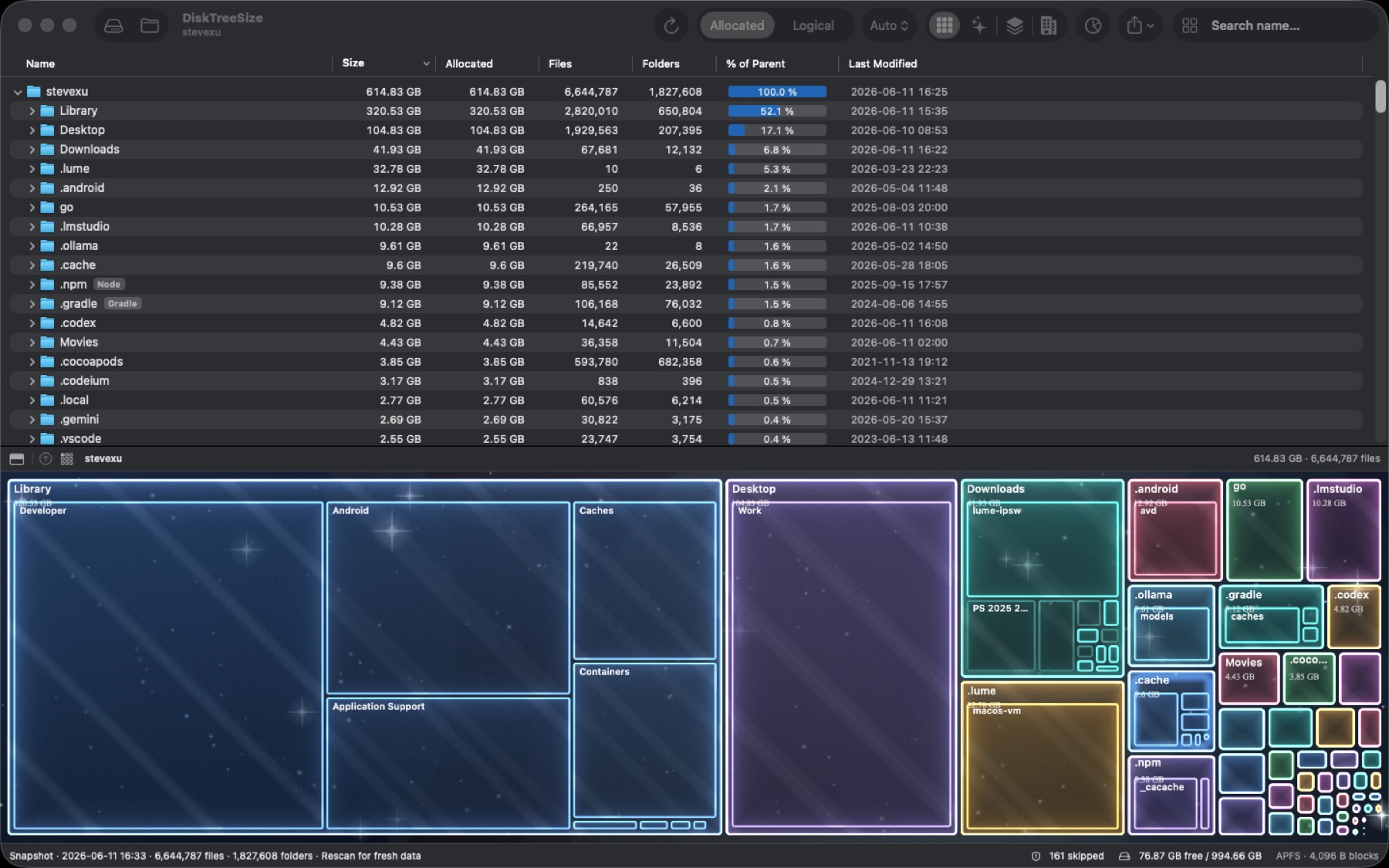
This interface screenshot illustrates the tree and visual views. It is not a complete reconstruction of a Mac's System Data category.
Manage identified content through its owner
For offline content, downloaded resources, or caches, check the responsible application's controls first. Developer directories need a distinction between reproducible products and release records you must retain; see the developer folder guide.
For a large local iPhone backup, connect the device and open General → Manage Backups on its Finder page. Confirm the device and date using Apple's backup management instructions. Do not remove pieces from inside a backup based on size alone.
Analysis, sorting, and Copy Path are free. Pro is the optional in-app paid access that adds Finder navigation, report export, and confirmed moves to Trash after scanning finishes. You still need to identify the contents before choosing an action.
Why the totals may still differ
Storage settings classify the disk, while DiskTreeSize totals accessible folders. Files outside the chosen scope, skipped items, and file system storage behavior can affect the comparison. Adding several folder totals does not completely explain the System Data category.
Time Machine local snapshots are another distinction. A snapshot preserves files at a point in time. Apple explains that snapshot space can count as available storage and is managed automatically as needed. DiskTreeSize's tree does not manage these snapshots; see Apple's local snapshot explanation.
After managing files, click Rescan for fresh folder results and check actual available storage in the system. Removing a folder displayed as 20 GB does not guarantee a 20 GB increase in free space. The allocated and logical size guide explains the measurement differences.
Frequently asked questions
Is Mac System Data all disposable cache?
No. System Data is a broad macOS category that can include runtime resources, logs, caches, and application support data. Identify the actual folder and its purpose, then use the responsible app or a supported system control to manage it.
Can DiskTreeSize list every file classified as System Data?
Not reliably. It analyzes selected, accessible folders rather than reproducing macOS storage categories. It does not provide one-click System Data cleanup or file system snapshot management, and folder totals should not be equated with the category total.
How do I select the hidden user Library folder?
Use Finder's Go to Folder with ~/Library. In DiskTreeSize's Choose Location dialog, press Command-Shift-G and enter the same path before confirming the folder. Some protected items can still be inaccessible.
Does investigating disk usage require Pro?
No. Folder scanning, the tree, size sorting, and visual views are free. Report export, Finder navigation, and confirmed moves to Trash are Pro features.