Find and Delete Mac Images by Size, Name and Date
Screenshots, exported drafts and downloaded images can build up into hundreds of files. When you want to remove large images or clear out material from an old project, a file name alone is not enough, and opening every image takes time.
PicCaddy's Image Cleanup brings names, file sizes, modification dates and previews together. Narrow the folder to the files you want to inspect, select the ones you no longer need, then confirm moving them to Trash. You do not have to open the whole folder one image at a time.
Open the folder you want to organize
Click Image Cleanup… in PicCaddy's main window and choose an image folder. In Finder, you can also use Image Tools → Clean Images in Folder… from the right-click menu and grant access when requested. See the complete guide to enable the Finder extension.
The list shows thumbnails, names, pixel dimensions, file sizes and modification dates. It reads only this folder, without including subfolders. Choose another directory when you want to organize that directory's images.
Find large files first
For example, to inspect screenshots larger than 10 MB, click Filters, enable File size, choose Greater than, enter 10 and select MB. Close the panel to work with the matching images.
You can also click the File size column header and switch to descending order to bring larger images to the top. A large image may still be worth keeping: filters identify candidates and never delete them automatically.
To find a range such as 2–5 MB, choose Between and enter both values. File size refers to the size of the image file. Use Image dimensions when you want to filter by width, height or longest edge instead.
Search for a name you remember
Enter part of a file name or a project name in the search field. Chinese names can also be searched using pinyin or initials: for a file named 旅行01.jpg, try the initials lx, then check its preview.
Name search works together with size filters. Search for your project while a size filter is active, and the list shows matching project images above that threshold rather than every image in the folder.
Find older images by modification date
Enable Modified date in Filters. To find material that has not changed for a long time, choose Older than and A year. To inspect recent images, choose Within and 7 days. Use Before date for a particular cutoff.
This is the file's modification date, not its capture date or creation date. An old photo you recently edited may appear among recently modified files. Combine the date with a name search and preview to identify the image you actually want.
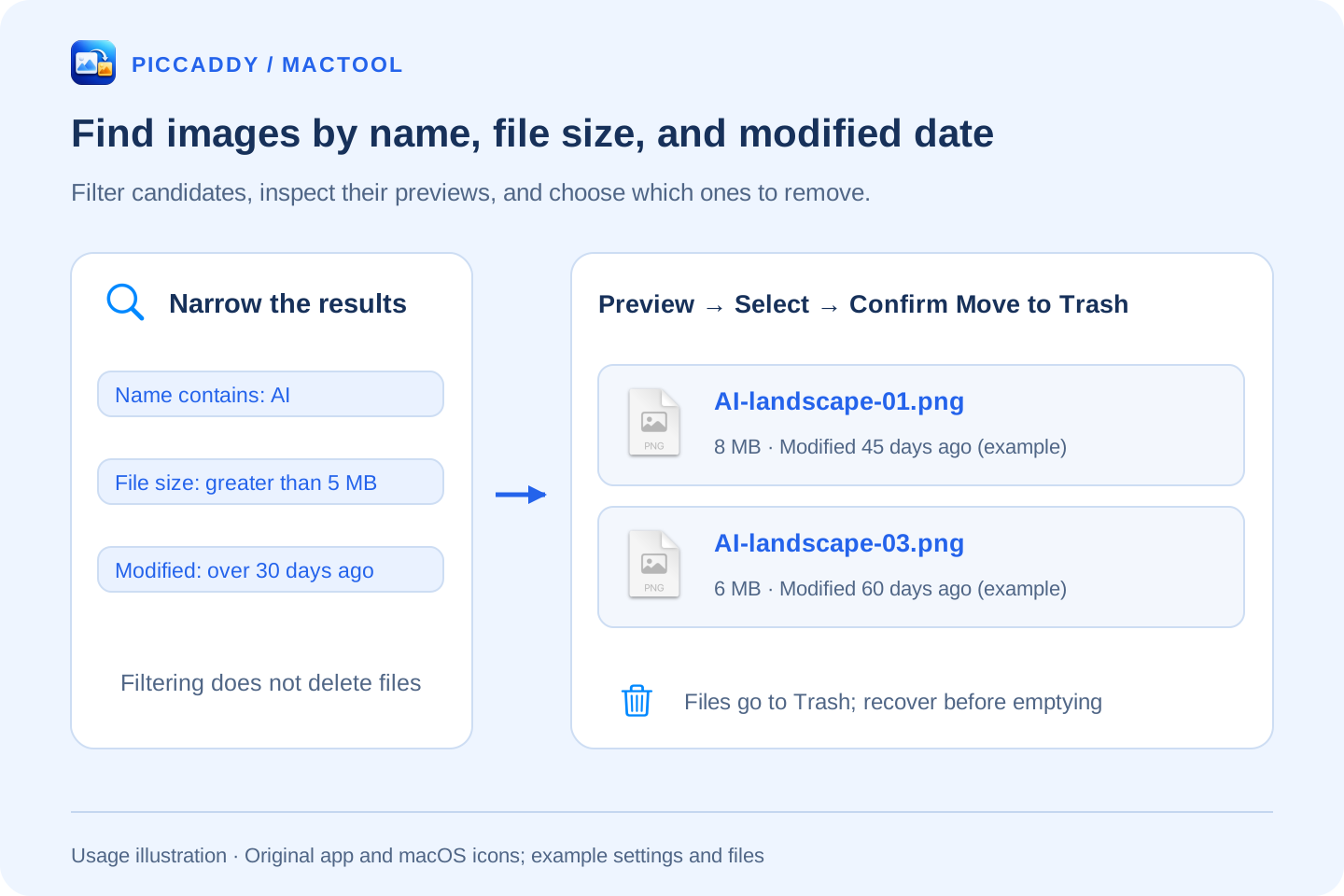
The illustration uses example files. Use one condition or combine name, size and modification date.
Preview, select, then move to Trash
Click an image in the list to preview it on the right. For a closer inspection, use Quick Look in the preview pane to open the macOS preview. Check the row of each unwanted image, or use Select current results to select the visible matches.
The bottom bar shows the selected count and total file size. Click Move to Trash when ready, then check the count, size and folder in the confirmation dialog.
Changing the filters can hide files you already selected without clearing their selection. The bottom bar and confirmation dialog show how many hidden images are included. To process only the group currently visible, click Deselect all first, then Select current results. Confirmed files go to the macOS Trash and remain recoverable until it is emptied.
For choosing photos one by one, see folder browsing with Previous and Next. The complete PicCaddy guide covers conversion, editing and compression; download the app from the product page.
Frequently asked questions
Can I find images larger than 10 MB in a folder?
Yes. Enable File size in Image Cleanup's filters, choose Greater than, enter 10 and select MB. You can combine this with name, modification-date or format filters.
Does the date filter use the photo's capture date?
No. It uses the file's modification date. You can select a cutoff date, recent files or files older than a chosen period.
Can I restore images after deleting them?
Image Cleanup moves selected files to the macOS Trash after confirmation. You can restore them before emptying the Trash.