How to Check Folder Sizes on Mac
Use Finder's Get Info to check one folder on your Mac. Use DiskTreeSize when you want to compare subfolders and follow the largest ones to the files inside. Starting with a familiar folder makes the results easier to interpret than beginning with the whole disk.
Check one folder in Finder
Select a folder in Finder and press Command-I, or choose File → Get Info. This is a useful way to check a specific location. To identify its largest subfolders, you still need to inspect their contents. See Apple's file information instructions for the built-in controls.
For a question such as “which part of Downloads takes up the most space?”, a sortable folder tree offers a more direct comparison.
Choose a location in DiskTreeSize
DiskTreeSize requires macOS 12 or later. After installation:
- Click Choose Location to open the system folder picker.
- Select Downloads, Documents, or a project folder you recognize.
- Click Analyze to start scanning and wait for the results to populate.
The app reads file-system information such as names, paths, sizes, and modification dates, without reading file contents. The selected folder defines the scan's scope: a Downloads scan is not a measurement of your entire Mac.
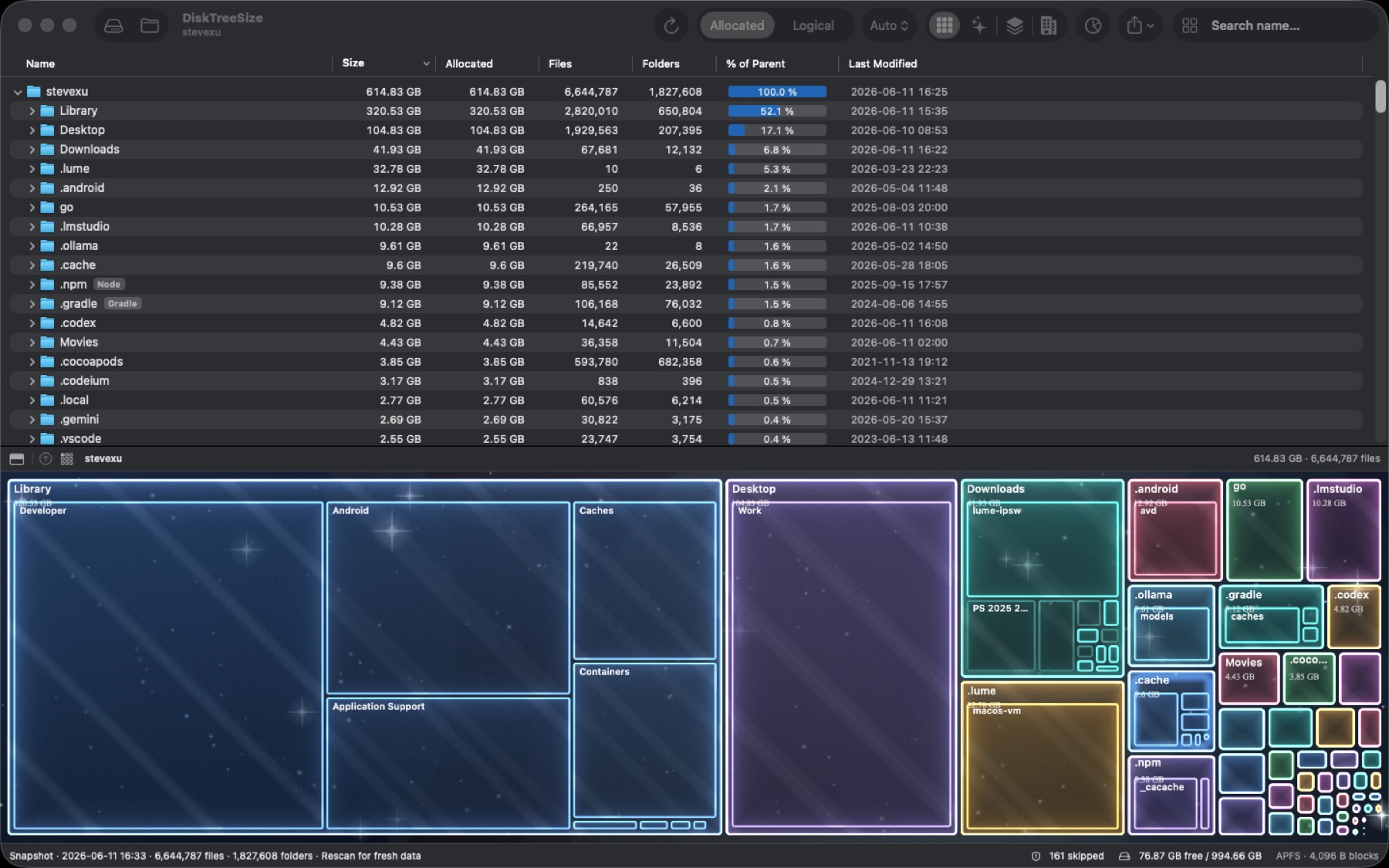
This screenshot illustrates the interface. Its sizes belong to the Mac used for the screenshot and are not a promise of space you can recover.
Sort by size and expand the largest folders
Click the Size or Allocated column heading to sort from largest to smallest. Expand the largest subfolder, compare the next level, and keep following the relevant branch.
For example, a large project folder might contain source files, build output, or media assets. Expanding it helps distinguish those uses. This is a comparison within each folder, rather than a single ranking of every file on the disk.
Item counts, modification dates, and parent percentages provide context. A parent percentage describes a folder's share of its immediate parent, not its share of the entire disk.
Explore the four visual views
Treemap, Galaxy, 2.5D Tiles, and City views show space distribution. Use the folder tree to confirm the names and locations behind a visual area.
Click File Types to review usage grouped by extension across the scan. This summary covers the overall scanned location, rather than only the subfolder currently selected in the tree.
To find a known item, enter part of its name in Search name… and press Return. To find large files, sort by size: the search field does not offer a “larger than 1 GB” filter.
Understand differences and access limits
The Allocated and Logical toolbar options use different size measurements. A difference does not automatically mean an error; the allocated versus logical size guide explains how to compare them.
If a location is skipped, check the selected scope and its access permissions. Protected locations cannot always be read. DiskTreeSize measures accessible folders and does not recreate System Settings categories such as System Data.
Decide what to do next
Scanning, the tree, sorting, four views, name search, and file type statistics are free. Finder navigation, CSV or JSON export, and confirmed moves to Trash are Pro features.
Identify a file's purpose before keeping, moving, or removing it. For a more focused review of oversized items, continue with the large file guide.
Frequently asked questions
Do I need an app to check one folder's size?
No. Select the folder in Finder and press Command-I to open Get Info. DiskTreeSize is useful when you want to compare multiple folders and trace their contents through a tree.
Do scanning and the four visual views require Pro?
No. Scanning, the folder tree, size sorting, four visual views, name search, and file type statistics are free analysis features. Finder navigation, report export, and Move to Trash require Pro access.
Why are some folders inaccessible?
The app can read only locations you authorize and macOS permits. Protected or inaccessible items may be skipped, so a scan is not a guaranteed complete measurement of the disk.