DaisyDisk vs DiskTreeSize
Try DaisyDisk for sunburst navigation and its edition-specific advanced features. Try DiskTreeSize’s free analysis when you prefer an expandable directory tree alongside a space map.
DaisyDisk and DiskTreeSize can both help identify large folders on a Mac. The useful comparison is how you navigate, and what you need to do after finding a file. DaisyDisk uses a sunburst map. DiskTreeSize combines an expandable directory tree with a space visualization. If you are looking for a free DaisyDisk alternative, decide whether you only need analysis or also need file actions and advanced scanning.
This article is written by the DiskTreeSize developer. DaisyDisk features were checked against official documentation. Its illustration below is our screenshot of the vendor’s website, not a local scan: the current trial requested email registration, which we did not complete. DiskTreeSize was run locally using a purpose-built demonstration folder. Image captions distinguish the two sources.
Compare the operations you actually need
| Task | DaisyDisk | DiskTreeSize |
|---|---|---|
| Find a large folder | Navigate a sunburst and its current-level list | Expand a directory tree, sort by size, and inspect the map below |
| Visualize space | Sunburst sectors and concentric folder levels | Treemap, galaxy, 2.5D tiles, and city; no equivalent sunburst |
| Analyze without purchasing | Trial permits scanning, browsing, and previewing; other actions are locked | Scanning, sorting, name search, four views, and file-type statistics are free |
| Reveal a file in Finder | Paid feature | Pro feature |
| Remove unwanted items | Paid edition uses a Collector before permanent deletion | Pro moves items to system Trash after confirmation |
| Administrator and direct cloud scans | Available in the appropriate paid edition; administrator scanning is excluded from the App Store edition | No administrator mode or cloud-account connection |
| Export a file list | CSV/JSON list export was not confirmed in the official material checked | Pro exports CSV for spreadsheets and JSON for programs |
See the official trial comparison and edition differences. DiskTreeSize Pro pricing is shown in the app; its analysis features can be used without purchasing Pro.
DaisyDisk: follow the widest sector
The sunburst helps answer “Which branch should I investigate next?” The official map guide explains that wider sectors represent larger items. Click a folder to descend and the center to return to its parent. Pointing at a folder displays its contents in the side list.
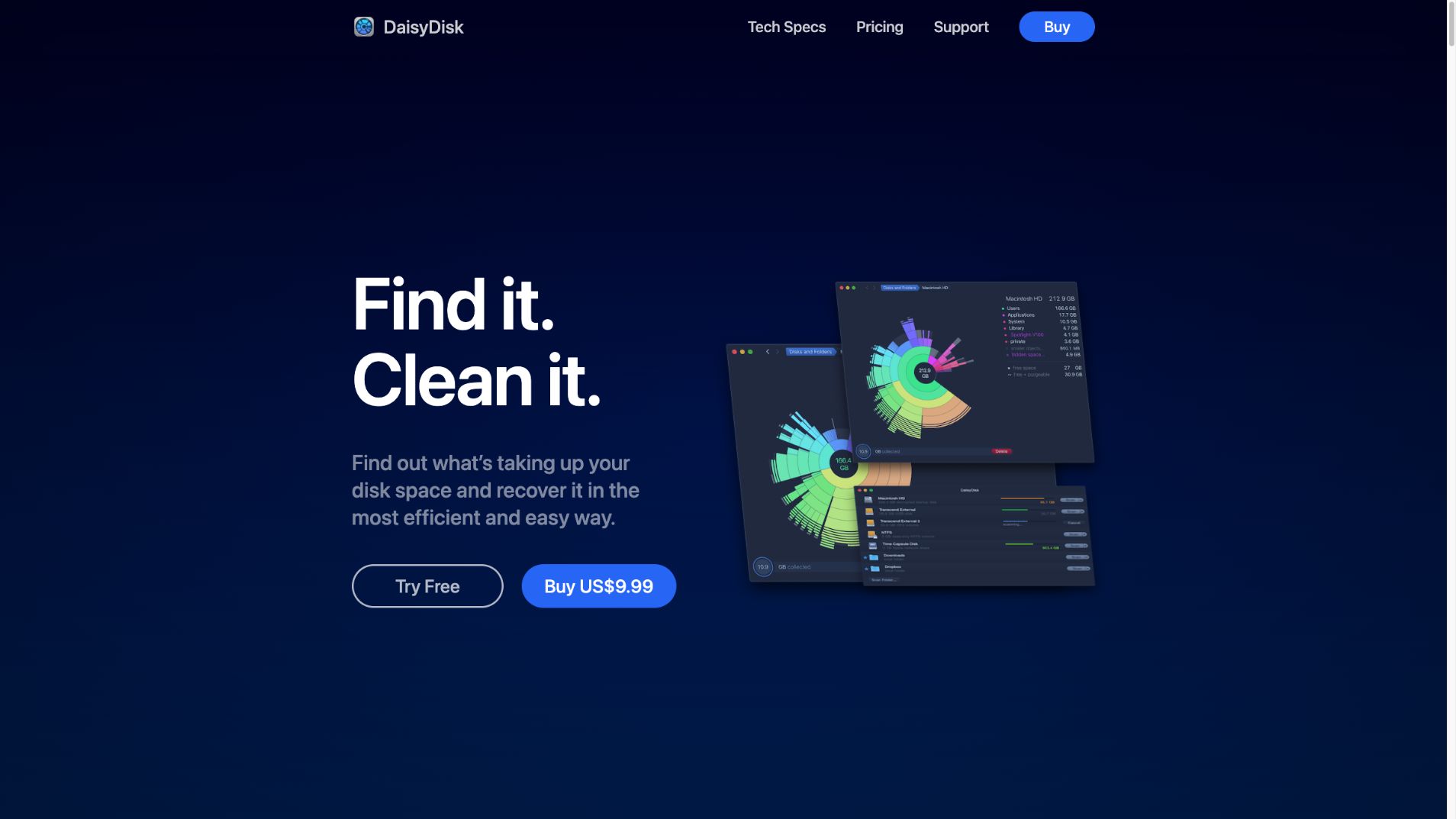
Source: DaisyDisk’s website, captured by us on October 19, 2026. The application images, filenames, and capacity figures are vendor examples. They are not the demonstration folder shown in the DiskTreeSize image and cannot establish comparative scan results.
Try this approach if you like following proportions through one folder level at a time. If you regularly keep several branches expanded while comparing names and exact figures, a directory tree may fit your routine better.
DiskTreeSize: expand folders and compare their numbers
Choose a location and start analysis. Sort by size or allocated space, then expand the largest branch. The lower treemap shows the distribution while the table keeps names and figures visible.
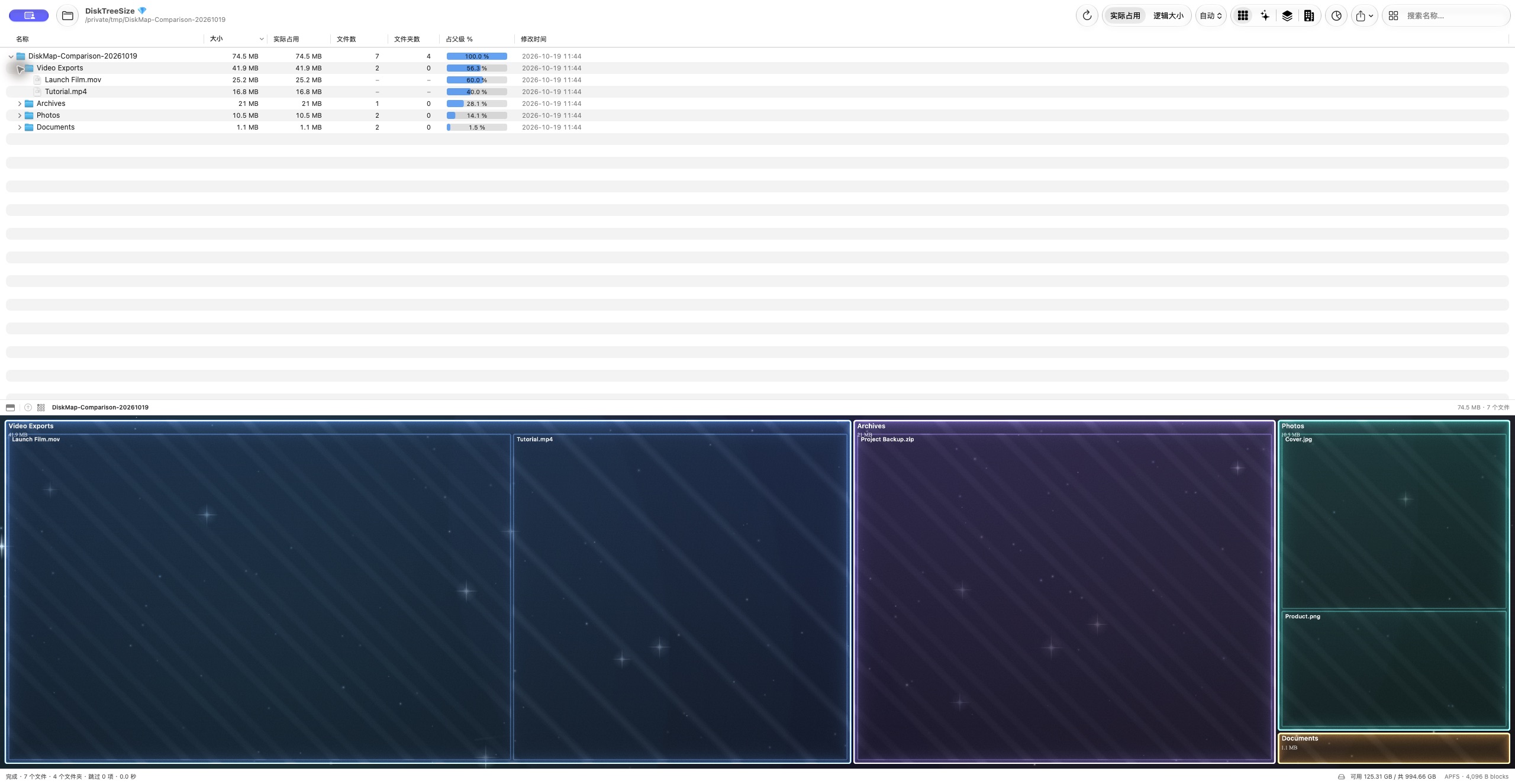
This is a real local screenshot with a Chinese interface. All sample names and contents were prepared for illustration and do not represent recoverable space on a typical Mac.
In the example, expanding Video Exports exposes two files for direct comparison. You can also right-click a folder and choose Show in Treemap to focus the lower map on that branch. A treemap represents size using rectangle area.
If you know part of a filename, enter it in the name search field and press Return. This searches names; it does not apply size or file-age conditions. See the large-file guide for a longer walkthrough.
Watch the walkthrough: find the biggest folders and files
This additional example uses a separate, larger sample: about 19 GB across 111 files. Start with Media, the largest subfolder, then return to the root to confirm the largest individual file: Autumn Launch 4K.mov, about 3.87 GB.
Play on this page
English voice and captions, about 83 seconds. Watch on YouTube.
Real app footage with generated demonstration files. This is not your disk data or a macOS System Data category report. Identify each file before deciding what to do with it.
See full-size Galaxy, 2.5D and City screenshots. Use the shapes to explore and the directory table for exact size comparisons.
What the galaxy, tiles, and city actually look like
For a clearer view of these modes, we also prepared a separate demonstration folder with 111 files, 38 folders, and about 18.9 GB of allocated space. It includes several 1–4 GB files alongside smaller images, audio, and documents. The three screenshots below use the same scan, with the directory tree collapsed. Their data and appearance have not been edited.
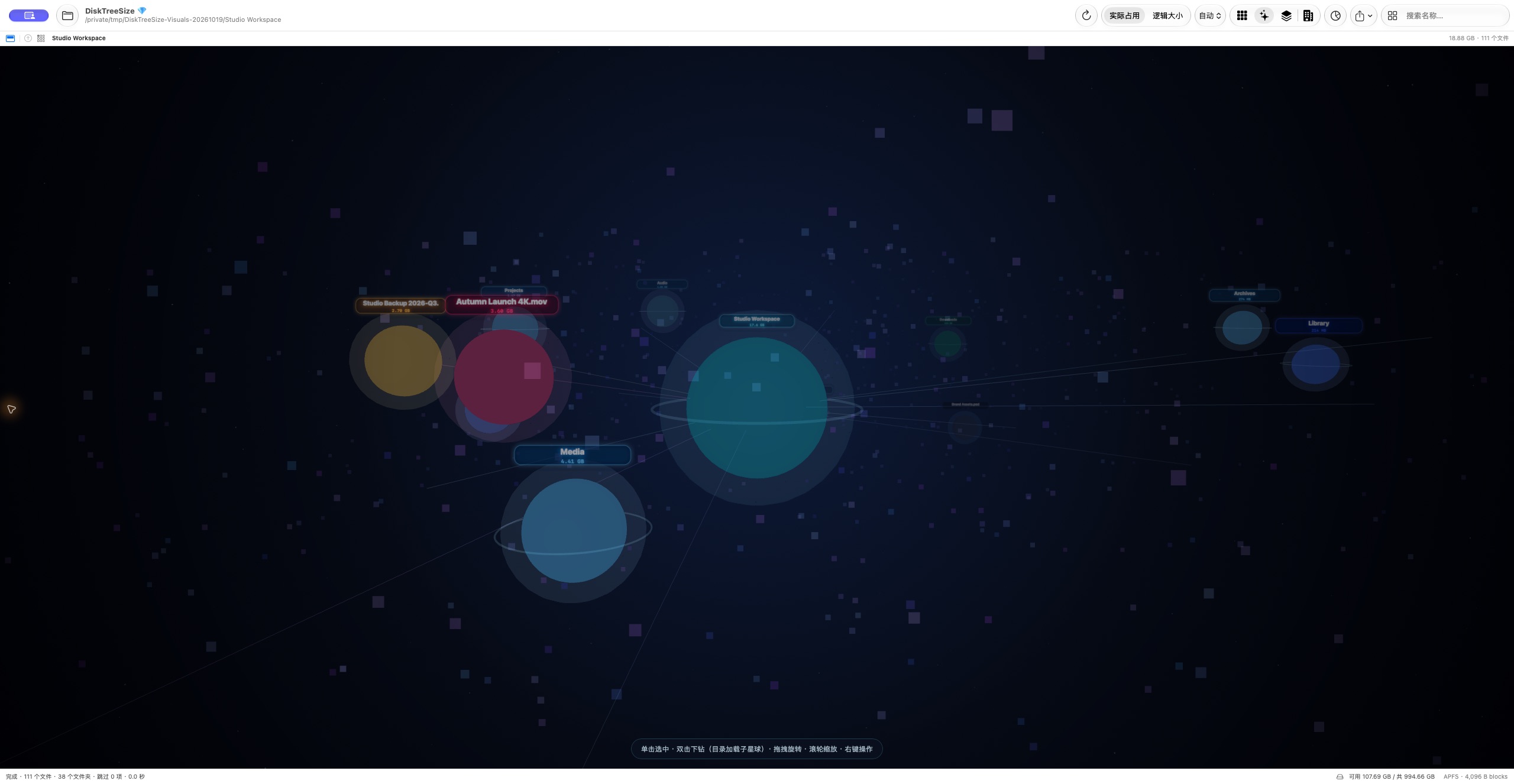
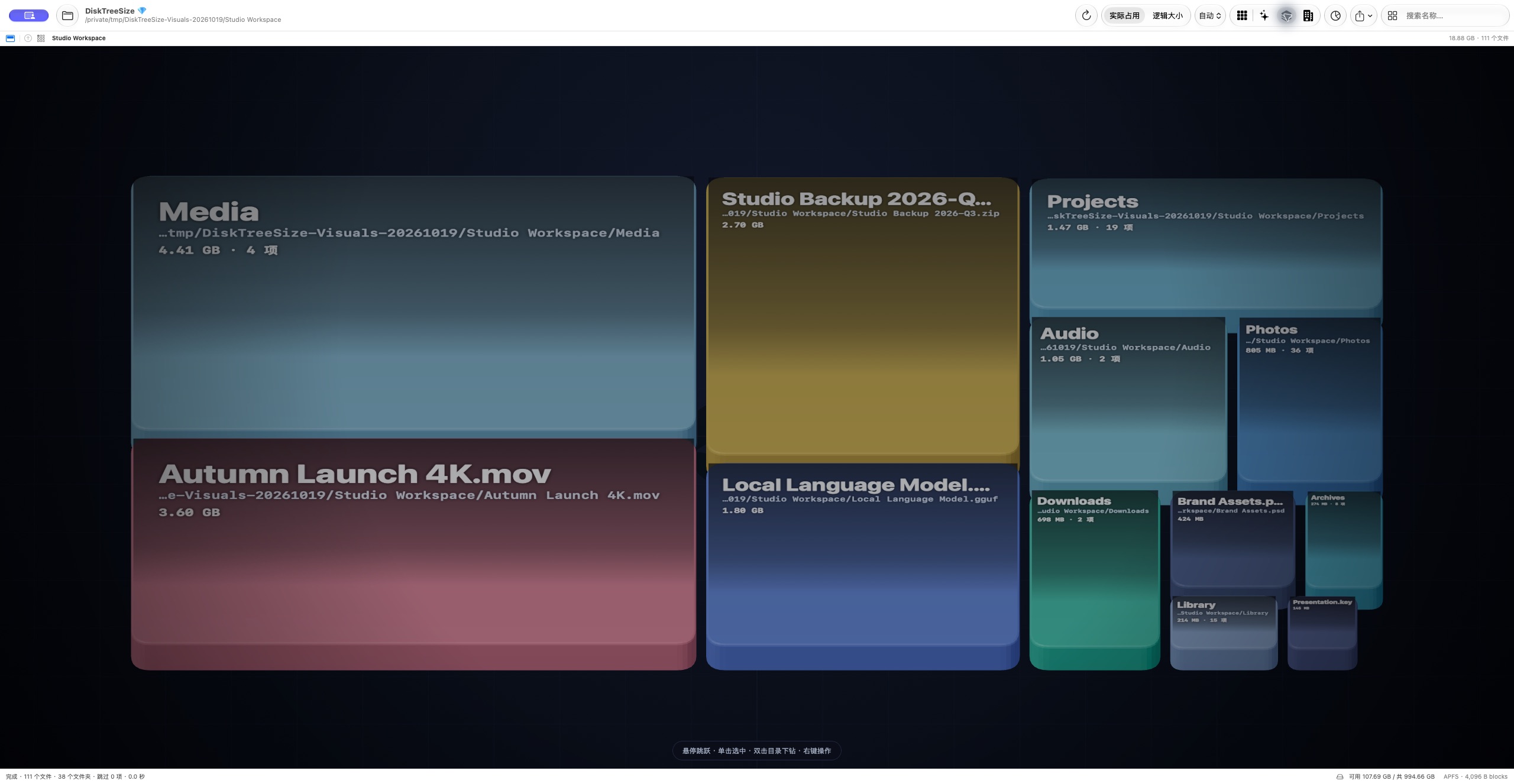
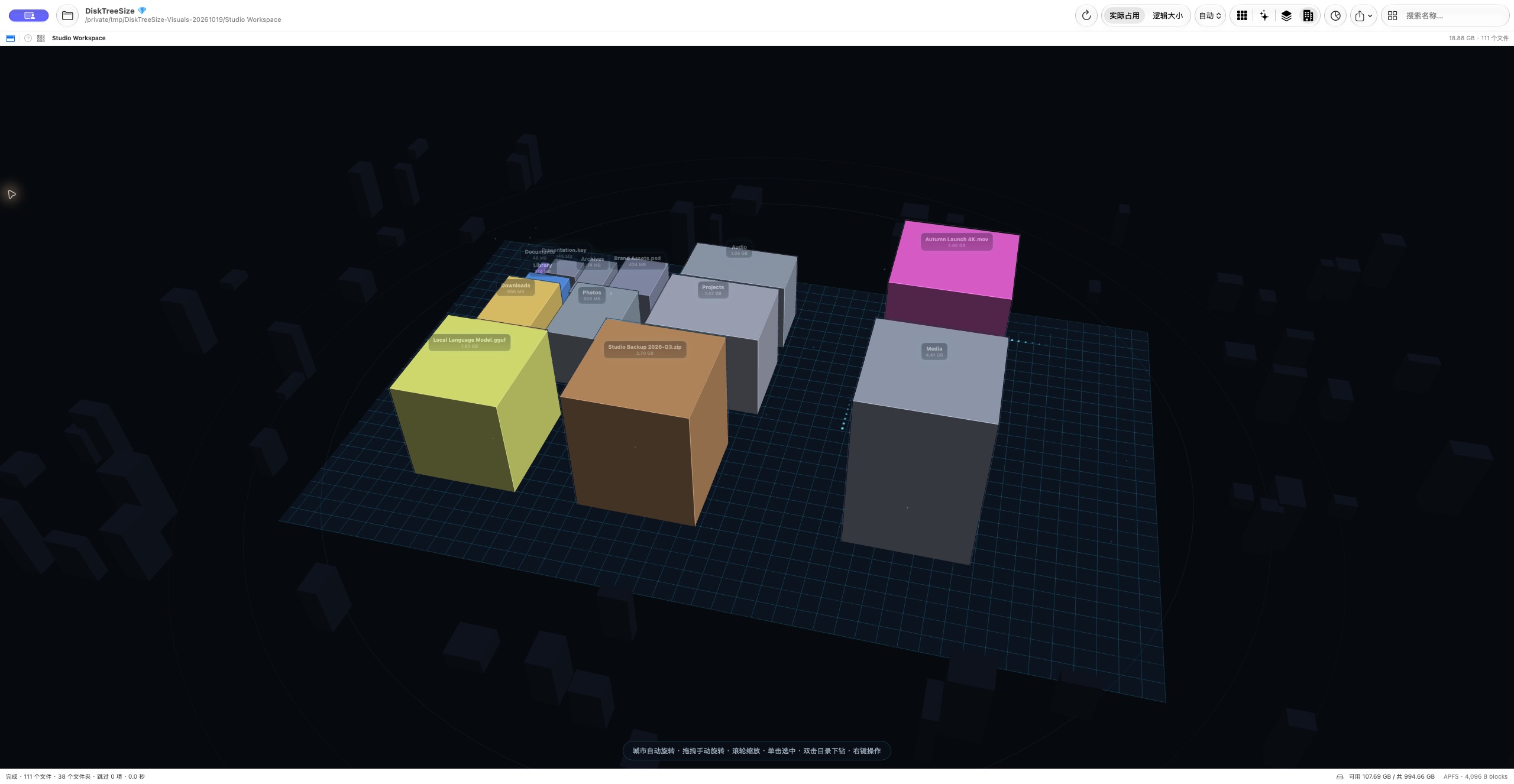
Click each image for the original. The shared screenshot gallery also includes the treemap and versions showing the directory tree. These are generated samples, not a promise of recoverable space. Use the tree’s numerical columns for precise size comparisons.
Check the DaisyDisk edition before choosing
On October 19, 2026, the website listed DaisyDisk 4.34.2. Its system specifications include macOS 10.13 or newer and Apple Silicon and Intel processors. It is sold with a one-time license, while the trial has no time limit.
The download channel matters. The official edition table says the App Store edition excludes administrator scanning and cannot reveal hidden-space details or actively purge purgeable space in the same way as the stand-alone edition. These categories concern unaccounted or reclaimable storage; they do not mean every item is disposable.
If restricted locations, hidden-space analysis, or directly connected cloud storage are your reason for buying, check the appropriate DaisyDisk paid edition first. DiskTreeSize analyzes authorized locations and does not provide those equivalent advanced functions.
File actions are another meaningful difference
DaisyDisk’s deletion guide describes collecting chosen items before deleting them. It explicitly says deletion is permanent rather than a move to system Trash.
DiskTreeSize Pro asks for confirmation before moving an item to Trash. Scanning and inspecting the tree and maps remain free; Finder actions and CSV/JSON export are optional Pro features. Neither app’s deletion behavior was exercised for this article.
Choose DaisyDisk when you prefer sunburst navigation or need its edition-specific advanced scanning. Choose DiskTreeSize when local folder inspection, expanded branches, and numerical comparison are the main jobs. Its Pro export can be useful when you need a file list outside the app.
No scan-speed ranking was performed. Large items are investigation leads, and displayed size is not a promise of reclaimed space. The logical versus allocated size guide explains that distinction.
Frequently asked questions
Is DaisyDisk free?
DaisyDisk has a trial without a time limit. It can scan, browse the sunburst map, and preview files. Deletion, revealing files in Finder, administrator scanning, and cloud scanning require a paid version; availability also depends on the distribution edition.
Does DiskTreeSize replace every DaisyDisk feature?
No. DiskTreeSize offers free folder analysis with a tree and several maps, but does not offer DaisyDisk’s sunburst, administrator scanning, or direct cloud-service connections.
Do both apps move deleted files to Trash?
No. DaisyDisk’s official guide describes permanent deletion. DiskTreeSize Pro asks for confirmation before moving an item to the system Trash. No deletion was performed for this article.