GrandPerspective vs DiskTreeSize
GrandPerspective centers its workflow on configurable treemaps and filters. DiskTreeSize keeps folder names, size columns, and a map together.
GrandPerspective is already a useful free option for inspecting Mac disk usage with a treemap. DiskTreeSize also offers free folder analysis, but the two applications emphasize different operations. GrandPerspective focuses on selecting and filtering items in a map. DiskTreeSize combines an expandable directory tree, numerical columns, and a space visualization.
This article is written by the DiskTreeSize developer. We ran GrandPerspective 3.8.1 and DiskTreeSize against the same purpose-built folder and captured the results below. This small example demonstrates interaction, not comparative scan performance. No files were deleted. The screenshots show Chinese interfaces.
Compare the main differences
| Requirement | GrandPerspective | DiskTreeSize |
|---|---|---|
| Free use | Official SourceForge release is free and open source; paid App Store distribution provides the same app | Analysis, sorting, name search, four views, and file-type statistics are free; file actions and reports are optional Pro features |
| Explore folders | Select items, zoom, and change focus in a treemap | Expand and sort a directory tree while focusing the lower map independently |
| Change presentation | Treemap with configurable colors, palettes, and displayed item types | Treemap, galaxy, 2.5D tiles, and city |
| Show matching files | Configurable tests for name, path, type, size, and more; filters and masks | Name search and size sorting; no equivalent combined filter system |
| Open or handle files | Open, Quick Look, reveal, and delete controls; deletion must be enabled in preferences | Finder actions and confirmed moves to Trash require Pro |
| Keep results | Save reloadable scan data; export image or text | Pro exports CSV and JSON |
The official GrandPerspective site lists its features and distribution options; the navigation guide explains opening, previewing, and deleting items. Choose the official SourceForge download for free use, or the paid App Store distribution if you prefer to obtain updates there.
GrandPerspective: start with a large rectangle
Choose a folder to scan. Files appear as rectangles, and their area reflects the selected size measure. Files from the same folder appear together. Select a rectangle to read its path and size at the bottom of the window.
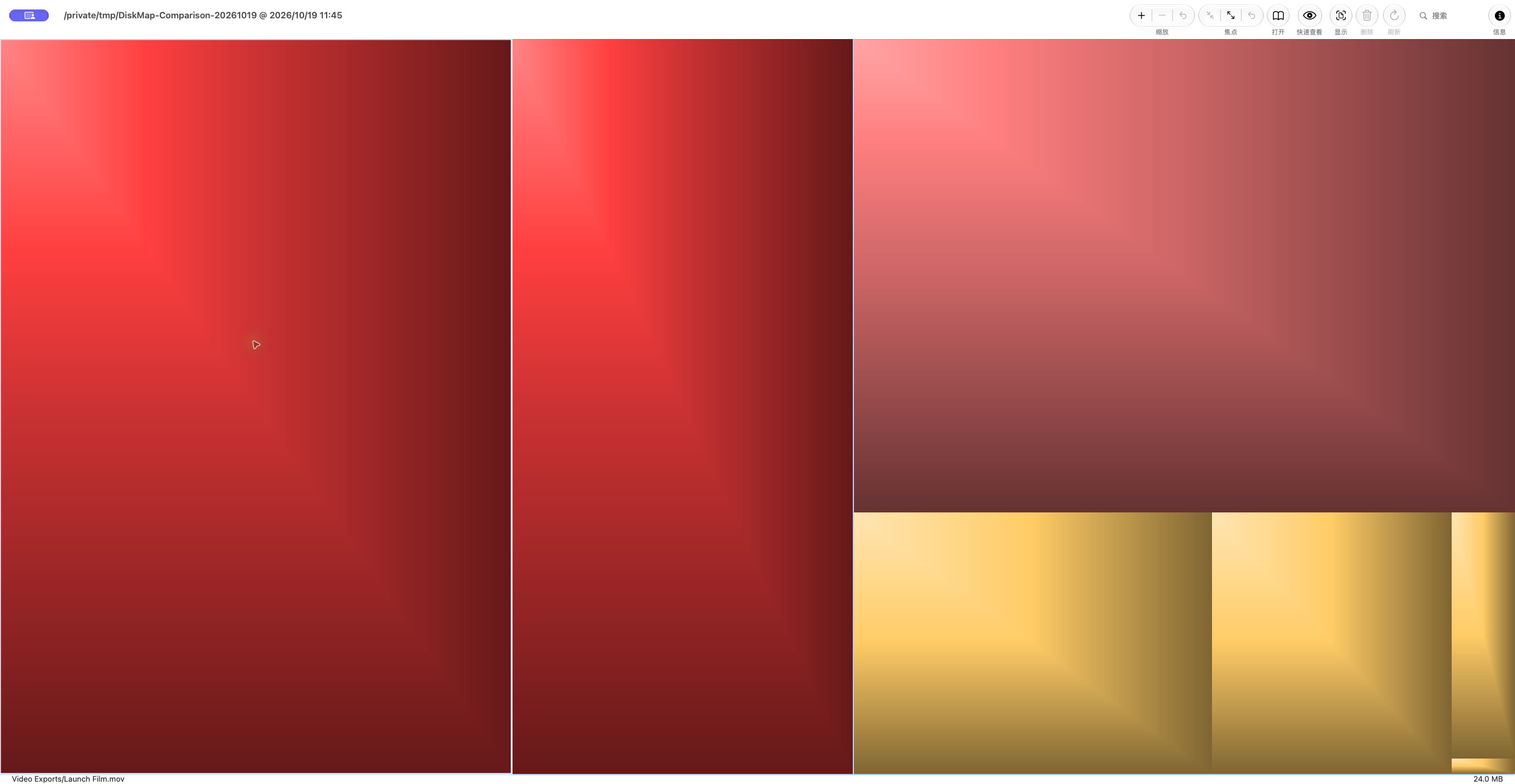
This is a real local screenshot. The folder contains only seven prepared files so the interaction remains easy to see. A normal disk has many more rectangles. Their placement is not a filename sort, so use the path and navigation controls when identifying an item.
Selecting an item enables relevant toolbar actions such as Open, Quick Look, and Reveal. This suits a workflow where you begin with the map and inspect the file it points to.
Conditional filtering is a reason to choose GrandPerspective
GrandPerspective can change which files the map includes. For this example, we created a filter in GrandPerspective → Filters, added the built-in image test, and applied it through Window → Filter to the existing scan.
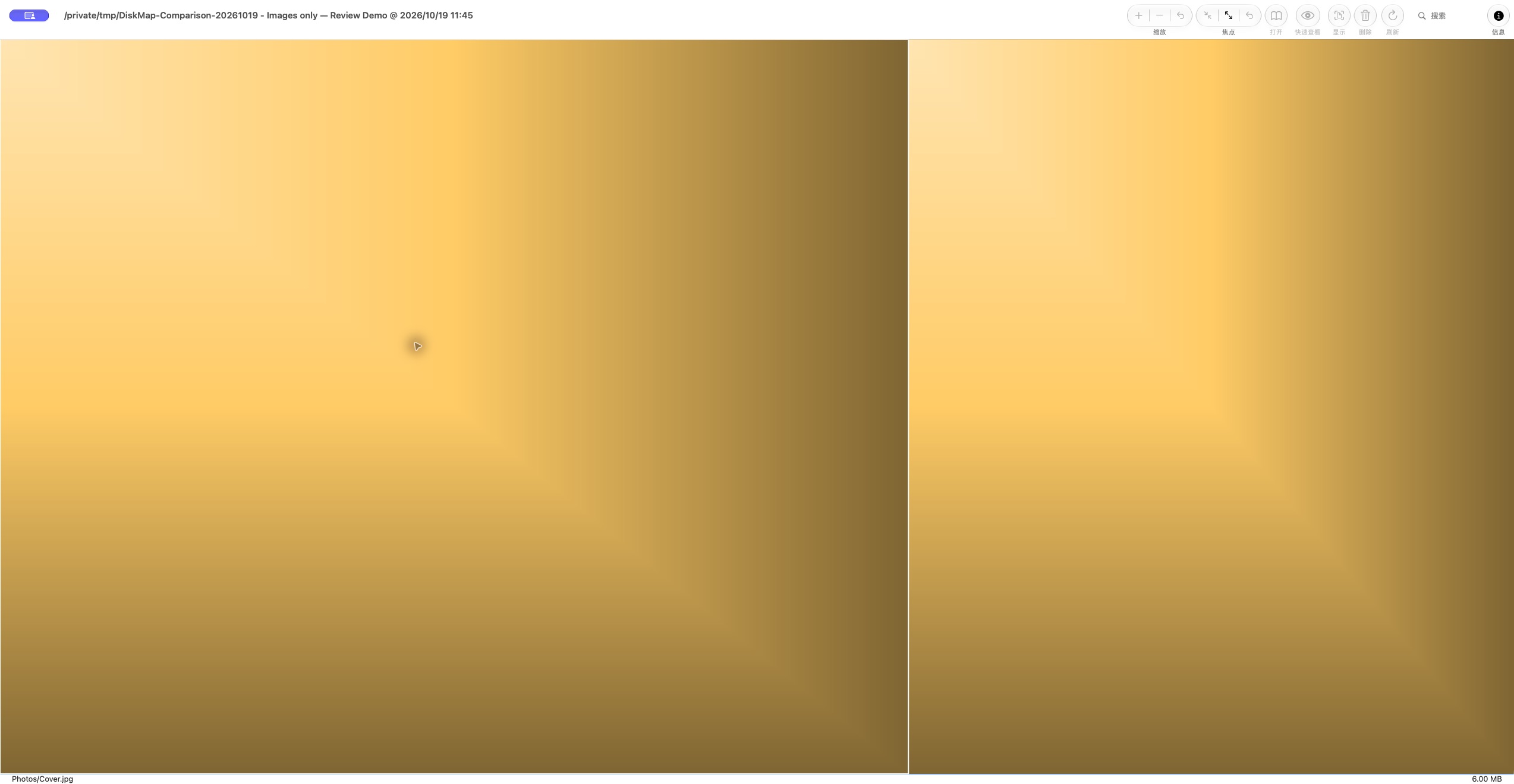
The filtered view contains two image rectangles; the sample videos and archive no longer occupy its area. The filter’s name was entered for this demonstration and is not a built-in preset name.
A filter and a mask have different effects. The official guide explains that a filter creates another view excluding items that do not match. A mask hides those items while retaining their space in the layout. Use a mask to examine matching items in their original spatial context, or a filter to devote the view to the remaining items.
The filter-test reference covers name, path, type, size, and other tests. DiskTreeSize’s name search and extension statistics do not reproduce this conditional filtering system.
DiskTreeSize: expand branches to compare numbers
Choose a location, analyze it, and sort by size or allocated space. Expand the largest branches to keep their filenames and values visible together.
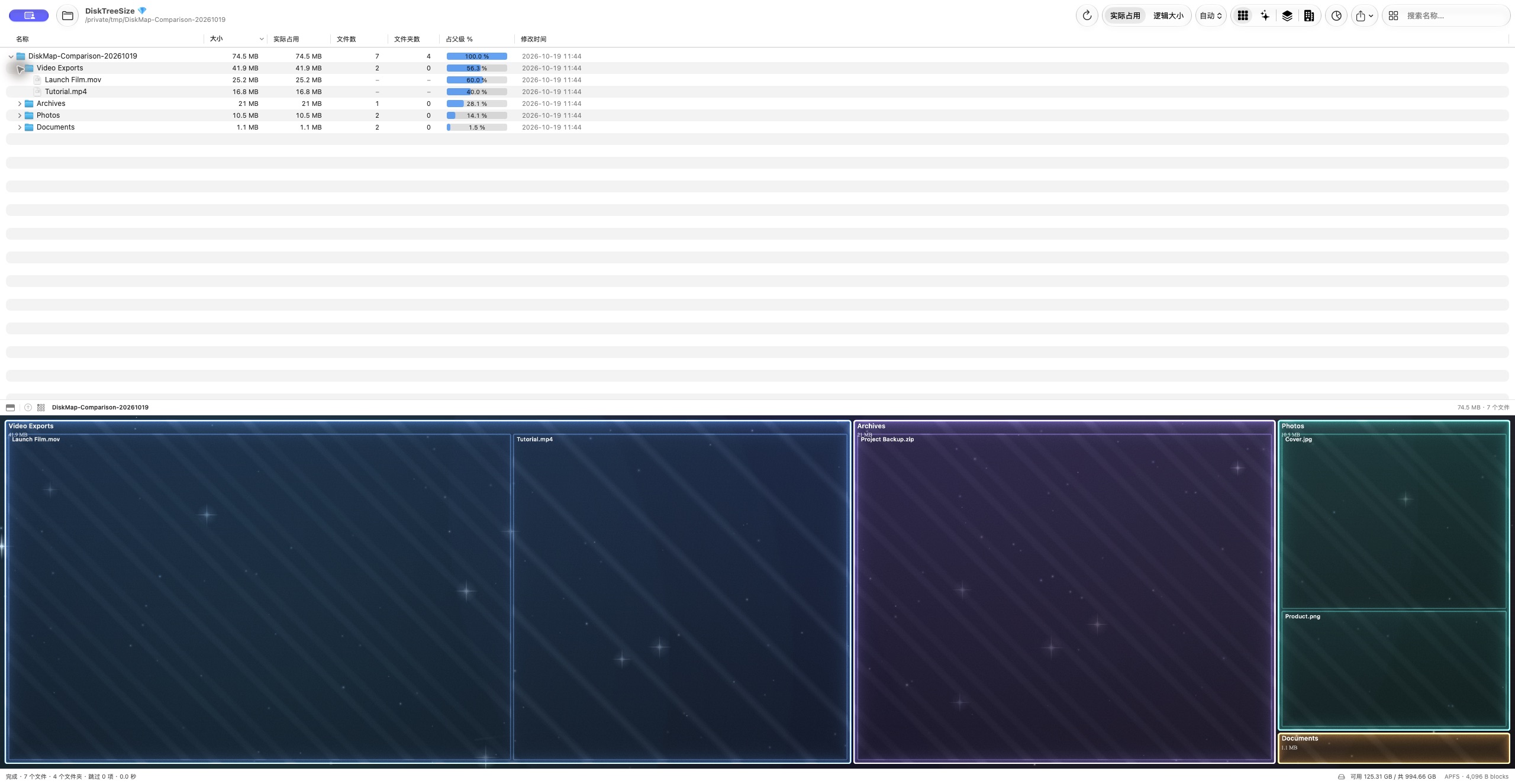
This screenshot uses the same sample folder. The table can keep several branches expanded for comparison of names, logical size, allocated space, and file counts. Right-click a folder and choose Show in Treemap to focus the lower map on it. A treemap represents size through rectangle area.
Do not subtract the displayed capacities in the two screenshots. GrandPerspective’s default units here use powers of 1024, while DiskTreeSize’s automatic units use powers of 1000. The same 25,165,824-byte sample file appears as about 24.0 MB and 25.2 MB respectively. Also check logical versus allocated size; the size guide explains the distinction.
Watch the walkthrough: find the biggest folders and files
This additional example uses a separate, larger sample: about 19 GB across 111 files. Start with Media, the largest subfolder, then return to the root to confirm the largest individual file: Autumn Launch 4K.mov, about 3.87 GB.
Play on this page
English voice and captions, about 83 seconds. Watch on YouTube.
Real app footage with generated demonstration files. This is not your disk data or a macOS System Data category report. Identify each file before deciding what to do with it.
See full-size Galaxy, 2.5D and City screenshots. Use the shapes to explore and the directory table for exact size comparisons.
What the galaxy, tiles, and city actually look like
For a clearer view of these modes, we also prepared a separate demonstration folder with 111 files, 38 folders, and about 18.9 GB of allocated space. It includes several 1–4 GB files alongside smaller images, audio, and documents. The three screenshots below use the same scan, with the directory tree collapsed. Their data and appearance have not been edited.
This larger folder illustrates DiskTreeSize’s visualizations. The GrandPerspective walkthrough above still uses the smaller folder scanned in both apps; do not compare capacities or scan times across the two datasets.
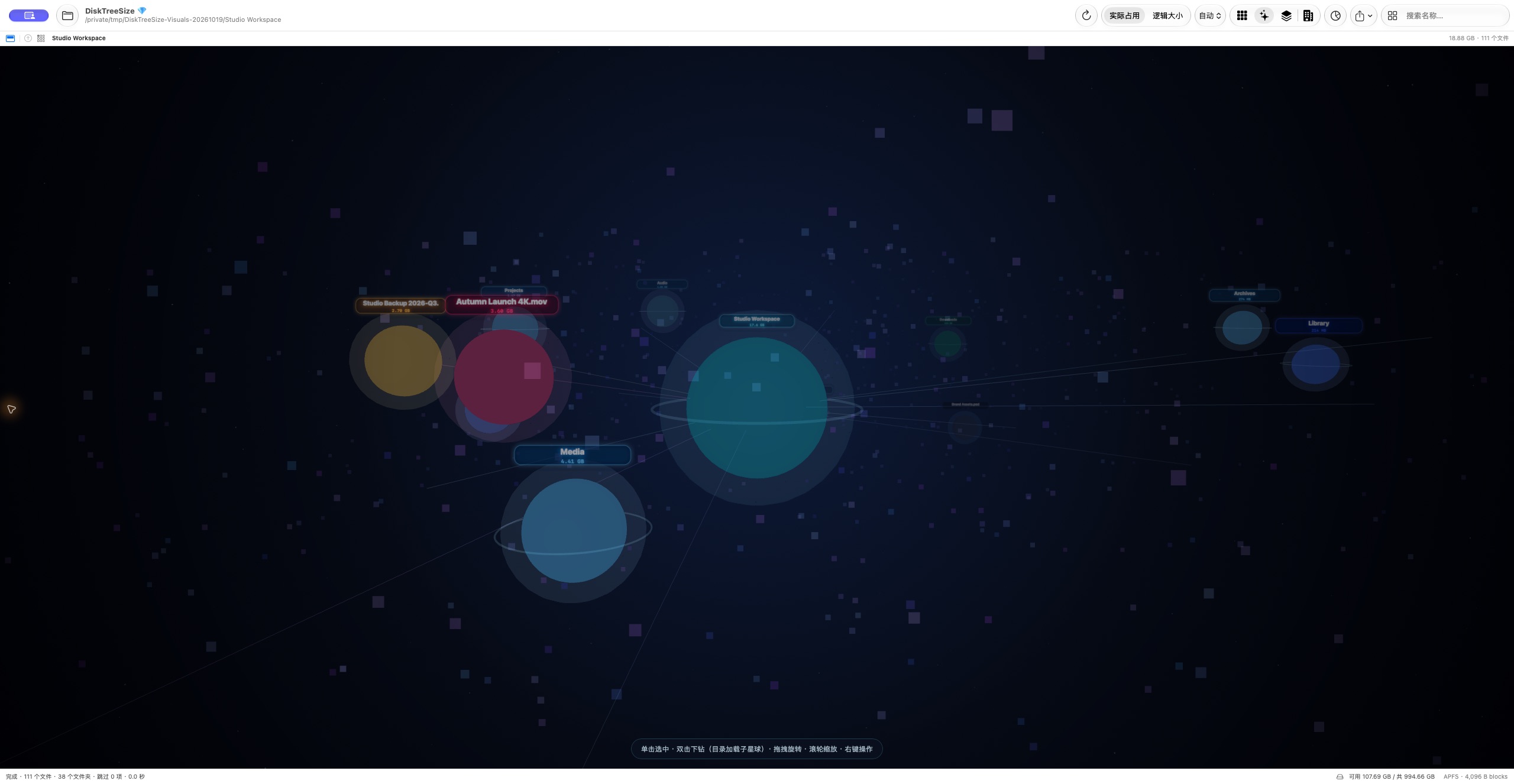
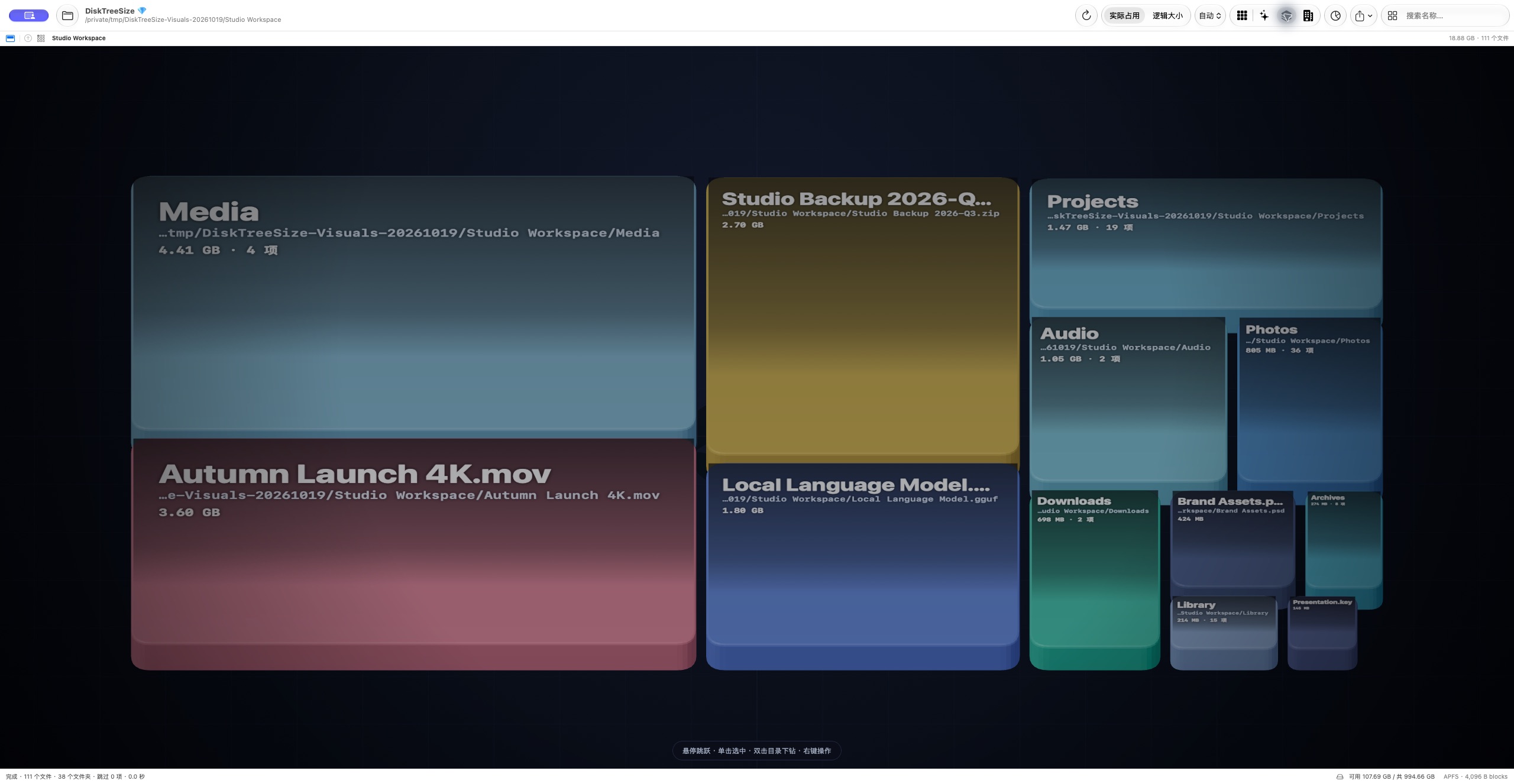
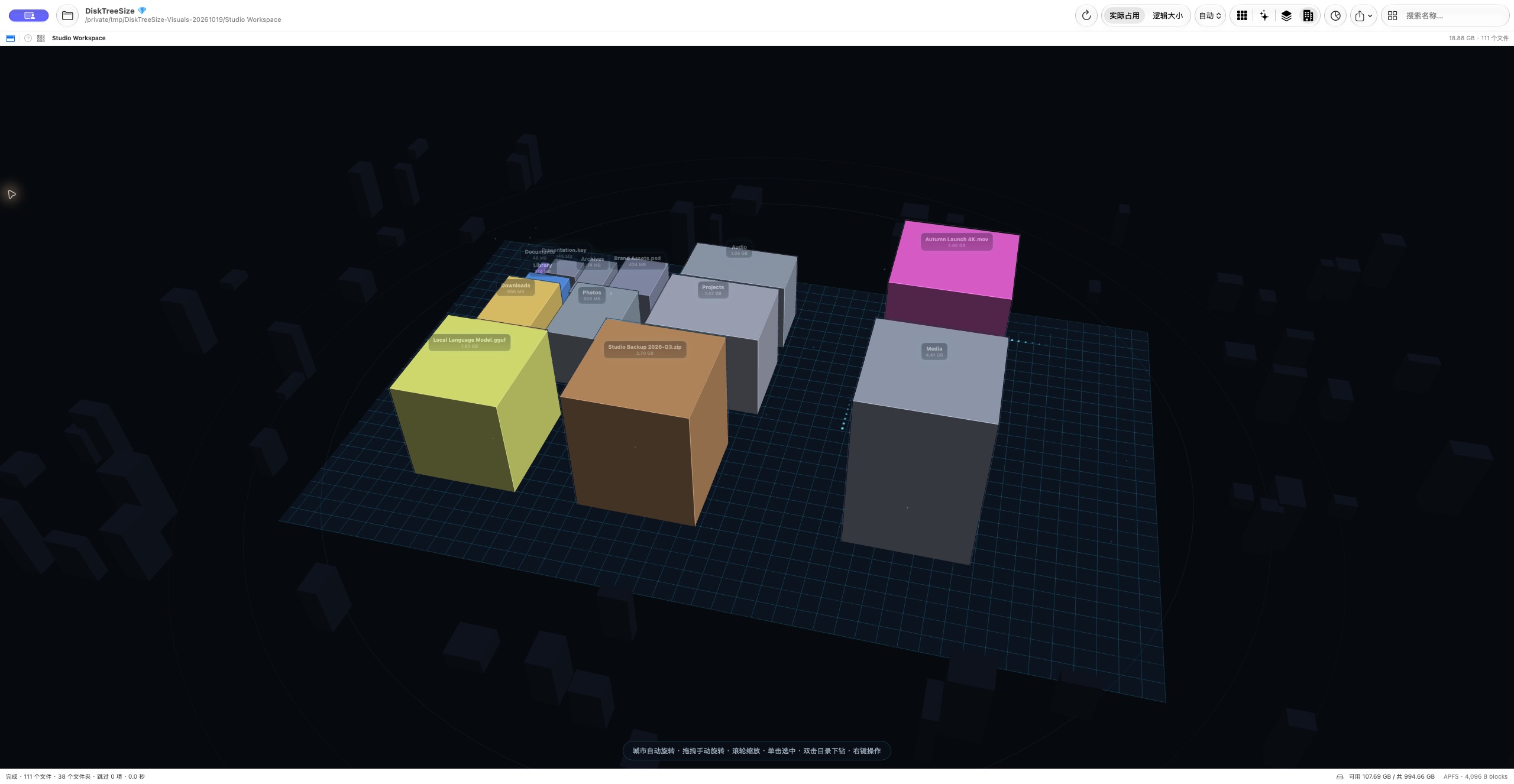
Click each image for the original. The shared screenshot gallery also includes the treemap and versions showing the directory tree. These are generated samples, not a promise of recoverable space. Use the tree’s numerical columns for precise size comparisons.
Both apps offer ways to keep scan information
GrandPerspective’s saving guide describes reloadable scan data, image export, and text export. The text output has one line per file with tab-separated properties, making it useful for further processing.
DiskTreeSize Pro exports CSV for spreadsheets and JSON for programs. Its reports have depth and item limits; check the export scope if you need a list of every deeply nested file. If your requirement is to reopen a GrandPerspective view later, its built-in scan-data saving already addresses that task.
Check system requirements and download channels
On October 19, 2026, the GrandPerspective website listed 3.8.1, requiring macOS 14 or later and supporting Apple Silicon and Intel. It links older versions too: 3.7.2 supports macOS 11, 12, and 13. App Store releases can lag behind SourceForge, so check the actual version offered by your chosen channel. See the official requirements and release notes.
DiskTreeSize currently requires macOS 12 or later and is available from the Mac App Store. Confirm your system version, then try your usual task.
Choose GrandPerspective when the treemap is your main workspace and conditional filtering matters. Try DiskTreeSize when expanded directories, numerical comparisons, and several visualization styles are more useful. Either decision can begin with free analysis.
Frequently asked questions
Is GrandPerspective free?
Its official SourceForge download is free and open source. The App Store distribution is paid. The developer says both channels provide the same app, although App Store releases may arrive later.
Is GrandPerspective filtering the same as DiskTreeSize search?
No. GrandPerspective offers configurable tests including name, path, type, and size, used as filters or masks. DiskTreeSize searches names and does not provide that same conditional filtering system.
Can GrandPerspective save or export scan results?
Yes. It can save scan data for later reloading and export an image or tab-separated text. DiskTreeSize Pro instead offers CSV and JSON reports.