TreeSize for Mac
Bring a familiar folder-size workflow to your Mac with DiskTreeSize. It is an independent native macOS app, not an official Mac edition from JAM Software.
If you used TreeSize on Windows, the task after switching to Mac may be familiar: compare folder sizes, expand the largest branches, and find the files responsible for disk usage. DiskTreeSize provides that kind of local folder analysis on macOS. This guide maps the workflow to its controls.
Is TreeSize available for Mac?
As of October 3, 2026, JAM Software states that TreeSize is not available for non-Windows systems. Its product page also identifies the desktop editions as Windows applications. See the official support answer and TreeSize product page.
The support answer describes scanning a non-Windows system from Windows through SSH or Samba, which are ways to access another computer's files over a network. That differs from installing a native application on the Mac itself.
When searching for “TreeSize for Mac”, distinguish TreeSize from Mac alternatives. DiskTreeSize is a separate native macOS application, not a Mac edition published by JAM Software. You do not need to install Windows to use it.
Map familiar tasks to Mac controls
For the common goal of finding disk usage through folder sizes, start with these actions. Pro means the optional in-app paid features; a trial can also be started on first use.
| Task | DiskTreeSize control | Pro required? |
|---|---|---|
| Analyze Downloads, Documents, or a project | Choose Location → select a folder → Analyze | No |
| Follow the largest folders | Sort a size column and expand the tree | No |
| See the space distribution | Treemap, Galaxy, 2.5D Tiles, or City view | No |
| Locate an item with a known name | Enter part of its name in Search name… | No |
| Compare usage by format | File Types summarizes the overall scan | No |
| Visit an item's location | Reveal in Finder; folders also offer Open in Finder | Yes |
| Save an analysis report | Export CSV or JSON | Yes |
| Handle an item you have identified as unnecessary | Move to Trash after your confirmation | Yes |
This maps everyday tasks, rather than claiming full feature parity. If your Windows workflow relies on advanced searches, duplicate detection, or scheduled jobs, check those requirements individually instead of assuming that similar names mean identical features.
Start with one familiar folder
DiskTreeSize requires macOS 12 or later and supports Apple Silicon and Intel Macs. Download it from the Mac App Store.
- Open the app and click Choose Location.
- Select Downloads, Documents, or a project in the system picker, then click Analyze.
- Click Size or Allocated in the tree and set the order from largest to smallest.
- Expand the largest subfolder and compare the next level until you reach files worth checking.
For example, Downloads might contain old installers, videos, and archives. Follow the largest folder, then identify the files inside. A familiar location makes both the numbers and the files' purpose easier to assess.
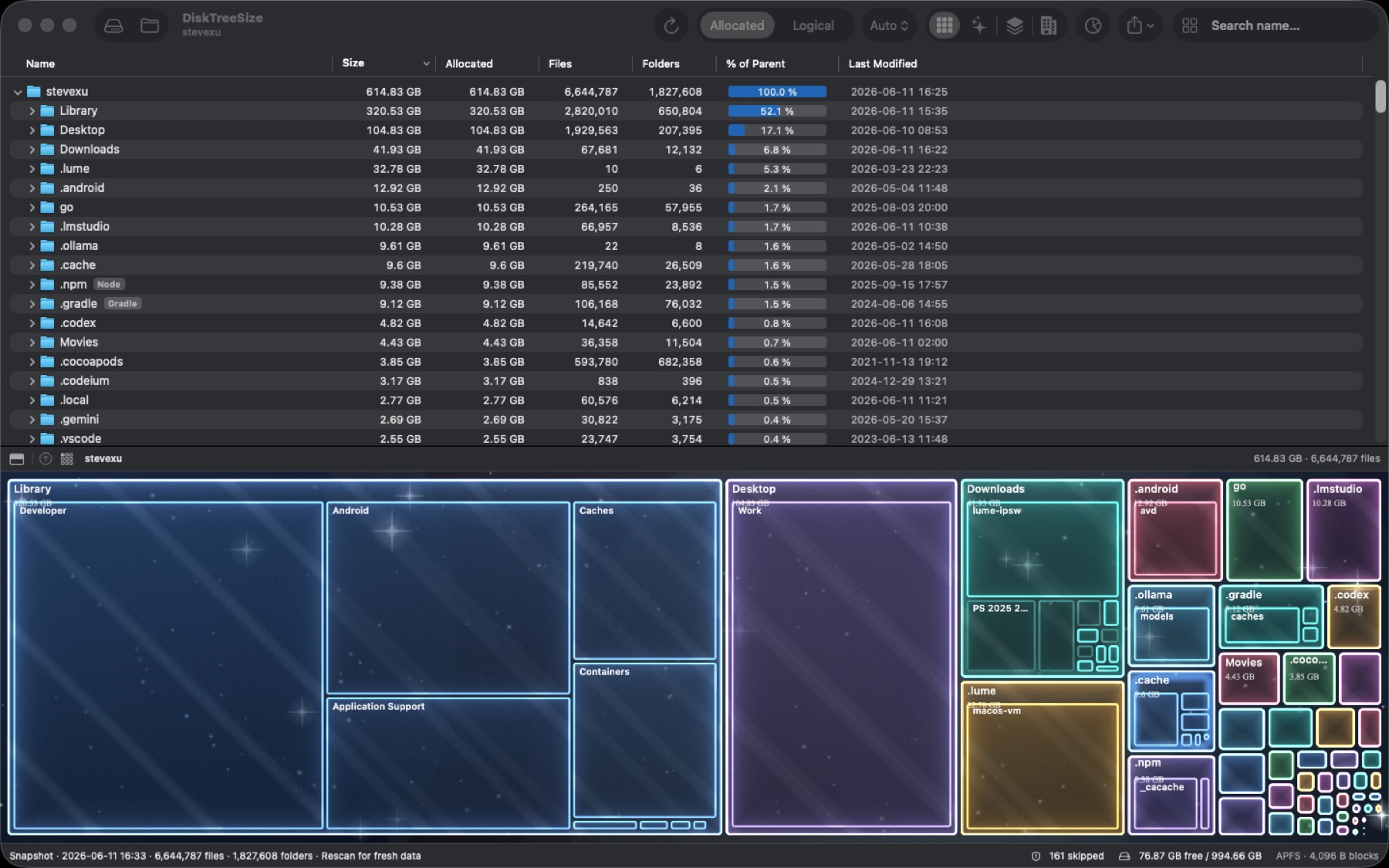
This is the DiskTreeSize Mac interface; its capacities are illustrative. Results follow the folder hierarchy, rather than automatically producing a single ranking of every large file across the disk.
Account for these differences after switching to Mac
The selected folder defines the scope. The app reads locations you authorize and macOS permits. Protected or inaccessible items may be skipped, so a folder scan is not a guaranteed complete measurement of the Mac.
Search matches names. Enter part of a known name and press Return; up to 200 results are displayed. For unknown large files, sort by size and expand folders. The search field does not accept a “larger than 1 GB” condition.
Allocated and logical size are different measurements. Switch between them in the toolbar to compare an item. Their difference is not a cleanup budget, and removal does not guarantee an equal increase in free space. See the size measurement guide.
File actions still require identifying the content. Pro's Reveal in Finder can locate a file; a selected folder also offers Open in Finder. Move to Trash requires scanning to finish and a separate confirmation, and cannot target the scan root.
Is the free analysis enough?
If your main TreeSize task was comparing folders to find disk usage, DiskTreeSize's free analysis can help you start that workflow on Mac.
Consider Pro when you need Finder navigation, CSV / JSON reports, or moves to Trash from the app. On the first request for a Pro action, you can choose a 30-day trial. It does not automatically charge you when it ends; the purchase window shows the current price.
Analysis runs locally without uploading paths, file contents, or scan results. If you choose a trial, its start date can synchronize through iCloud to manage trial access; scanned file information is not included.
Continue with your specific task
Visit the DiskTreeSize product page for features, screenshots, and downloads. For detailed steps, continue with checking folder sizes or finding large files.
Frequently asked questions
Is there an official TreeSize for Mac?
As of October 3, 2026, JAM Software states that TreeSize is not available for non-Windows systems. DiskTreeSize is an independent native Mac app, not an official TreeSize port.
Are DiskTreeSize and TreeSize the same application?
No. They are products from different developers. DiskTreeSize provides a folder tree, size sorting, and visual disk usage maps on Mac; it does not claim to reproduce every feature of the TreeSize editions.
Do I need Pro to find large files by folder size on Mac?
No. Scanning, the tree, size sorting, four visual views, name search, and file type statistics are free. Finder navigation, report export, and confirmed moves to Trash require Pro access or an active trial.
Can DiskTreeSize filter files larger than 1 GB or find duplicates?
The current version has no size-range filter or duplicate-content search. Sort by size and expand folders instead. Its search field matches file and folder names, not file contents.