Mac aquarium wallpaper: add fish, change the light, and interact
Between tasks, return to your desktop and watch fish weave through the plants. Click the water and see bubbles rise. HeFeng Wallpaper's Aquarium scene brings that small break to your Mac, with adjustable fish, light and current, plus mouse interaction.
Looking for a “touch fish wallpaper”?
You may have seen this kind of wallpaper described as touch fish wallpaper or 摸鱼壁纸. The Chinese phrase also suggests taking a little break from work. Here, that means watching a moving aquarium and interacting with its fish for a moment before returning to your task.
Select Aquarium and click Start Wallpaper
Open HeFeng Wallpaper, select Aquarium in the scene library, and click Start Wallpaper. Return to the desktop to see plants, rocks, swimming fish and shifting underwater light.
While the wallpaper is running, you can change the scene in the main window or through the water-wave menu bar icon.
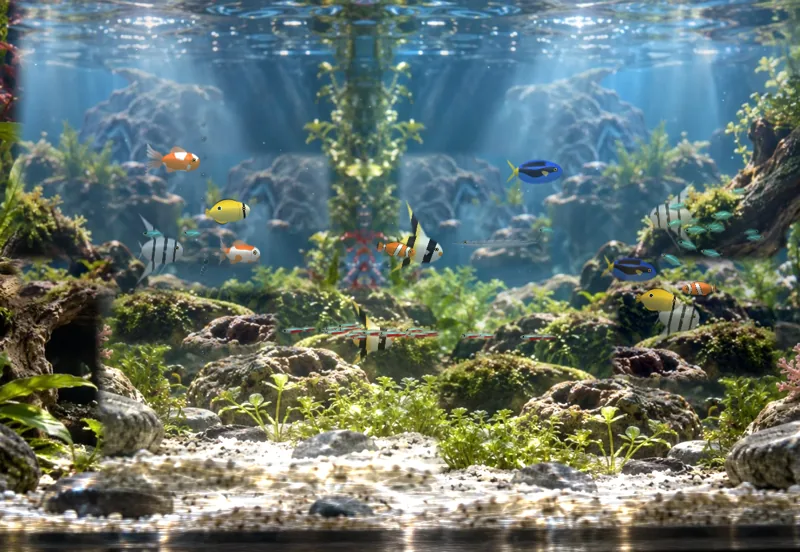
This is a scene image. Fish populations, lighting and positions vary with your settings and the animation.
Pick a preset, then adjust individual fish
Aquarium offers Community, Freshwater, and Coral Reef presets. Choose one, then use the Fish list to make it your own.
For a larger school of small fish, increase Neon Tetra. If you like Clownfish or Regal Tang, use the plus control on that species' row. Use minus to reduce a count; setting it to zero removes that species from the scene.
New fish swim down from the surface, while removed fish fade away. The list also shows the total population, so you can adjust it and return to the desktop to see the result.
The nine species have different habits. Some school, some stay near the coral, and some come to investigate your pointer. Barracuda occasionally chase the school. For a calmer tank, reduce the population or set Barracuda to zero.
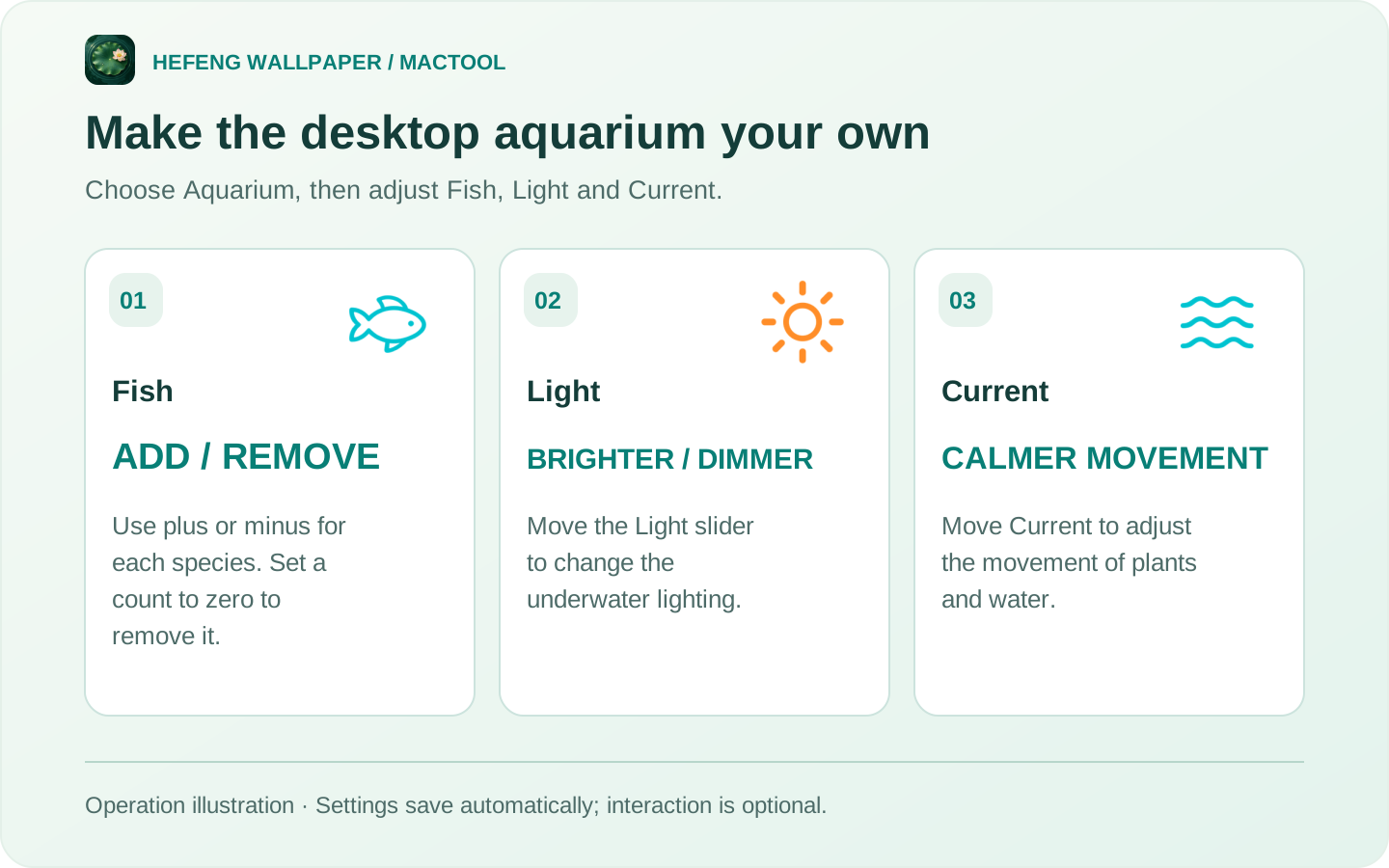
This is an operation illustration using the setting names shown in the app.
Set the light and current to suit your desktop
Move Light to change the underwater lighting. Move Current to adjust the movement of the plants and surface. For a quieter view, try a lower current and fewer fish.
Settings save automatically for this scene. Switch elsewhere and return to Aquarium to keep your chosen appearance. Use Reset to start again. Interaction Mode does not need to be on to adjust these controls.
Click the water and watch the fish respond
Start the wallpaper, enable Interaction Mode, and confirm the prompt. Click an empty area of the desktop over the water: nearby fish scatter and bubbles appear.
Leave the pointer still for a moment and curious fish may come over. Desktop icons, drag selection and the right-click menu remain available; clicking an icon can also affect the scene beneath it. Turn interaction off when you only want to watch.
Aquarium interaction scatters fish and attracts curious ones. To sprinkle food and draw koi together, choose Lotus Pond. See the interactive wallpaper guide for those steps.
Close the window and keep the aquarium running
Closing the main window keeps an active wallpaper playing. The water-wave menu bar icon lets you adjust it again. Select Pause Animation to hold the current picture, or Stop Wallpaper to reveal your original system wallpaper.
HeFeng Wallpaper supports macOS 13 or later, and the bundled Aquarium works offline. Download it from the product page or Mac App Store. For a MacBook, see the battery saving settings.
Frequently asked questions
Can I use an animated aquarium as my Mac wallpaper?
Yes. Open HeFeng Wallpaper, select Aquarium, and click Start Wallpaper to display the animated tank on your desktop.
Can I keep only the fish I like?
Yes. Adjust each species in the Fish list, and set unwanted species to zero. Appearance settings are saved for each scene.
Can the fish react to my mouse?
Yes. Start the wallpaper and enable Interaction Mode. Click an empty desktop area over the water to scatter nearby fish and create bubbles. Curious fish may approach a resting pointer.