Interactive wallpaper for Mac: feed koi, stir water, and click the fish
Watching fish swim is pleasant; feeding them or stirring the water gives you something to do during a short break. HeFeng Wallpaper's interactive scenes for Mac respond to your mouse: koi gather around food, dragging leaves ripples, and aquarium fish scatter when you click nearby.
If you are looking for a touch fish wallpaper, start with Lotus Pond or Aquarium. The Chinese term 摸鱼壁纸 suggests a wallpaper for a little break from work. Here, you can return to the desktop, interact for a moment, then leave the scene playing on its own.
Start the wallpaper, then enable interaction
Open HeFeng Wallpaper, choose Lotus Pond, and click Start Wallpaper. Enable Interaction Mode in the main window or the water-wave menu bar panel, then choose Enable Interaction in the prompt.
Move other windows aside and click or drag an empty desktop area over the scene. If Pause Animation is selected, clear it first so the scene can respond.
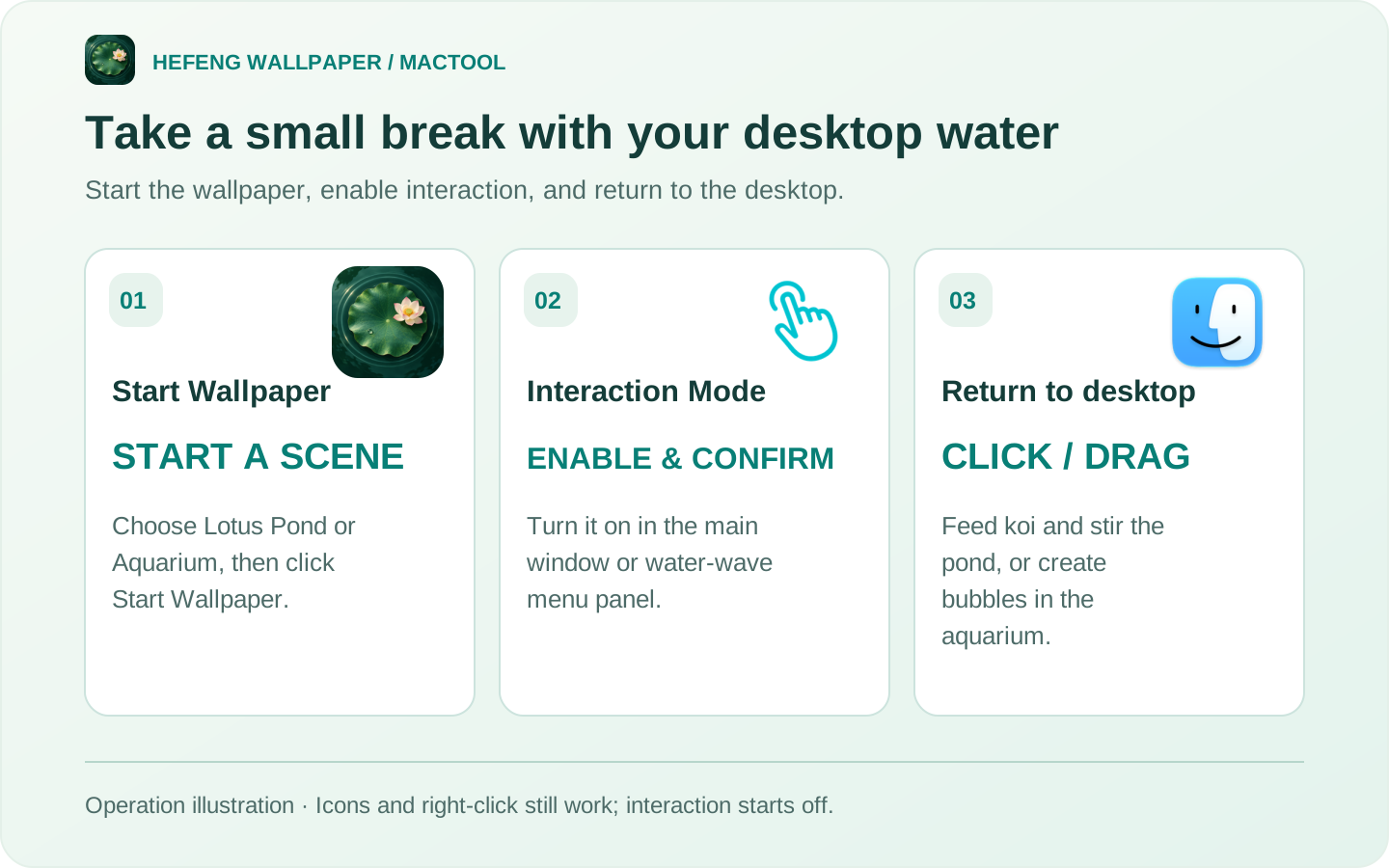
This is an operation illustration. The controls are available in the main window and menu bar panel.
Sprinkle food for the koi
With Lotus Pond running, click Feed Fish in the control panel. Food lands in the water and koi swim toward it. This button works without desktop Interaction Mode.
With interaction enabled, click an open patch of water on the desktop to feed the fish there. Hold the mouse button and drag across the water to leave ripples.
Increase Koi if you want more fish. To make the frog move, click Make Frog Jump. Feeding needs koi in the scene; the frog action needs Show Frog enabled, and the wallpaper must be running.
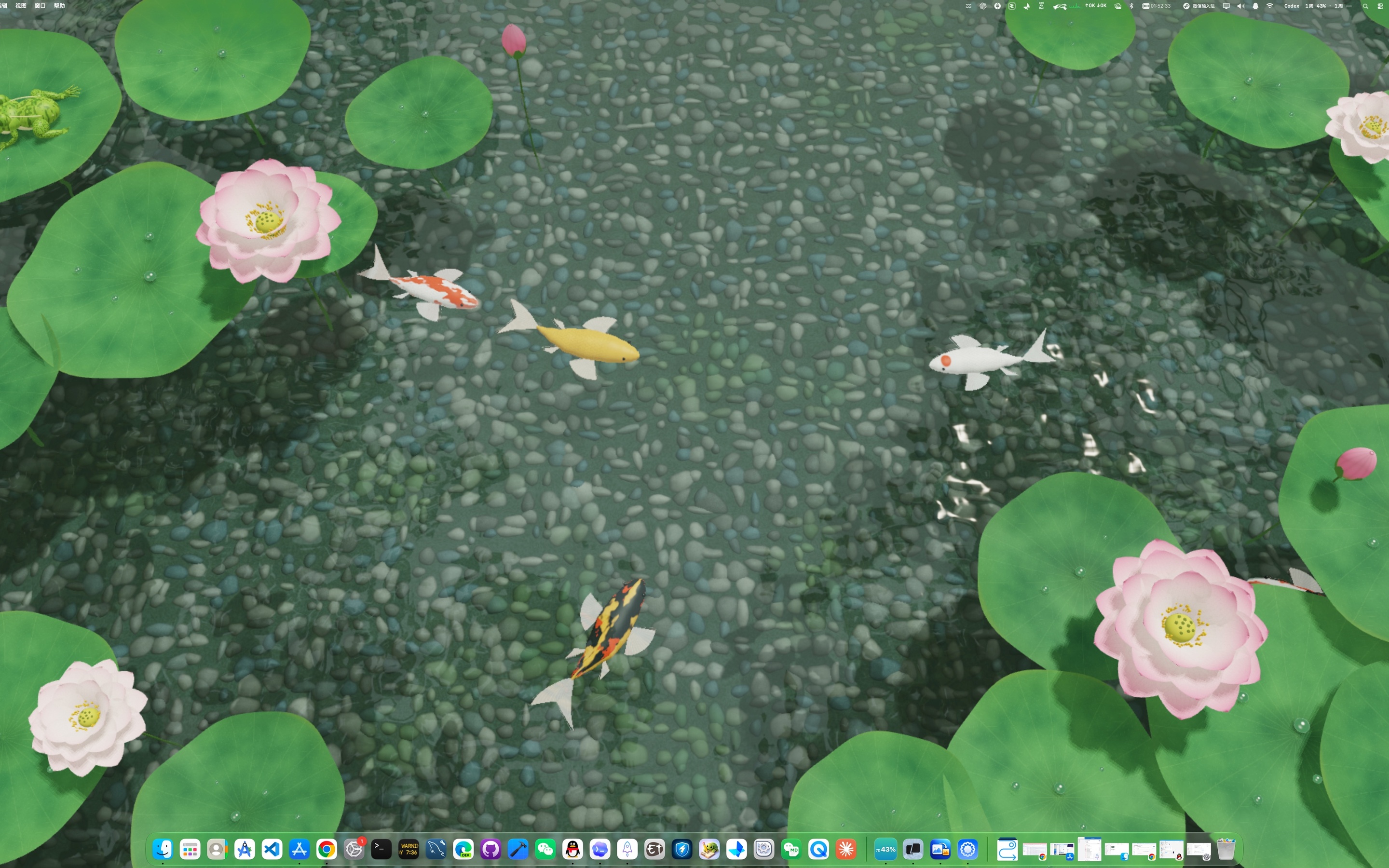
This is a scene image. Fish positions and ripples vary with the animation.
Try a different scene for a different response
Choose a scene you like, then try its interaction:
- Aquarium: clicking the water creates bubbles and scatters nearby fish. Curious fish may approach when the pointer rests for a moment.
- Pebble Creek: a light click creates ripples.
- Flowing Moonlight: move the pointer across the water for ripples, drag a lotus to sway it, or click a lily pad to release dew.
For fish counts and lighting in Aquarium, see the aquarium wallpaper guide.
Keep using your desktop icons
Desktop files still open normally, and drag selection and the right-click menu remain available. Clicking an icon may also affect the picture beneath it. When you want to organize files without that extra response, turn Interaction Mode off.
Lighting, fish counts and control-panel action buttons do not require desktop interaction. Turning interaction off leaves the animation playing; use Pause Animation to hold the whole scene still.
Interaction starts off whenever you start the wallpaper again. Enable it only when you want mouse activity on the desktop to affect the scene.
HeFeng Wallpaper supports macOS 13 or later, and bundled scenes work offline. Download from the product page or Mac App Store. For closing the window, pausing and stopping, see the playback and login guide.
Frequently asked questions
How do I enable interaction with my desktop wallpaper?
Choose a scene and start the wallpaper. Enable Interaction Mode in the main window or the water-wave menu bar panel, confirm the prompt, and click or drag an empty desktop area.
How do I feed the koi on my desktop?
In a running Lotus Pond scene, click Feed Fish in the controls to draw koi toward the food. With Interaction Mode on, you can also click an open patch of water to feed them.
Can I still use my desktop icons?
Yes. Icons, drag selection and the right-click menu keep working. Clicking an icon may also affect the scene beneath it.
Does interaction stay on after restarting the wallpaper?
No. Interaction Mode starts off when you start the wallpaper again. Enable it when you want to use it.