MacBook live wallpaper: frame rate, quality, and automatic pause settings
For moving water and fish on a MacBook with less rendering work, start with two settings: 30 fps, and Balanced or Energy Saving drawing quality. HeFeng Wallpaper also adjusts playback for power state, sleep and whether the desktop is visible.
Start with 30 fps and Balanced quality
Open HeFeng Wallpaper and choose 30 fps under Frame Rate on the right side of the main window. If you have closed that window, open the water-wave menu bar panel to find the same control.
Frame rate is how many times the picture updates each second. At 30 fps the scene still moves, with fewer updates than 60 fps, making it a useful starting point for wallpaper that stays on throughout the day.
Under Drawing Quality, select Balanced first. If battery use or temperature matters more, choose Energy Saving to reduce drawing work. Quality saves separately for each scene, so check it when switching scenes.
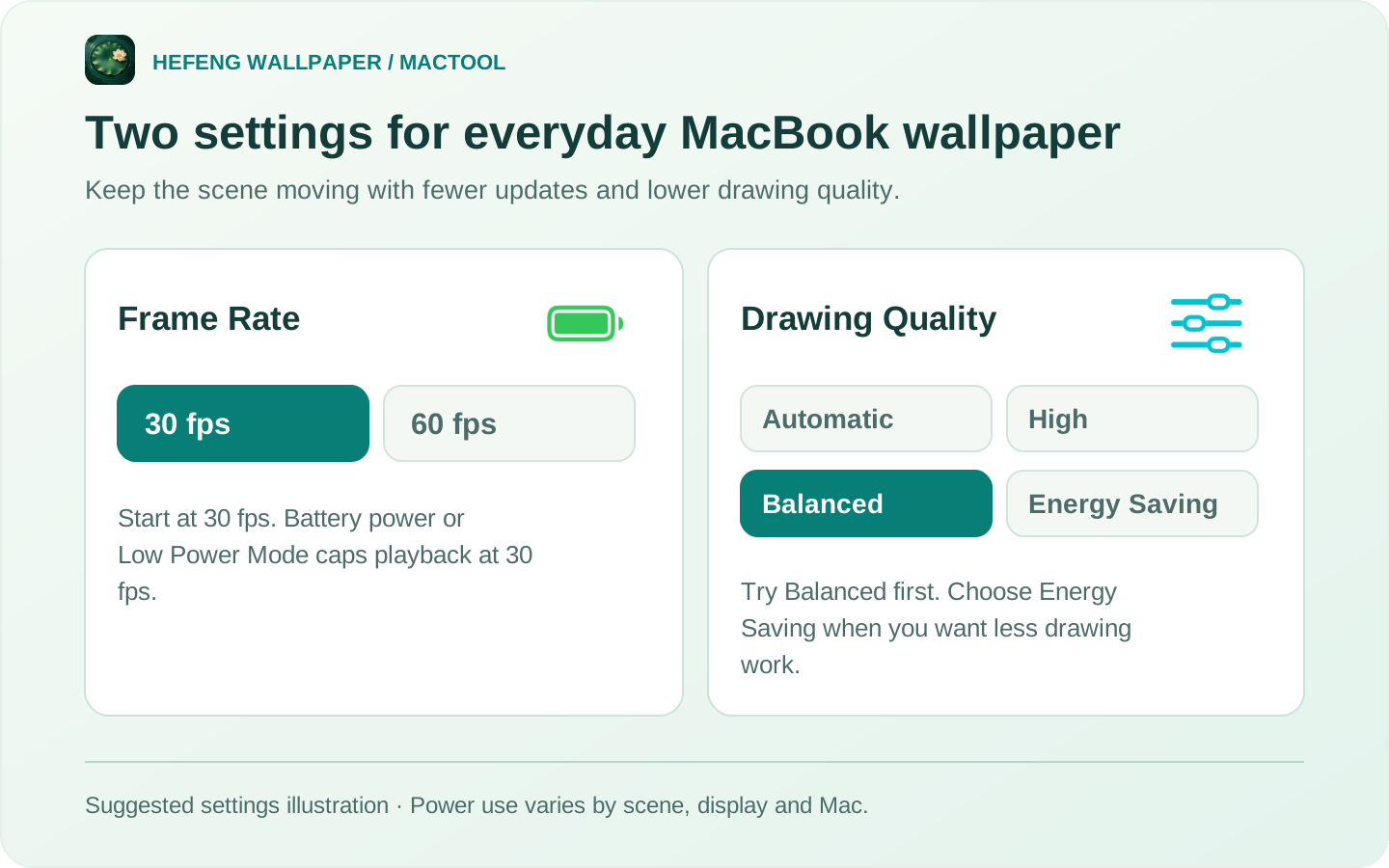
This is a recommended-setting illustration. The app's controls are named Frame Rate and Drawing Quality.
Try 60 fps while plugged in for smoother movement
When you want more continuous water movement, try 60 fps while connected to power. Return to 30 fps or lower the drawing quality when you want to leave more room for other work.
On battery power or in macOS Low Power Mode, HeFeng Wallpaper automatically caps playback at 30 fps. This applies even if you selected 60 fps earlier, and the panel shows an energy saving notice.
Power use varies with the scene, drawing quality, number of displays and Mac hardware. These controls reduce rendering work; actual battery life depends on how you use the computer.
Let the animation pause while you cannot see the desktop
A document or browser window may cover almost all of your desktop. HeFeng Wallpaper pauses rendering on that display. Move the window aside to show the desktop and the animation resumes.
Display sleep, system sleep and switching away from your login session also pause the wallpaper automatically. When you return, it follows your existing playback settings without needing another start.
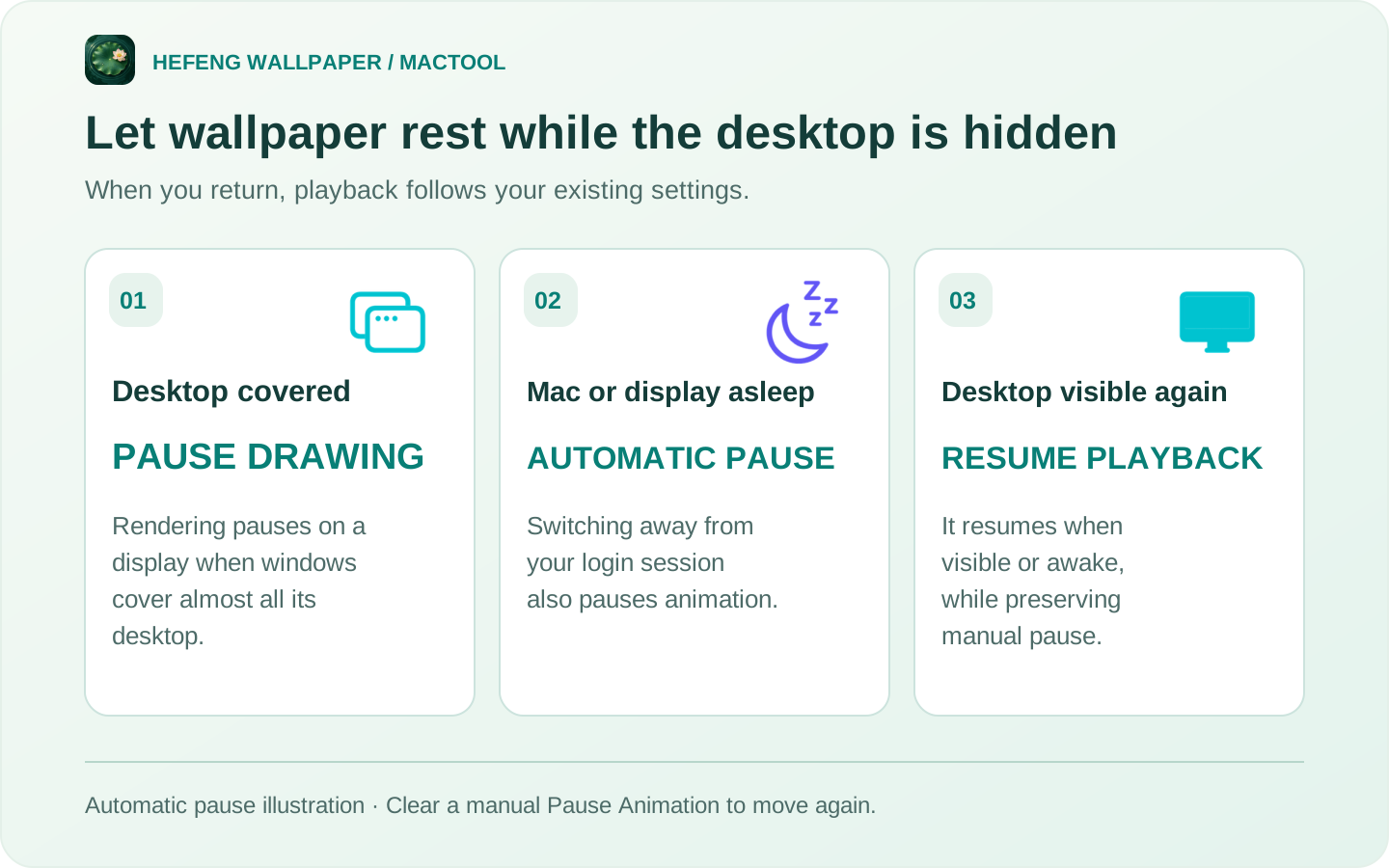
This illustrates automatic pausing. If you selected Pause Animation yourself, the scene remains paused when the desktop returns; clear that option to animate again.
Use Pause Animation when you want a still picture
For a meeting, focused work or a quiet desktop, select Pause Animation in the water-wave panel. Clear it to resume. Your scene settings stay in place.
If you do not need the live wallpaper for a while, click Stop Wallpaper. Your original system wallpaper becomes visible, and HeFeng Wallpaper stays in the menu bar so you can start it later.
Closing the main window keeps an active wallpaper running. Use the pause or stop controls to stop the movement. See the playback and login guide for the differences.
HeFeng Wallpaper supports macOS 13 or later. Visit the product page or Mac App Store, or see what you can do with an aquarium wallpaper.
Frequently asked questions
Which settings should I start with on a MacBook?
Select 30 fps and set Drawing Quality to Balanced or Energy Saving. Use Pause Animation when you want to hold the current scene still.
What happens when I disconnect the charger?
Battery power or macOS Low Power Mode limits HeFeng Wallpaper to a maximum of 30 fps, even if you previously selected 60 fps.
Does the animation keep drawing behind other windows?
When other windows cover almost all of a display's desktop, wallpaper rendering on that display pauses. It resumes when the desktop is visible again, while preserving your manual pause setting.
Do I need to restart the wallpaper after sleep?
No. Display or system sleep pauses it automatically. When the Mac wakes, playback follows your existing settings.