Start Mac live wallpaper at login: close, pause, stop, or quit
To see your chosen pond or aquarium each time you log in to your Mac, enable Launch at Login in HeFeng Wallpaper. Once set up, the wallpaper resumes in the background without opening the main window or asking you to start it again each day.
Closing the window, pausing and stopping serve different purposes: close the controls and keep watching, pause for a still scene, or stop to see your original system wallpaper.
Choose a scene, then enable Launch at Login
Open HeFeng Wallpaper, select a scene, and click Start Wallpaper. Set the lighting and fish population to the view you want to return to each day.
Enable Launch at Login in the main window or water-wave menu bar panel. If Allow Launch at Login in System Settings… appears, click it and allow HeFeng Wallpaper to start automatically in macOS settings.
At your next login, the wallpaper resumes in the background without opening its main window. “At startup” here means after you log in to your Mac account; macOS still manages the login screen before that.
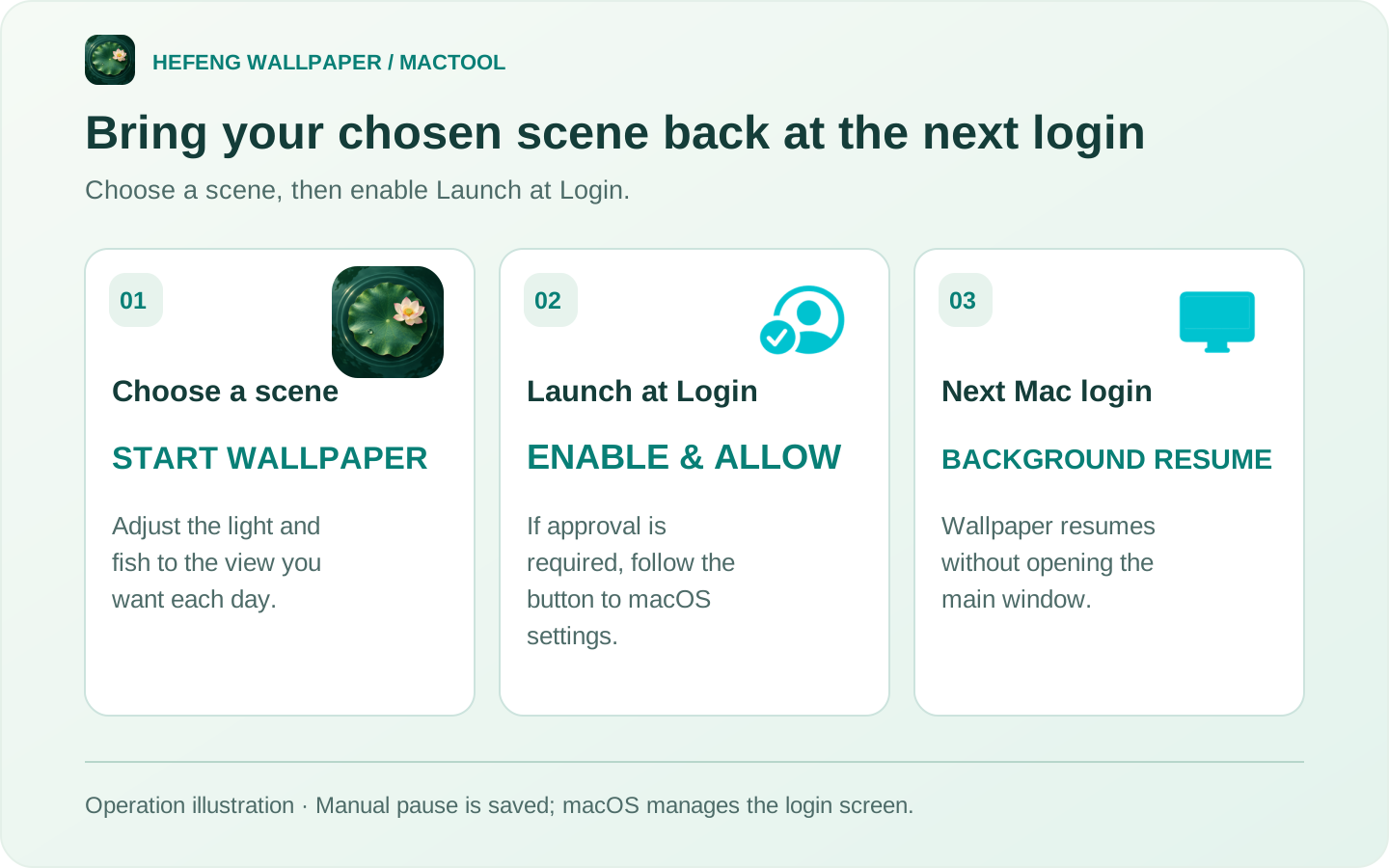
This is a login workflow illustration. Follow the approval prompt shown in the app if macOS requires it.
Close the main window to keep the wallpaper running
Once the wallpaper is running, close the main window to put the controls away. Fish and water keep moving, and the water-wave icon stays in the menu bar.
Click that icon to adjust playback. Choose Open Main Window to return to the scene library. The settings window can stay out of the way while your scene remains on the desktop.
Pause Animation to keep a still picture
Select Pause Animation to hold the scene in its current state. It is useful for a meeting, focused work or a quieter desktop.
Clear the option to continue. The manual pause setting is saved and respected when wallpaper resumes at login. If you want it moving immediately at your next login, clear pause beforehand.
Stop Wallpaper to see your original background
Click Stop Wallpaper to close the animated picture and reveal your original system wallpaper. HeFeng Wallpaper stays in the menu bar; use Start Wallpaper when you want it again.
Stopping does not disable Launch at Login. If you also want it to stay off at future logins, turn that option off.
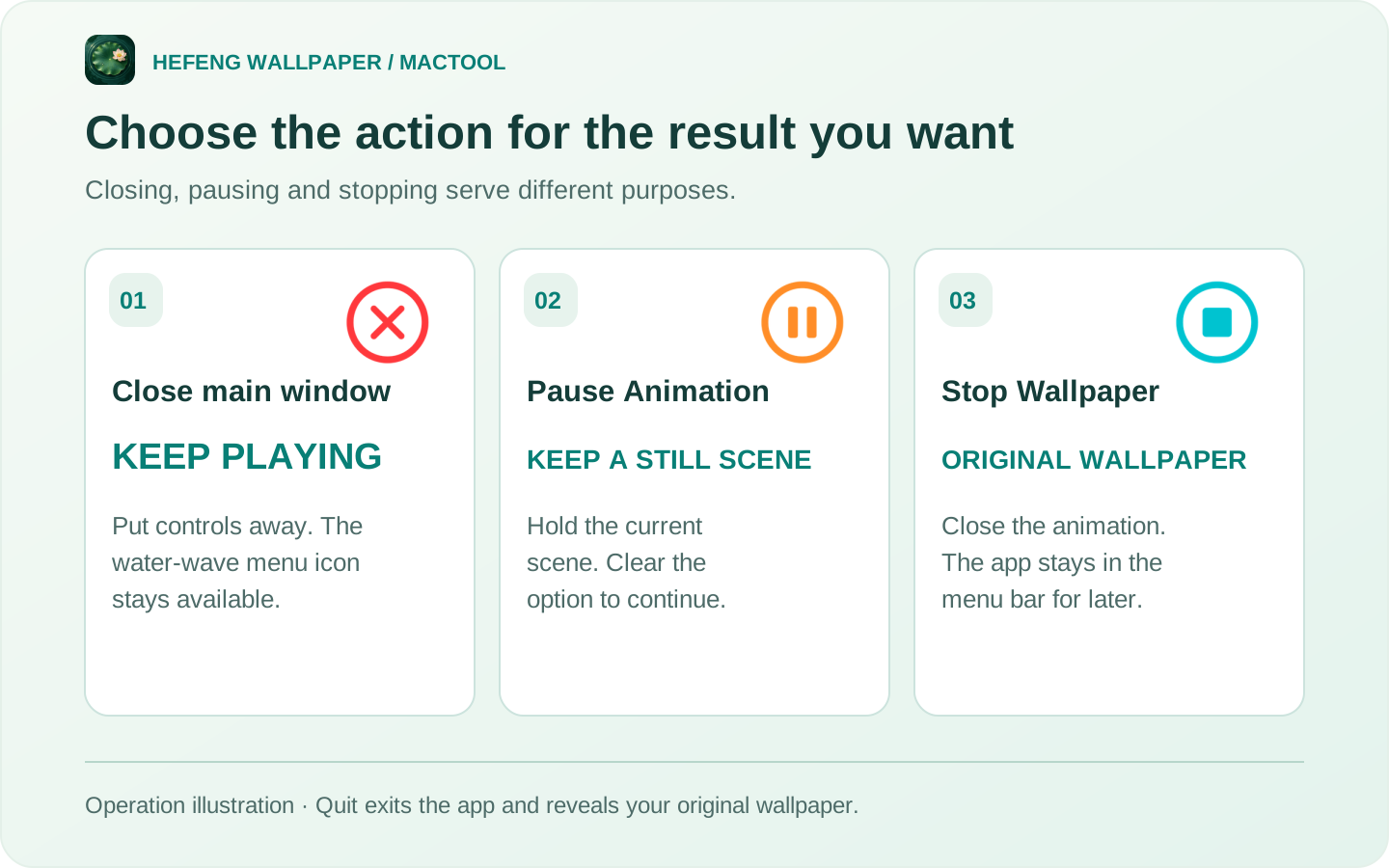
This illustrates the visible result of each action, so you can choose the one you need.
Quit to end this wallpaper session
Click Quit in the water-wave panel to exit the app. The live wallpaper stops and your original system wallpaper becomes visible.
When you open HeFeng Wallpaper manually again, it shows the main window. Choose your scene and click Start Wallpaper. If Launch at Login remains enabled, it will still resume in the background at your next login.
The scenes run through HeFeng Wallpaper, with selection and playback controlled in the app. They do not appear in the system Wallpaper list. Bundled and downloaded scenes play locally on your Mac.
HeFeng Wallpaper supports macOS 13 or later. Download from the product page or Mac App Store. For wallpaper that stays on throughout the day on a MacBook, see the battery saving settings guide.
Frequently asked questions
How do I display HeFeng Wallpaper automatically after startup?
Choose a scene, start it, and enable Launch at Login. If approval is needed, click Allow Launch at Login in System Settings and approve it in macOS. The wallpaper resumes in the background at your next login.
Does closing the main window stop the wallpaper?
No. An active wallpaper keeps running. The water-wave menu bar icon lets you adjust it or reopen the main window.
How are pausing and stopping different?
Pause Animation keeps the scene visible but still. Stop Wallpaper closes the animated picture and reveals your original system wallpaper, while leaving the app in the menu bar.
Does quitting restore my original wallpaper?
Yes. Quitting HeFeng Wallpaper stops the animation and reveals your original system wallpaper.