Automatically Convert New PNGs in a Mac Folder to Smaller JPG Files
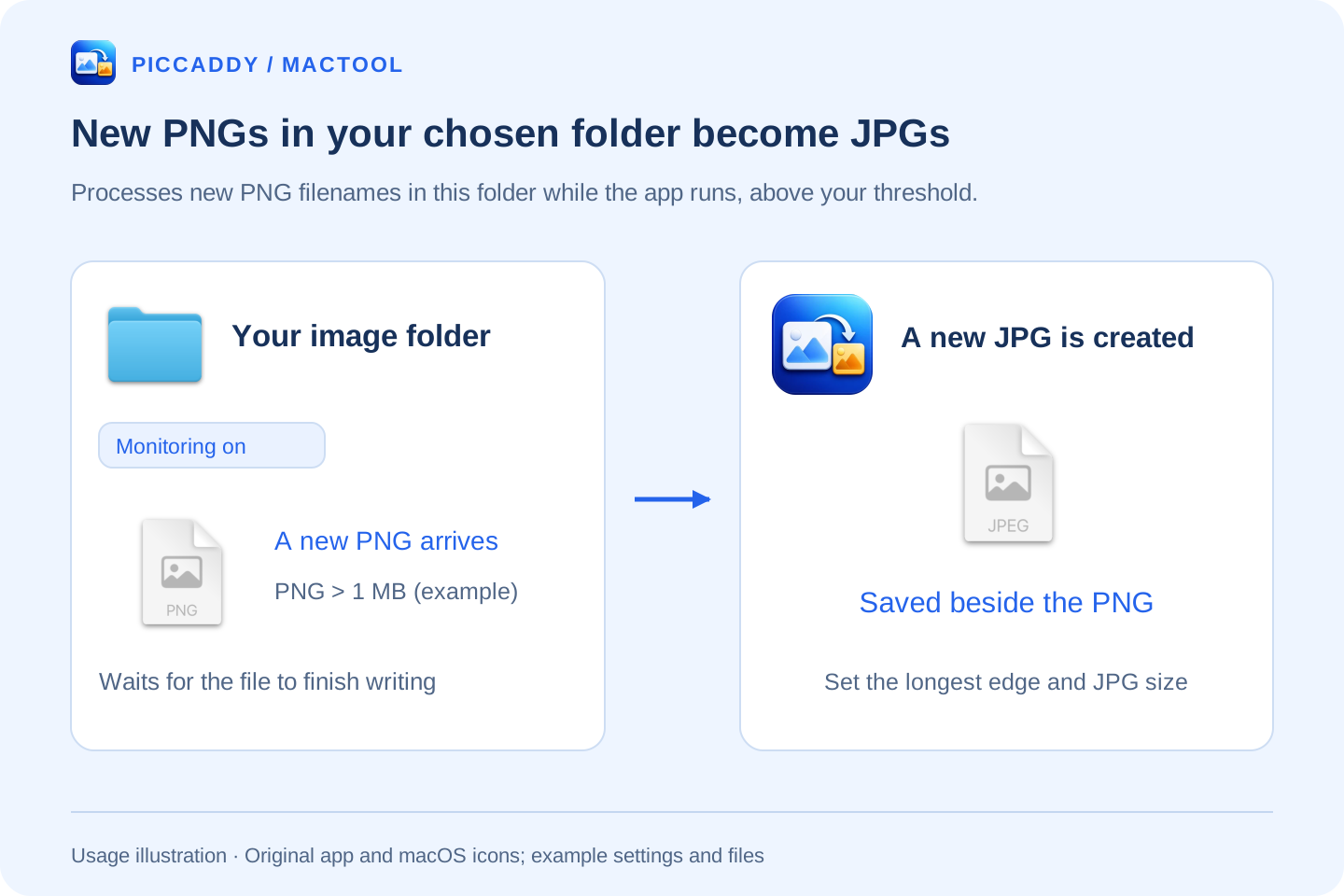
Your screenshots always go to one folder, and downloaded images keep arriving as PNGs. Converting them to JPG before sending becomes another repeated chore. PicCaddy can watch a folder you choose and automatically create JPGs when new large PNGs arrive. The output stays in the same folder, ready to find and use.
This suits an ongoing stream of images: a screenshot destination, a folder for downloaded web assets, or a dedicated folder into which you move PNGs for conversion. Once configured, PicCaddy processes new arrivals while it is running, without a conversion command for every image.
Choose a folder and start monitoring
Click PicCaddy's menu bar icon, choose Open Settings…, and open Folder.
- Click Select Folder… and choose the directory that will receive your PNGs.
- Click Select and Start Monitoring in the system dialog. This also grants PicCaddy access to that folder.
- Confirm that Monitor new PNGs in this folder is enabled.
- Set the PNG size threshold, for example
1MB. Smaller images remain untouched; only newly added PNGs larger than the selected value are converted.
Once the status says Monitoring new PNGs, save, download, or move a new PNG into that folder. PicCaddy waits for the file to settle before processing it, then saves the resulting JPG in the same directory.
Make the generated JPG suitable for sharing
Open Image Conversion, enable Limit converted file size, and set Maximum size of each converted JPG. For web images or everyday sharing, you can also enable Limit converted image dimensions and choose a longest-edge limit.
These settings control JPG output. The MB threshold in Folder determines which PNGs are processed. For example, you could process PNGs larger than 1 MB and set a 1 MB maximum for the generated JPGs. Those are example settings, not a promise that every image will have the same final size.
Conversion adjusts JPG quality first and reduces pixel dimensions proportionally when necessary. Transparent areas become white in JPG, so keep the source PNG when an icon or design asset still needs transparency.
Keep both versions, or choose to retain only the JPG
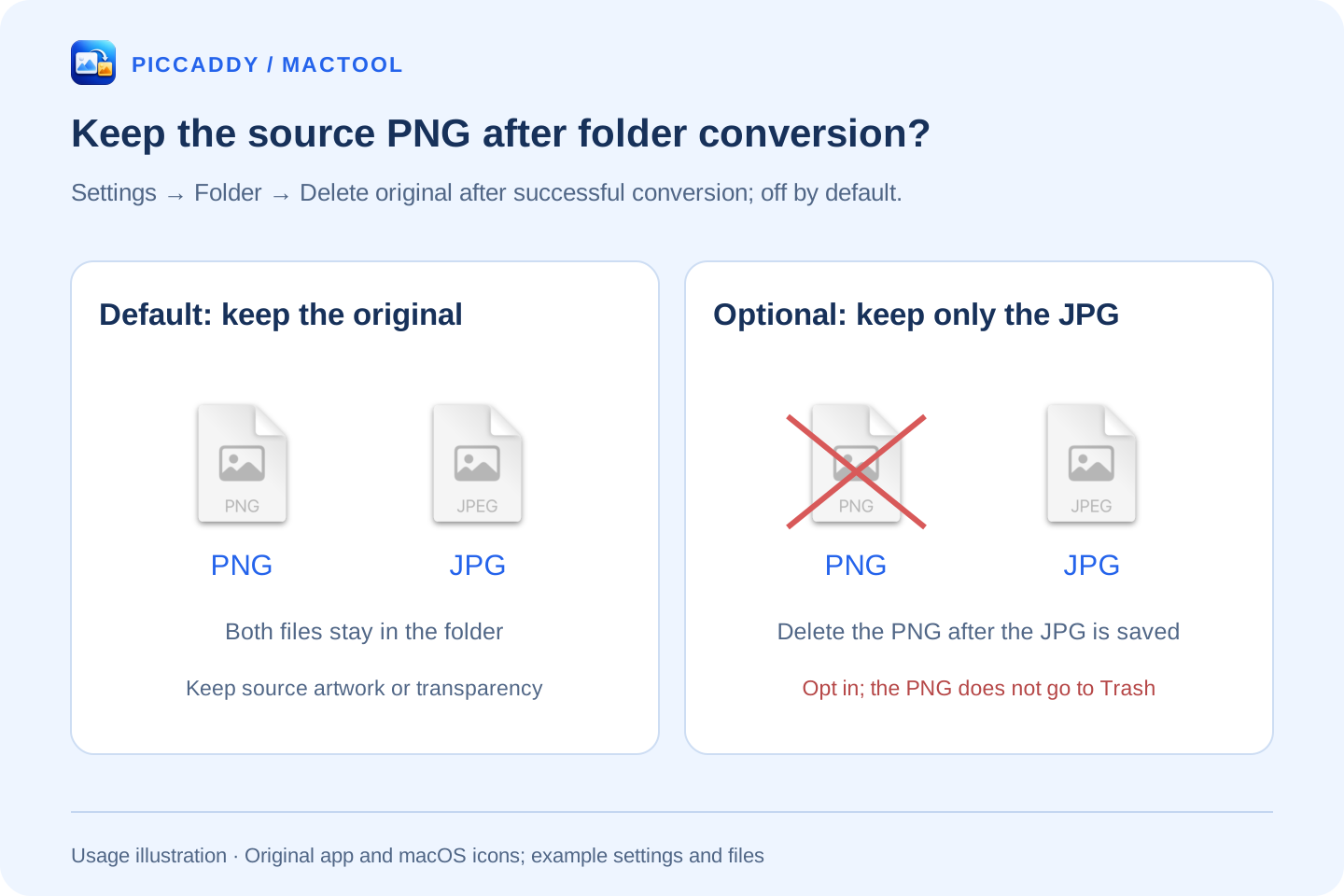
By default, the folder keeps both the original PNG and the new JPG. The JPG uses the original base name. If a JPG with that name already exists, PicCaddy adds -1, -2, and so on instead of overwriting it.
For a dedicated temporary-screenshot folder where only JPGs are needed, you can enable Delete original after successful conversion. PicCaddy saves the JPG before deleting the corresponding PNG; a conversion failure leaves the PNG intact. This option deletes the PNG directly, without moving it to Trash. Leave it disabled when you need to retain important originals.
Check the result and keep working
With Show a notification after conversion enabled, you receive a notification when an image has been converted. The Folder page also shows the latest filename and before-and-after sizes. Open Log to review several results from folder monitoring.
Automatic conversion handles new filenames appearing in the selected folder's top level during monitoring. Existing PNGs, subfolders, and edits to existing PNGs do not trigger a new conversion. For an existing batch, select the PNGs in Finder and use Convert to JPG instead.
Closing the main window leaves PicCaddy running in the menu bar. Quitting the app stops automatic processing. To start it again after signing in to your Mac, enable Launch the menu bar app at login in General.
If you usually copy images rather than save files, see automatic conversion of large clipboard PNGs. The complete guide covers other actions, and the PicCaddy product page provides the download and system requirements.
Frequently asked questions
Are existing PNGs in the folder converted too?
No. Monitoring handles new PNGs added to the selected folder's top level after monitoring starts. Existing files and subfolders are excluded, and editing an existing PNG does not trigger another conversion.
Does conversion keep the original PNG?
Yes, by default. If you enable Delete original after successful conversion, the PNG is deleted only after its JPG saves. This option deletes the file directly rather than moving it to Trash.
How large must a PNG be to trigger conversion?
Set the PNG size threshold in Folder settings. New PNGs must be larger than that value. The generated JPG's size and dimension limits are configured separately in Image Conversion.