Too many old node_modules folders on Mac? Review them together
A tutorial project, a website template and a few downloaded demos can leave quite a collection of dependencies. Your source files may be small, yet each project has its own node_modules folder taking up space.
You can review those folders together. SuperCleanerPro's Node cleanup lists dependency folders found under your home folder, starting with larger ones. Identify old projects before deciding which dependencies you no longer need installed.
Find large dependencies and identify their project
Open Node cleanup in SuperCleanerPro, grant home folder access when prompted and click Start Scan. Expand the node_modules entry to see individual folder paths and sizes.
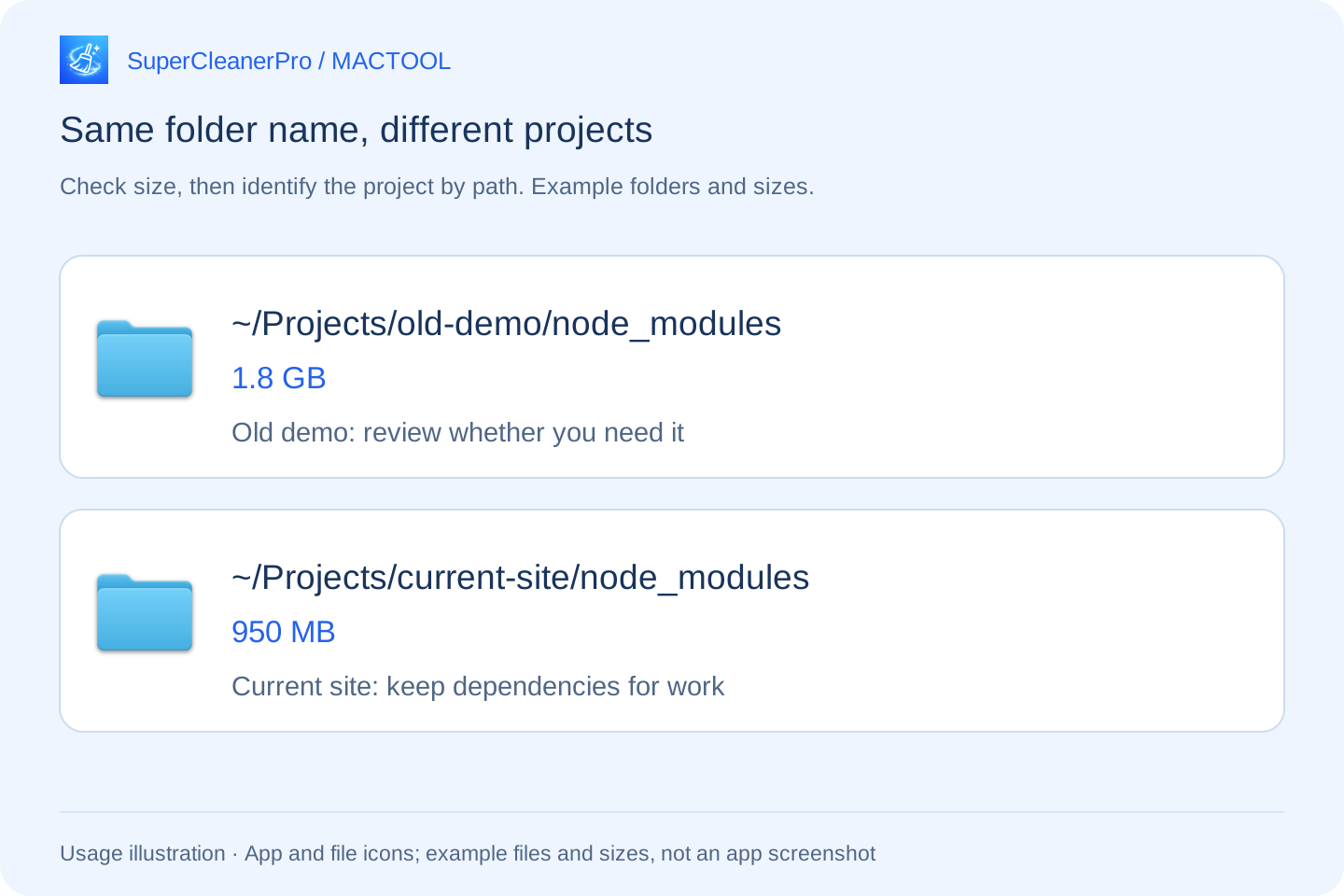
For example, ~/Projects/old-demo/node_modules and ~/Projects/current-site/node_modules have the same final folder name but belong to different projects. Review the abandoned demo first; keep the dependencies for the site you are currently developing.
Use the folder button on the relevant row to inspect its location in Finder. Size helps you choose where to look first, while the path identifies the project. The app does not decide whether a project is obsolete.
Select unwanted dependency folders individually
Stop development servers or builds running in the old projects. Expand the results and select only specific node_modules folders you have reviewed. Do not select a parent project folder or the scan starting folder as a cleanup target.
Keep your source code, images and other project resources, along with package.json, the matching lockfile and project configuration. A lockfile records dependency versions, such as package-lock.json in an npm project. Save any edits made directly inside node_modules as maintained project files or patches before removing those dependencies.
Click Clean Selected, review the folder count and size, then confirm. The app moves selected folders to Trash and reports the result. If a folder could not be processed, inspect the reported outcome and its location in Finder rather than selecting its parent folder instead.
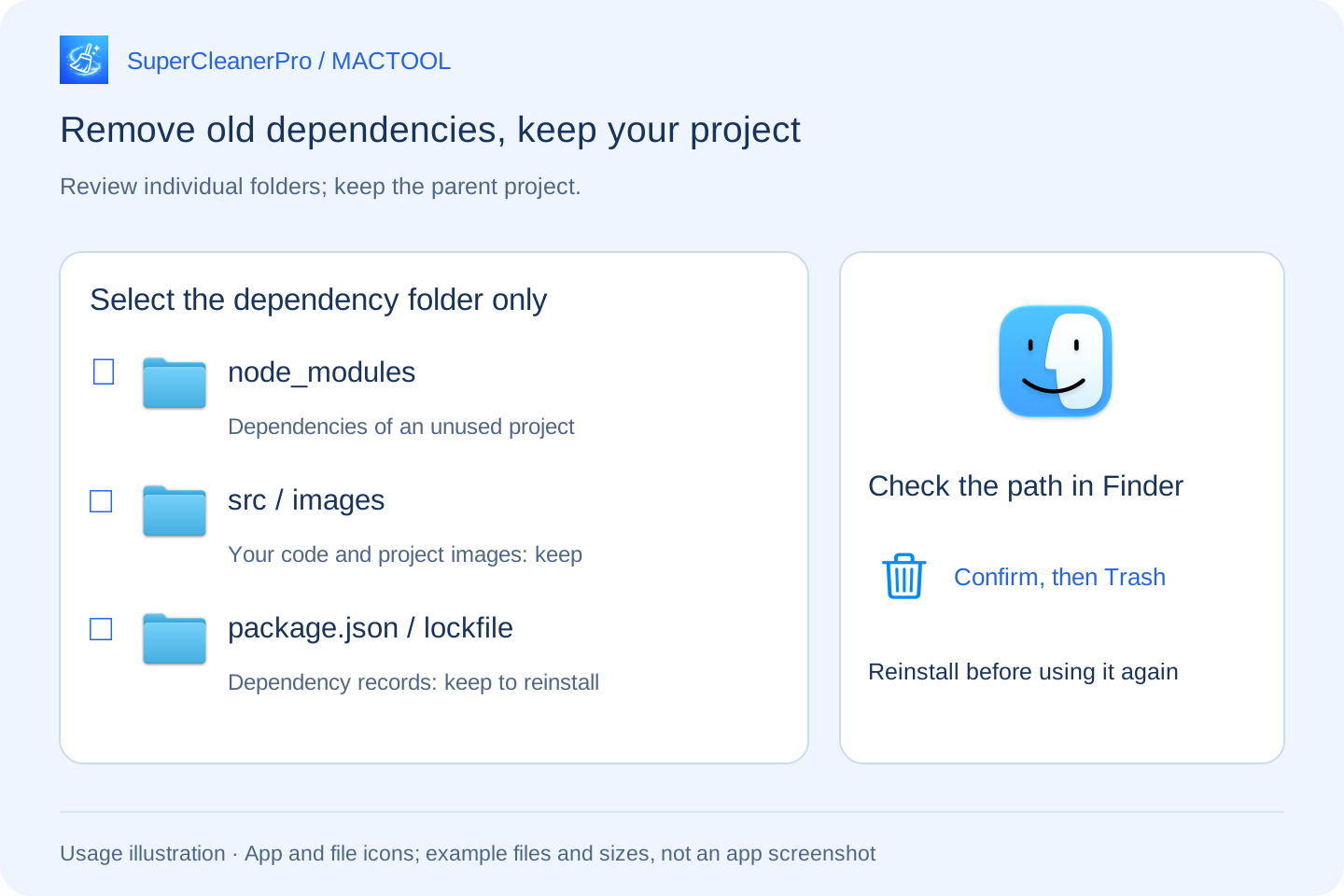
After moving folders to Trash, you can still check that you selected the right items. To reclaim disk space, confirm you will not need them back, review other Trash contents and then empty Trash.
Reinstall dependencies before using the project again
An old project will need its dependencies installed before it can run again. Open the project you kept and follow its original installation instructions.
For example, an npm project with a retained package-lock.json matching package.json can use npm ci from its project directory. The command installs from the lockfile without rewriting those records; it reports an error if the dependency declarations disagree. See the npm installation documentation for its requirements. Projects using other package managers should keep their original tools and instructions.
Reinstallation takes time and may need network access or credentials for private dependencies. Keep dependencies for active projects, upcoming demos or projects whose packages you cannot currently download again.
Still short of space?
This page focuses on node_modules inside your home folder, rather than every developer cache. Results also depend on system file search and folder permissions; an absent result does not prove that a folder does not exist.
Use DiskTreeSize to inspect what occupies a developer folder if you need to look further. Xcode's generated files can be reviewed separately.
Find features and downloads at SuperCleanerPro and the Mac App Store.
Frequently asked questions
Does removing node_modules delete my source code?
node_modules usually contains installed project dependencies. Select only the specific node_modules folder, keeping the parent project, source files and dependency records. Save any changes you made directly inside dependencies first.
Can I work on the project again?
Reinstall dependencies with the project's original package manager first. Keep package.json, the matching lockfile and project configuration, and check that dependencies remain available. The app does not reinstall them for you.
What if a project does not appear?
This feature finds node_modules under your home folder. Results also depend on macOS file search and access permissions. Inspect projects on external drives or missing folders separately in Finder or DiskTreeSize.