SuperCleanerPro.appSuperCleanerPro.app

Running out of Mac storage? Uninstall apps and review what they leave behind.

Free up Mac storage with SuperCleanerPro: review app leftovers, duplicate files, large files and old installers. Scan first, then choose what to remove.

Actual app screenshots with Chinese UI. Sizes are from this Mac, not a cleanup guarantee.

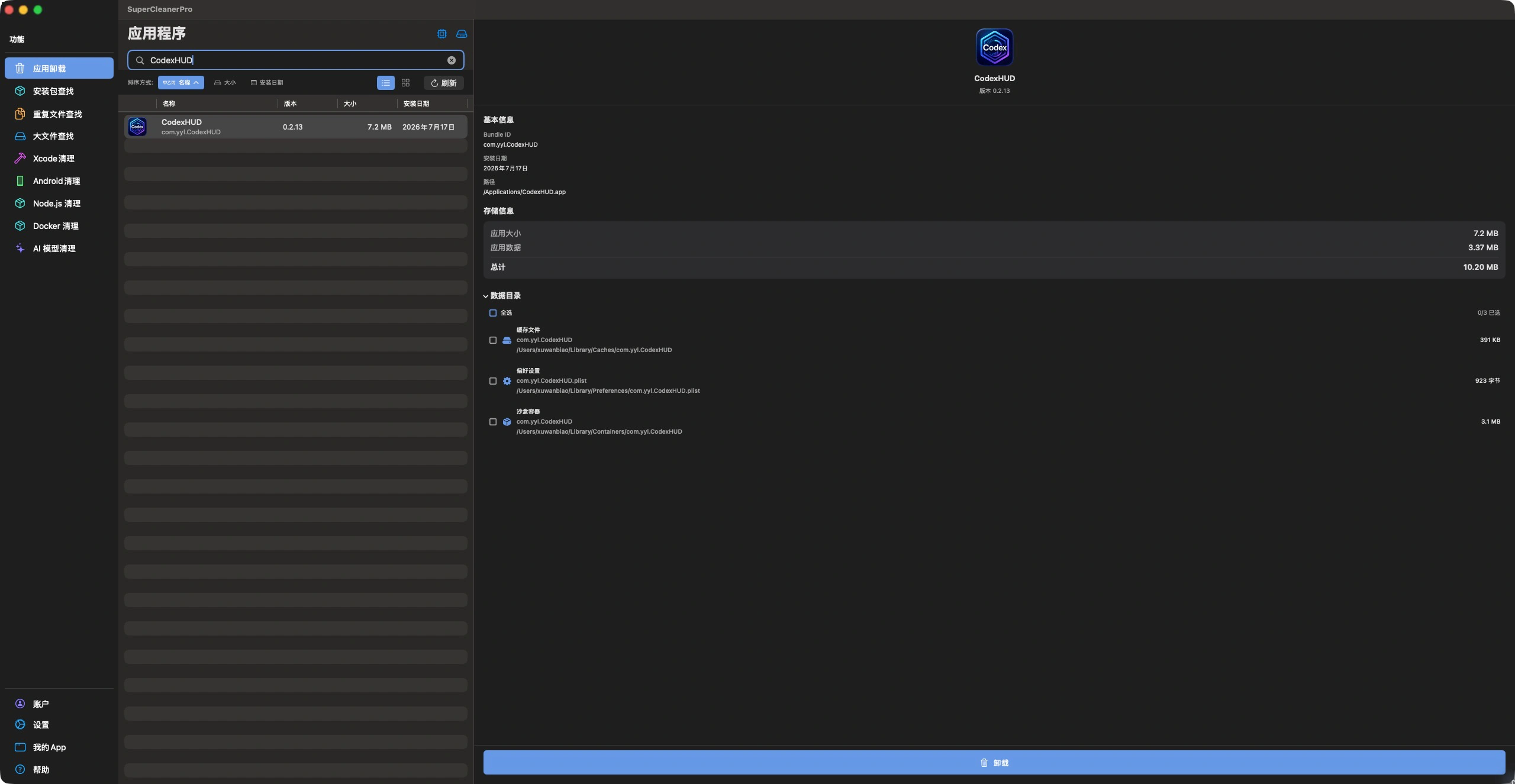
1. App Uninstaller: removing the app icon can leave data behind

Caches, preferences and sandbox data can live outside the app bundle. Select an app, compare its own size with its data, then inspect the paths and choose which associated items to remove.

App Uninstaller: removing the app icon can leave data behind — Actual app screenshots with Chinese UI. Sizes are from this Mac, not a cleanup guarantee.
View full-size screenshot ↗

Quit the target app and leave wanted data unchecked. This workflow starts from an installed app; it is not a claim to find every trace of apps removed earlier.

Open the illustrated guide →
SuperCleanerPro
Mac App StoreSuperCleanerProMac App Uninstaller & Storage Cleaner🍎 macOSUtilitiesVersion 14 · 2026-06-29
Download

Choose the storage problem you want to solve

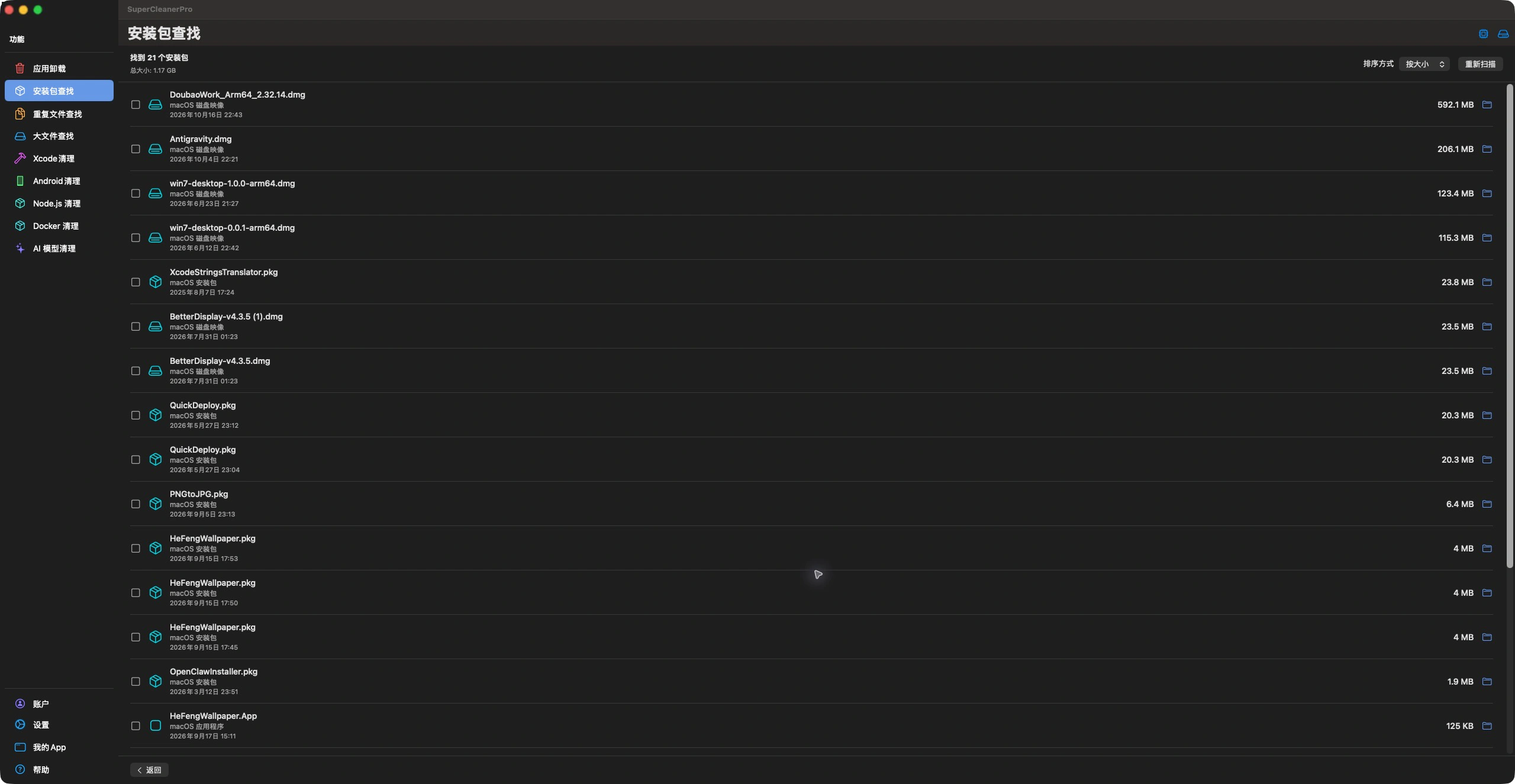
2. Installer Finder: installed apps, forgotten DMGs and PKGs

Find installers in Downloads, Desktop and Documents, then sort by size, modification date or type. Categories cover macOS, Windows, Android, Linux, archives and disk images.

Installer Finder: installed apps, forgotten DMGs and PKGs — Actual app screenshots with Chinese UI. Sizes are from this Mac, not a cleanup guarantee.
View full-size screenshot ↗

Confirm installation is complete and whether an offline installer is still needed. Archives may also be work backups, not disposable installers.

Open the illustrated guide →

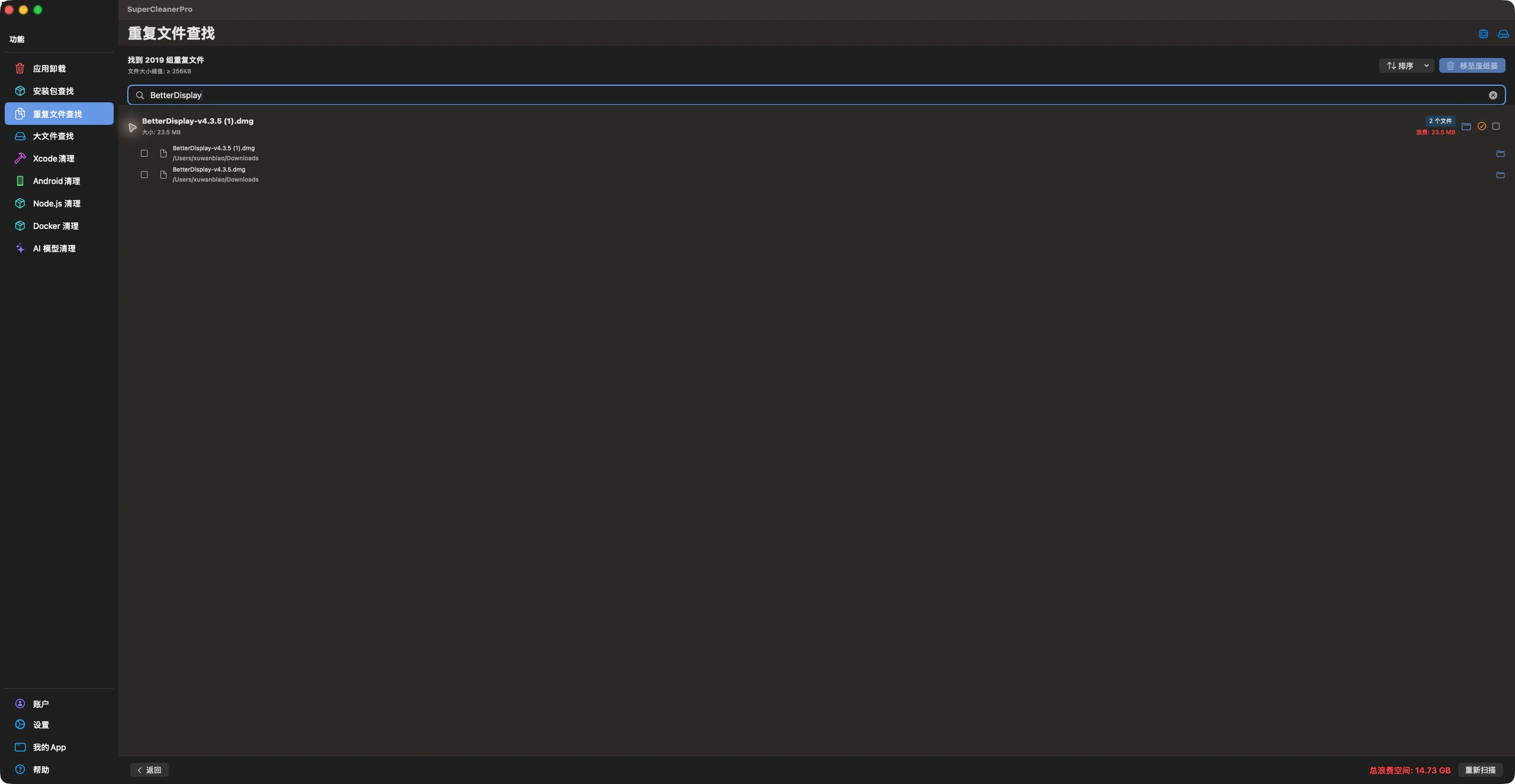
3. Duplicate Finder: different names can hide identical content

Group copies by file content rather than their names. Expand a group, inspect each location, keep the copy your workflow uses and select only unnecessary copies.

Duplicate Finder: different names can hide identical content — Actual app screenshots with Chinese UI. Sizes are from this Mac, not a cleanup guarantee.
View full-size screenshot ↗

Checks Documents, Downloads and Desktop with a minimum-size selector. This finds identical content, not visually similar photos.

Open the illustrated guide →

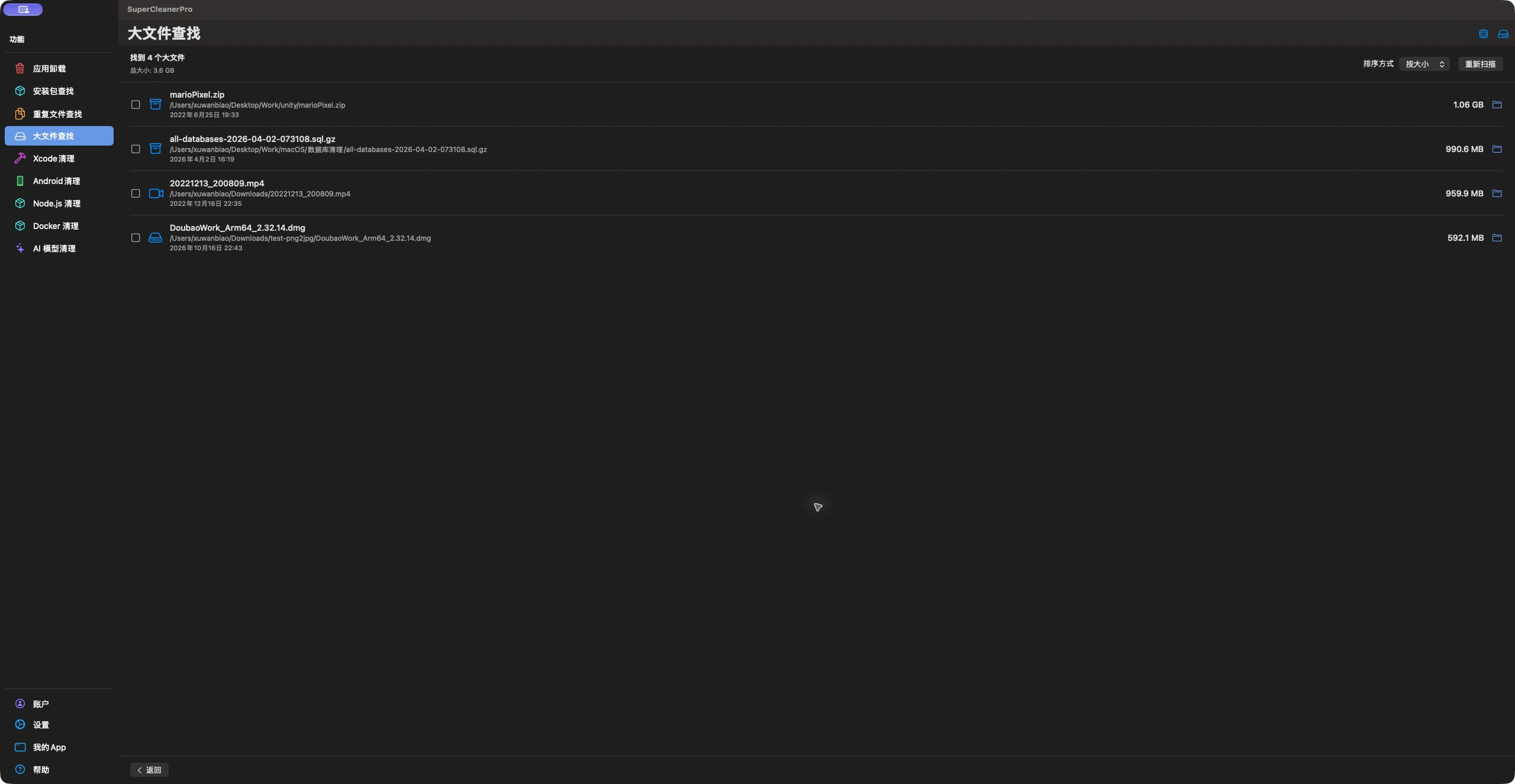
4. Large File Finder: locate the few files taking the most space

Choose a threshold from 100MB to 2GB and search common folders. Sort results by size, then use Finder to identify the work each file belongs to.

Large File Finder: locate the few files taking the most space — Actual app screenshots with Chinese UI. Sizes are from this Mac, not a cleanup guarantee.
View full-size screenshot ↗

A large file may still be essential footage, a virtual machine or your only backup. Review its purpose before selecting it.

Open the illustrated guide →

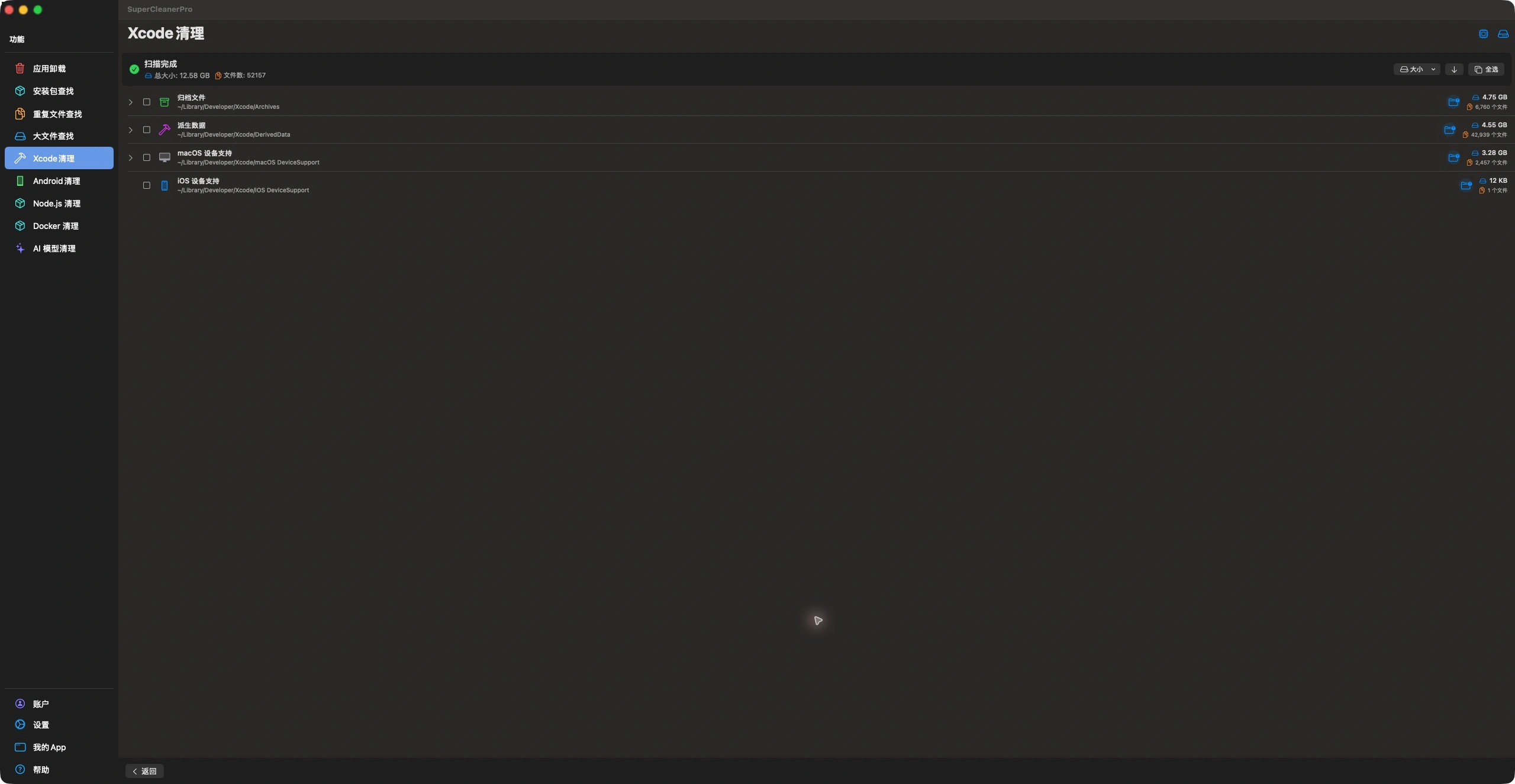
5. Xcode Cleanup: small projects, growing development data

See separate sizes for DerivedData, archives and platform device support. Expand a category and review old projects or versions instead of clearing the entire development directory.

Xcode Cleanup: small projects, growing development data — Actual app screenshots with Chinese UI. Sizes are from this Mac, not a cleanup guarantee.
View full-size screenshot ↗

DerivedData can be rebuilt; release archives may be needed for crash analysis. Simulator cleanup is not included in this page.

Open the illustrated guide →

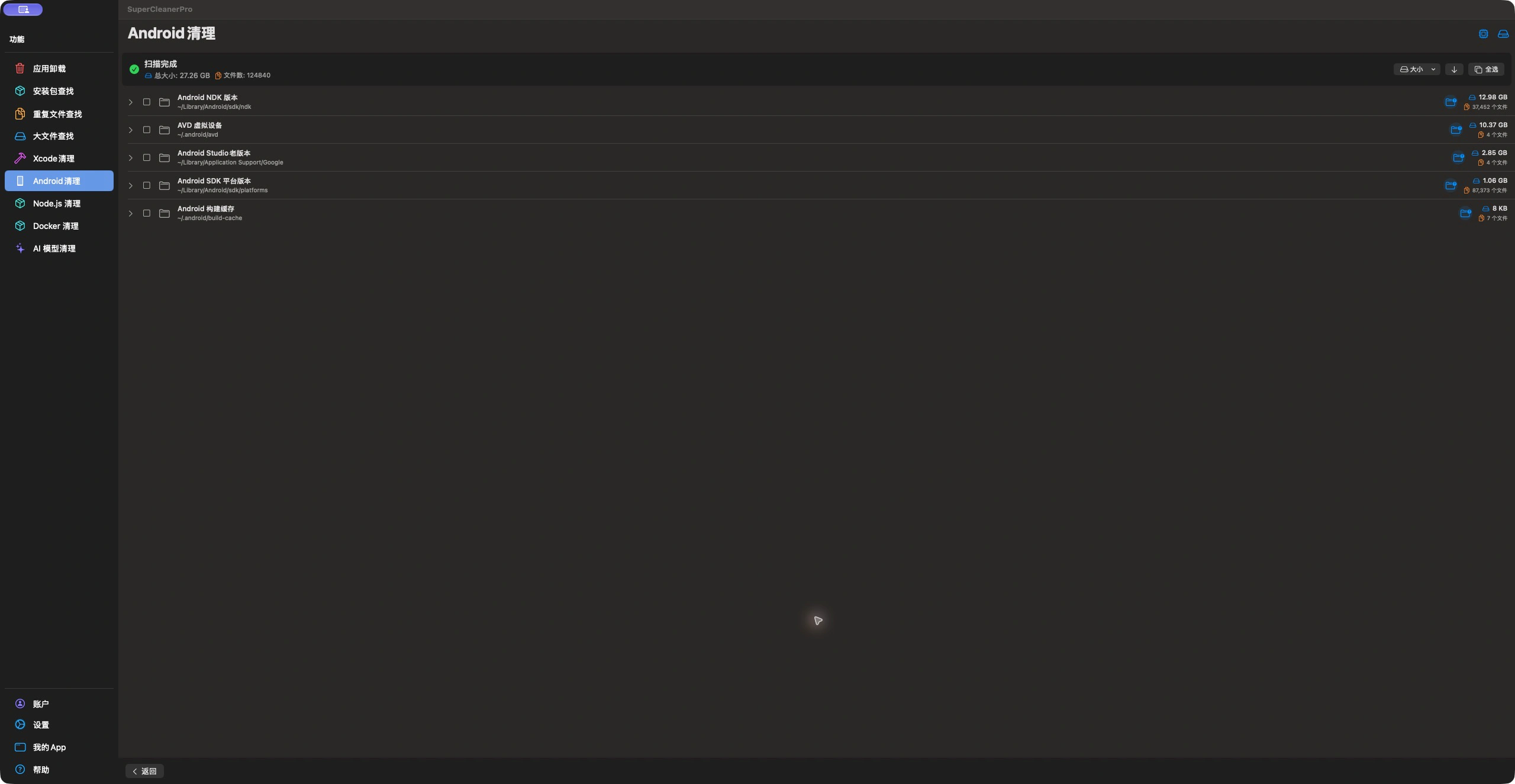
6. Android Cleanup: SDKs, NDKs and virtual devices accumulate

Review SDK platforms, NDKs, AVDs, old Android Studio data, Gradle caches and Android build caches separately. Start with the largest category and inspect versions.

Android Cleanup: SDKs, NDKs and virtual devices accumulate — Actual app screenshots with Chinese UI. Sizes are from this Mac, not a cleanup guarantee.
View full-size screenshot ↗

Keep tools pinned by current projects and devices you still use. Cache removal can require downloads; old IDE data can include settings and plugins.

Open the illustrated guide →

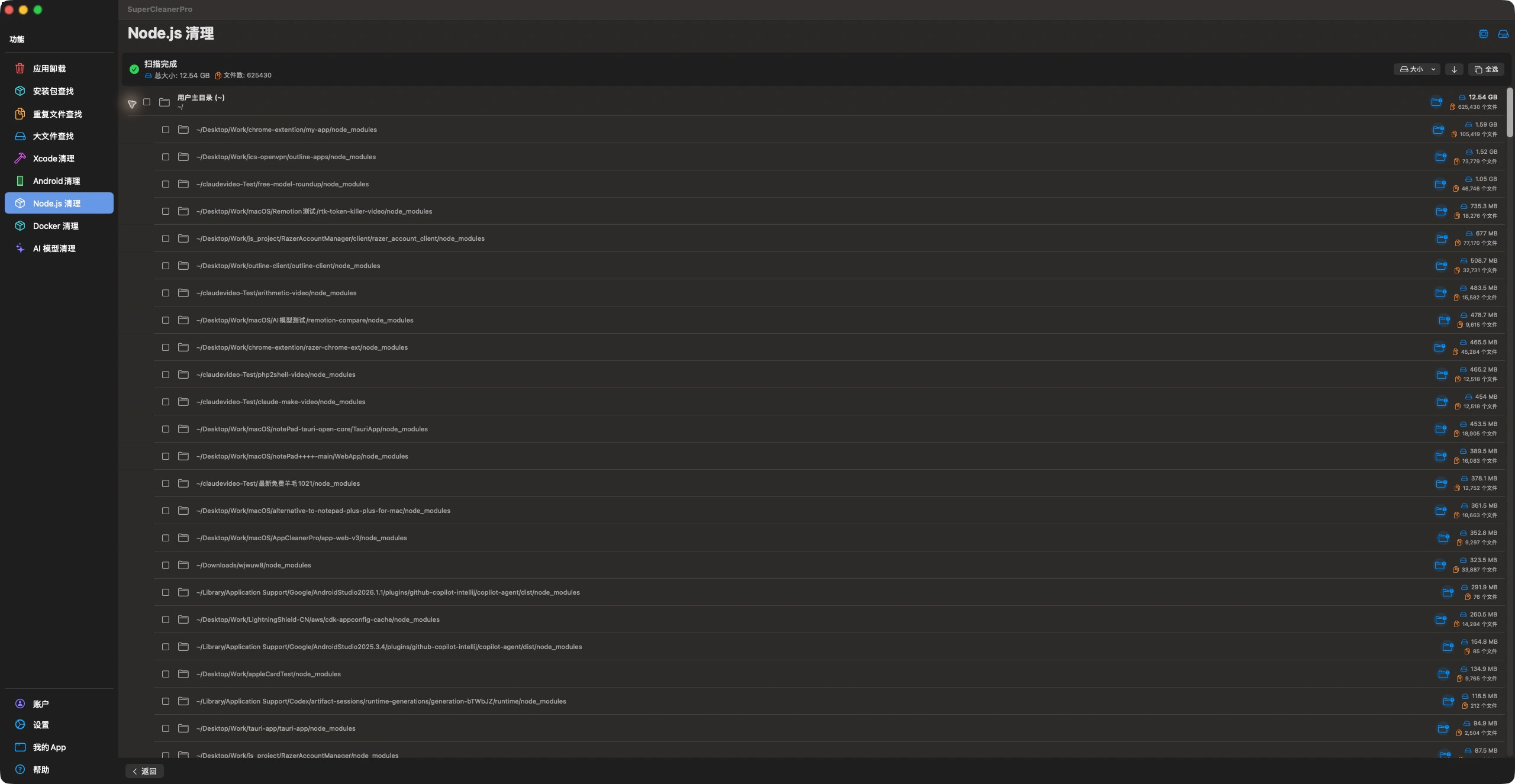
7. Node.js Cleanup: old dependencies can outweigh your source

Locate node_modules in the user home directory and review individual project paths by size. Find the large dependency folders without opening every old project.

Node.js Cleanup: old dependencies can outweigh your source — Actual app screenshots with Chinese UI. Sizes are from this Mac, not a cleanup guarantee.
View full-size screenshot ↗

Select only reviewed node_modules directories. Keep source, package.json and lockfiles; reinstall dependencies yourself before using the project again.

Open the illustrated guide →

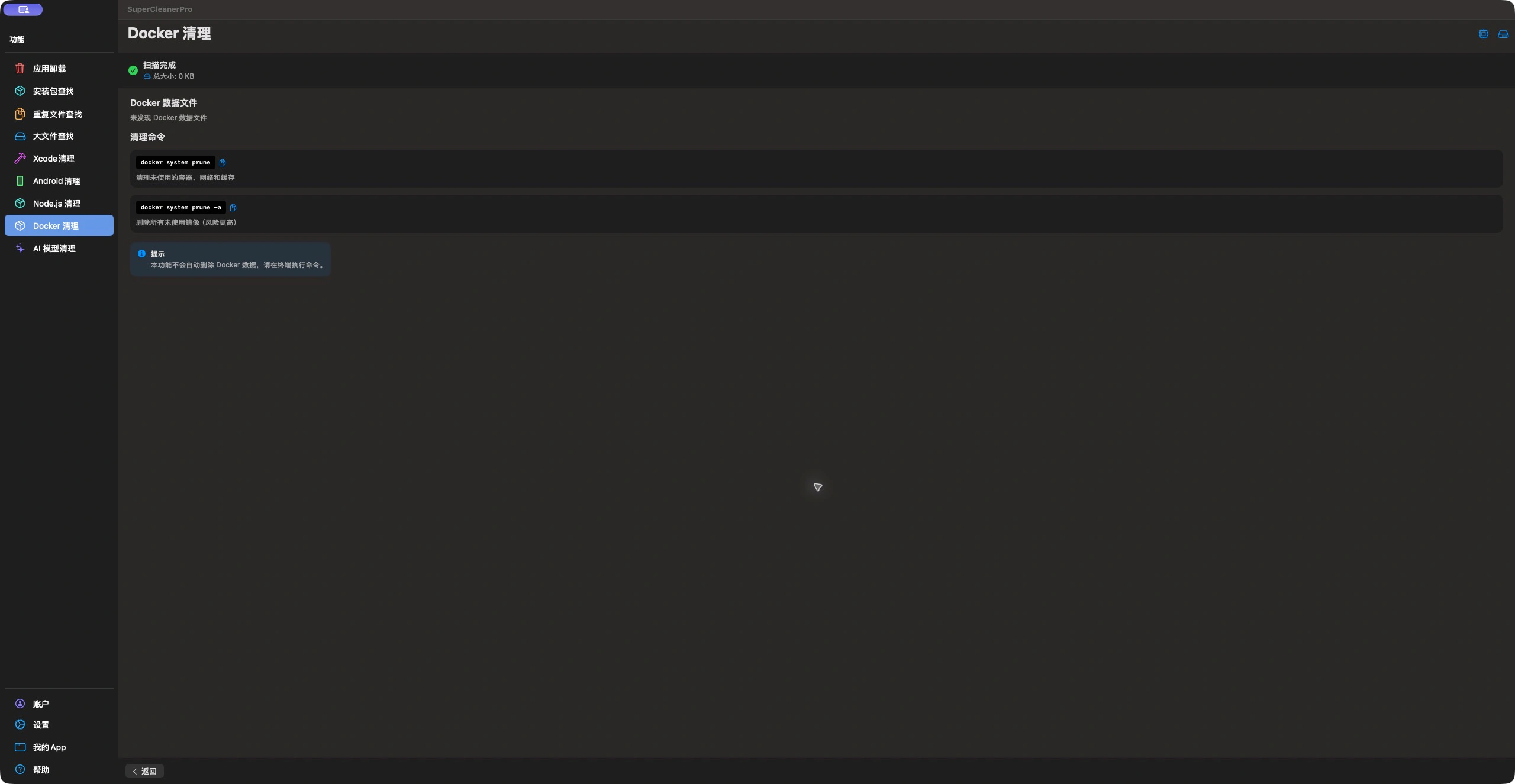
8. Docker Cleanup: locate the disk before removing resources

Check Docker.raw and Docker.qcow2 locations and sizes, then review docker system prune and its -a option. Copy a command and decide whether to execute it in Terminal.

Docker Cleanup: locate the disk before removing resources — Actual app screenshots with Chinese UI. Sizes are from this Mac, not a cleanup guarantee.
View full-size screenshot ↗

The feature does not execute commands or delete the Docker disk. The screenshot shows 0 KB because this Mac had no matching file at the checked location.

Open the illustrated guide →

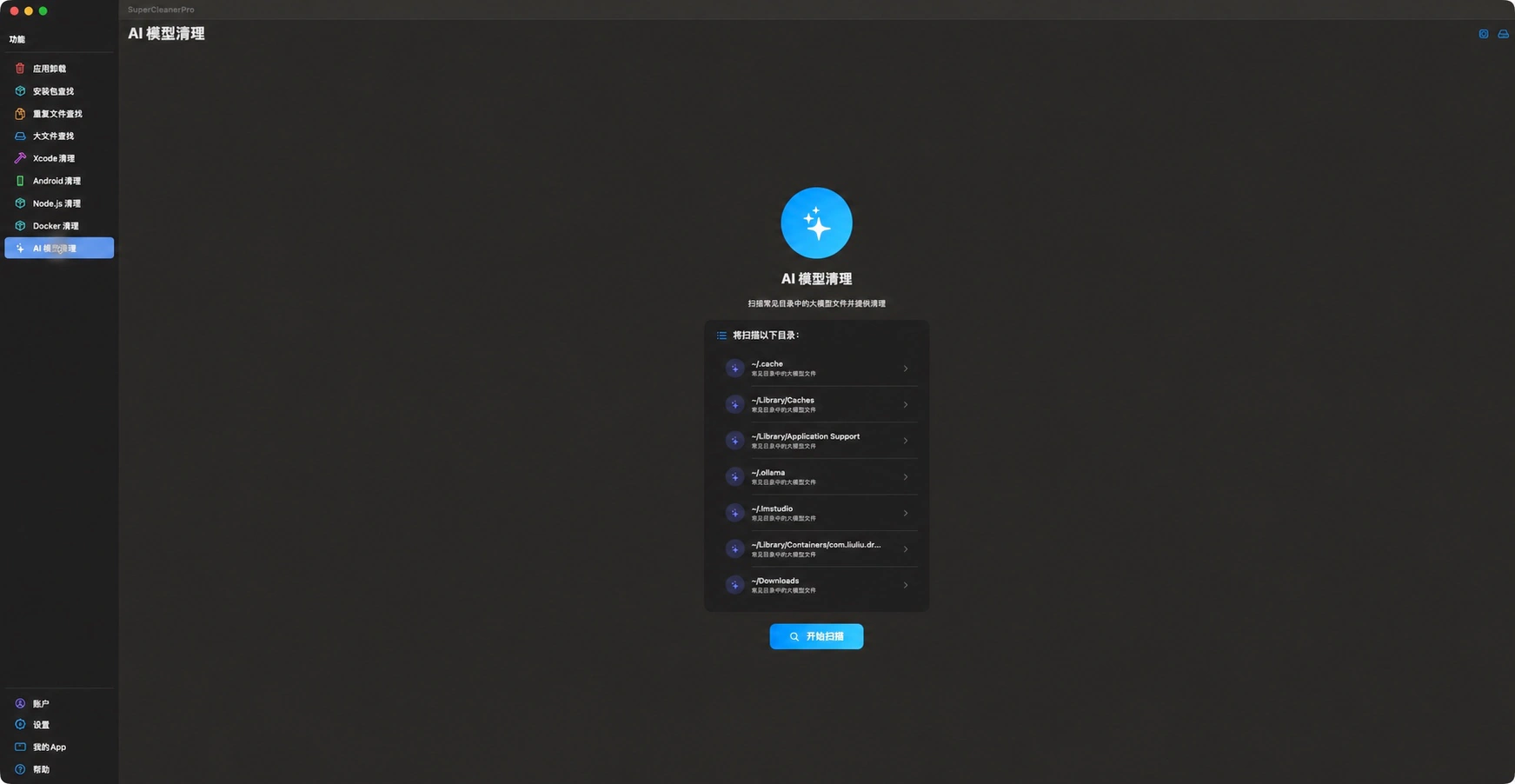
9. AI Model Cleanup: find the downloads left by model experiments

Inspect common model and cache locations for supported files occupying at least 512 MiB. Expand a location, review model names and versions, then select downloads you no longer use.

AI Model Cleanup: find the downloads left by model experiments — Actual app screenshots with Chinese UI. Sizes are from this Mac, not a cleanup guarantee.
View full-size screenshot ↗

Supports GGUF, Safetensors and other formats. Custom locations, smaller files or extensionless files may be absent; review active models and shards carefully.


Open the illustrated guide →

At a glance

Platform
macOS
Category
Utilities
Version
14
Updated
2026-06-29
Privacy Policy
Privacy Policy

Articles features, comparisons and common questions