Find Duplicate Files on Mac Even When Their Names Are Different
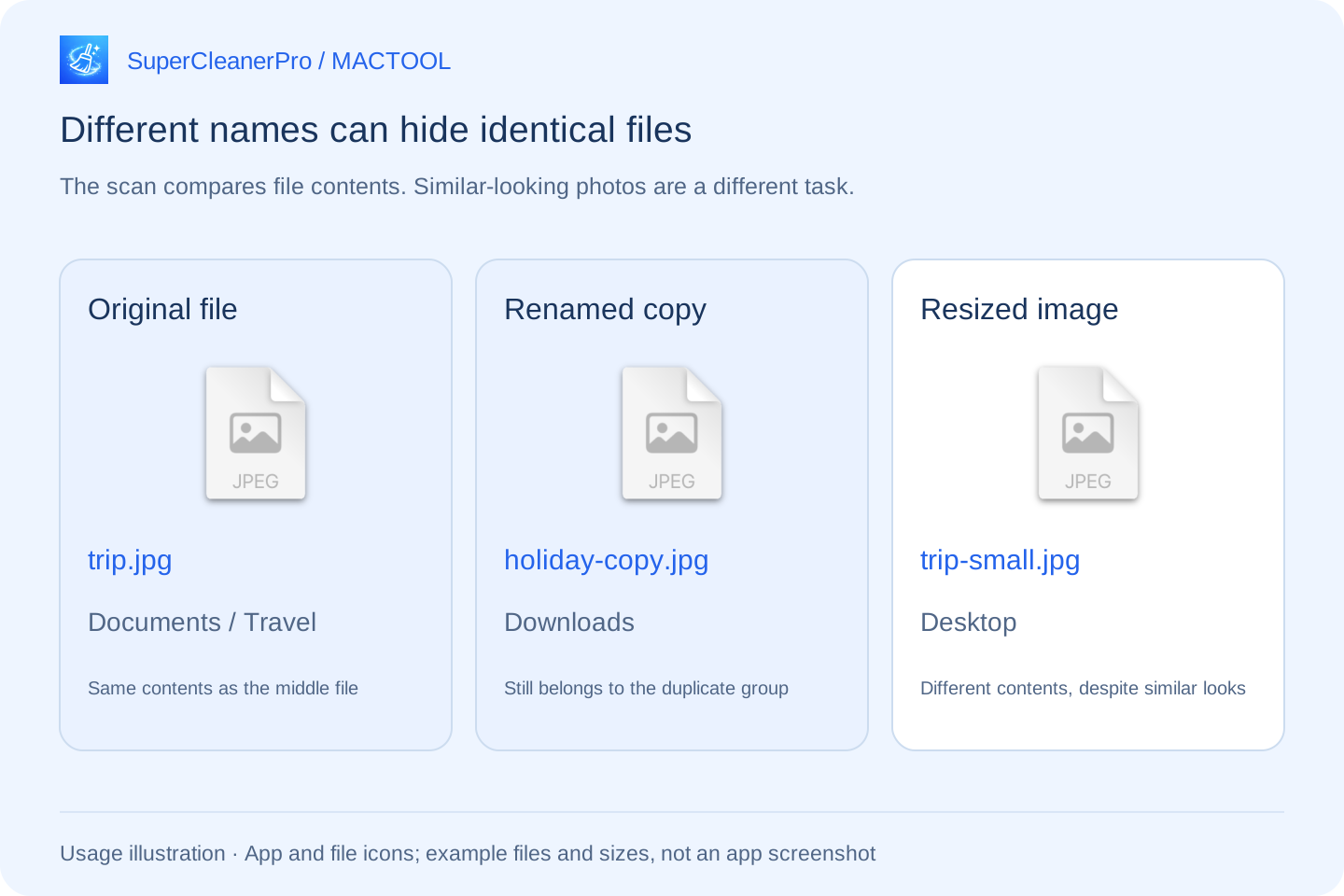
A photo started as trip.jpg. You copied it into Downloads and renamed it holiday-copy.jpg. Weeks later, you may have forgotten they are the same file. Repeated archive downloads and work documents saved in different folders create the same problem.
You do not need to rename them to match. SuperCleanerPro's Duplicate File Scanner compares file contents and groups identical copies. Review each location, then decide what to keep.
Different names can hide identical files
Renaming a file in Finder or copying it elsewhere usually leaves its contents unchanged. Those copies can be detected together even when their names and folders differ.
The reverse also matters: two files named report.pdf may contain different versions. Equal file sizes and similar-looking photos do not prove identical contents. The scanner compares the file data rather than relying only on names.
Scan your everyday folders
Open Duplicate File Scanner in SuperCleanerPro. This page checks Documents, Downloads and Desktop. Follow the permission prompts if access is needed.
Before scanning, choose a File Size Threshold: only files at least that large are checked. For example, select “≥ 1MB” to focus on larger files, then click Start Scan. Choose a lower threshold to include smaller files.
Files with matching contents appear in groups. The default Wasted Space (Large to Small) order helps you inspect groups with more storage in extra copies first. The displayed amount is an estimate of duplicate file sizes, not space already recovered.
Expand a group and choose the location to keep
Expand a duplicate group to see each file's name and parent folder. Use the folder button beside a file to show that particular copy in Finder.
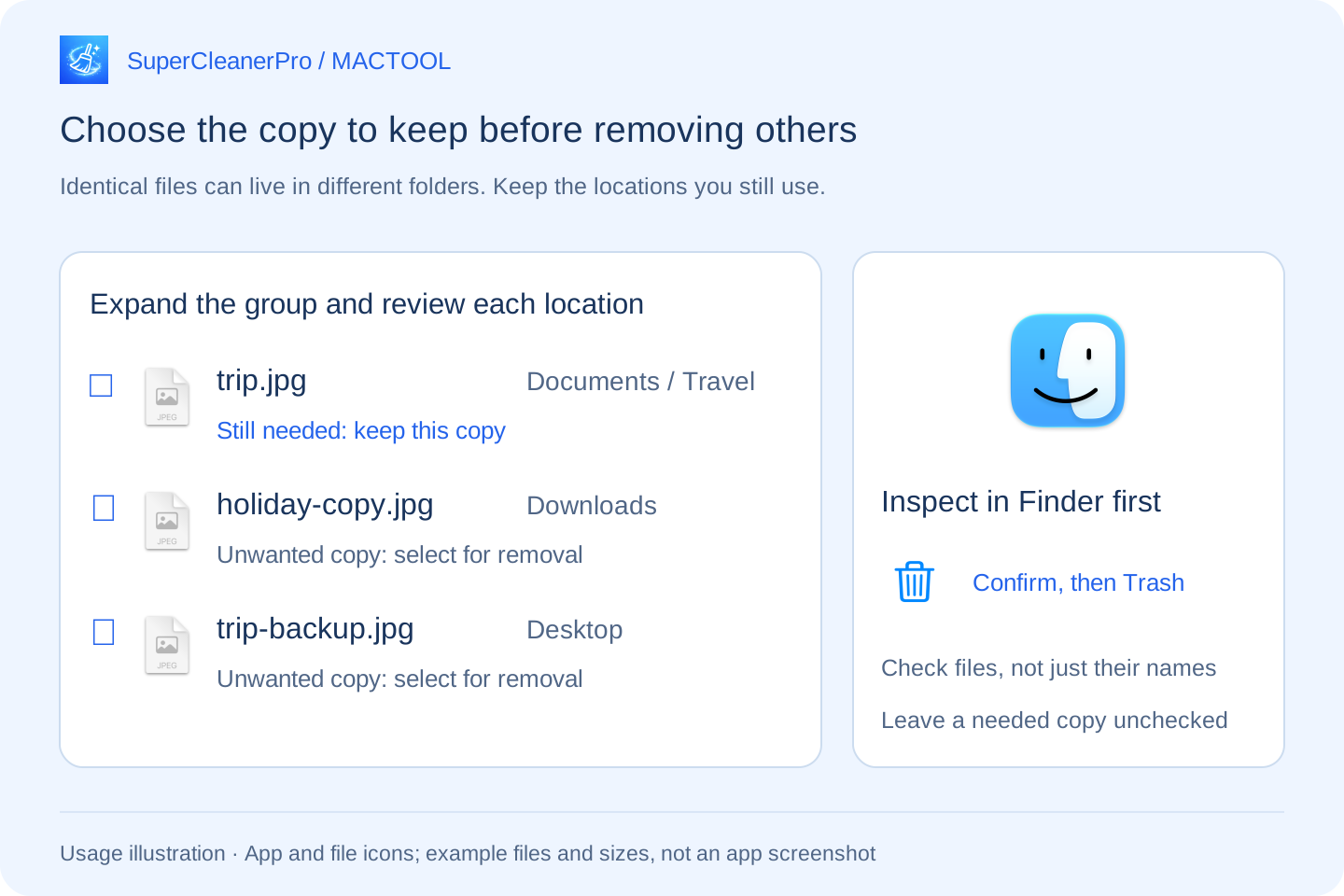
For example, the same photo might be in three locations:
- Your organized Travel folder in Documents: keep it.
- A renamed copy in Downloads that you no longer need: select it.
- A temporary copy on Desktop that is no longer needed: select it.
Do not choose solely by which filename looks better. Keep the locations you use. If another app or workflow expects a file at a specific path, leave that copy in place too.
Select unwanted copies, then move them to Trash
In the expanded list, check only the copies you want to remove. Select all except first provides a shortcut for selecting the other entries. Review the checkboxes afterward and make sure the copy you need is unchecked. The first entry is a reference, not a decision about which location you should keep.
Use the bottom Move to Trash button showing the selected file count. Review the count and size in the confirmation prompt, then proceed. A file's context menu also lets you process that individual file.
After processing, the app reports successful removals and failures. Files normally still occupy space while they remain in Trash. Inspect its contents and empty it only after confirming nothing needs to be restored.
If an expected file is missing, check scope and size
First check whether the file is in Documents, Downloads or Desktop, then whether it meets your chosen size threshold. With “≥ 1MB” selected, documents of a few hundred KB are outside this scan's results.
A resized, edited or re-exported photo can look the same while containing different data. That calls for a similar-photo search rather than treating every visually similar photo as an identical duplicate.
For organizing Downloads toward a specific storage goal, see where to start when you need 10 GB. Find features and downloads on SuperCleanerPro or the Mac App Store.
Frequently asked questions
Can files with different names be detected as duplicates?
Yes. SuperCleanerPro compares file contents, not just names. Copies whose contents remain unchanged after renaming can appear in the same group.
Are files with identical names always duplicates?
No. Two documents with the same name may be different versions. The scan does not group them merely because their names match.
Does this find similar-looking photos?
This guide covers files with identical contents. Edited, resized or re-exported photos may contain different data, so this is not a similar-photo finder.