Mac Storage Full? Where to Start When You Need 10 GB
Your Mac is running out of space, and you need room to download a file, install software or save a video project. You open Downloads, but which files can go, and which ones do you still need?
SuperCleanerPro's Free up space feature lets you set a goal and review candidate files. Start with duplicate copies, then inspect unwanted installers and large personal files. You do not have to begin by uninstalling apps you use every day.
Set a goal and start with Downloads
Open Free up space and choose 10 GB under Space to recover. The available goals are 5, 10, 20 and 50 GB; choose one that suits your task.
Click Choose folders, select Downloads or another personal folder you want to organize, then click Scan files. Scanning does not remove anything, so you can review the results before deciding.
This feature checks files directly inside each selected folder, without entering subfolders. If your files are in Downloads/Old installers, include Old installers in the selection. Choose personal folders on your home disk; Library, hidden folders, cloud items and app bundles are outside this feature's scope.
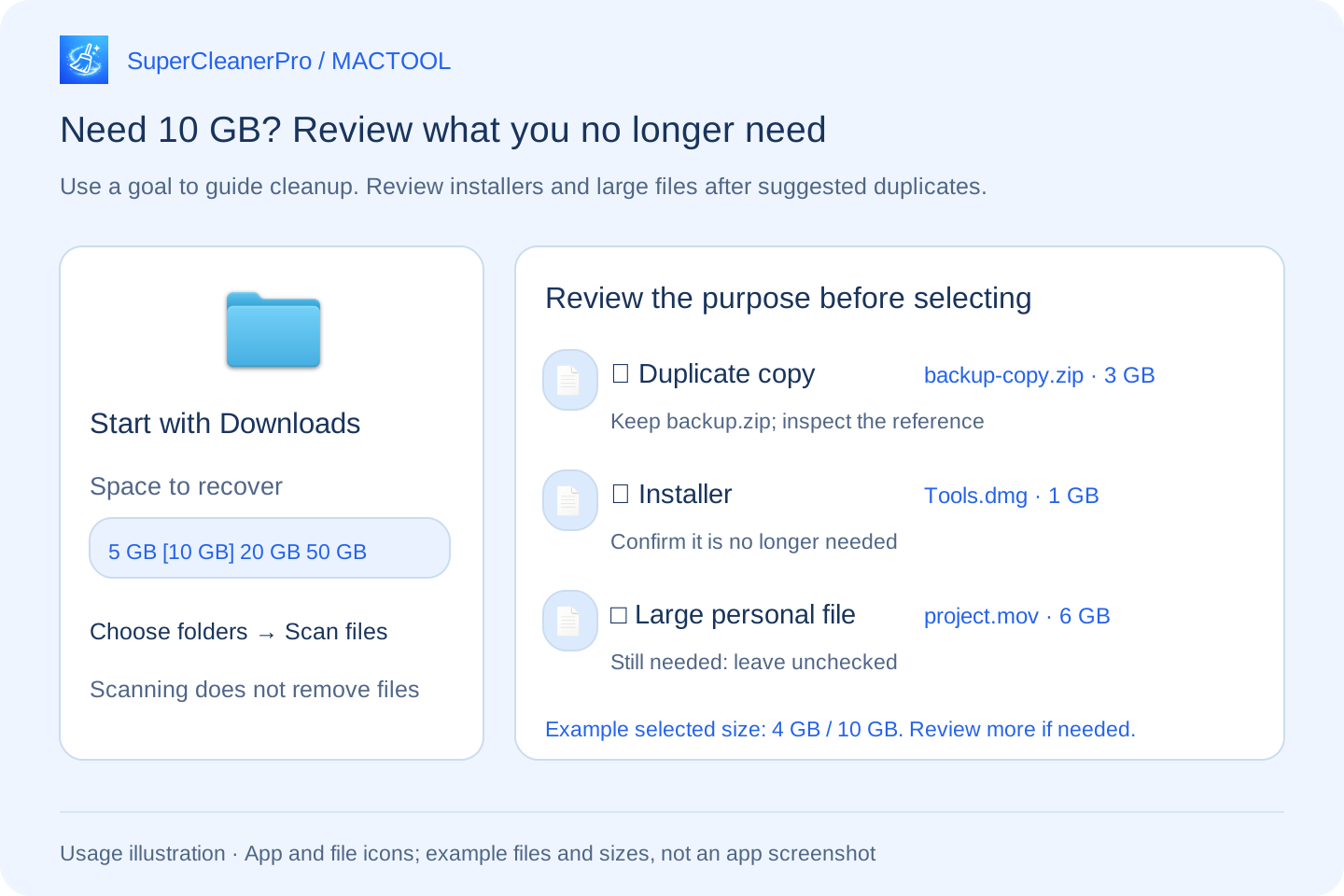
Start with duplicate copies and check the file to keep
Repeated downloads and copies in different locations can leave redundant files behind. Click Suggest duplicates to select recommended duplicate copies. Each duplicate identifies a Copy to keep.
Open the reference copy and confirm that its contents and location suit your needs. Identical contents do not make every location disposable. If another app needs a file at a particular path, leave that copy in place.
Suggestions apply only to duplicates. If their combined size falls short of 10 GB, review installers and personal files next; the app does not select all of those files for you.
Review installers and large personal files
Use the Category control to inspect installers and large personal files separately. This page lists duplicates and installers of 1 MB or larger, and personal files of 100 MB or larger.
- Installers: Consider removing a DMG or PKG after installation if you do not need it for offline reinstallation. Keep installers you want as backups.
- Large personal files: Use Preview or Show in Finder to inspect them. Videos, archives and work files are not disposable merely because they are large.
The illustration selects a 3 GB duplicate and a 1 GB installer while leaving a needed 6 GB video unchecked. That is 4 GB selected toward a 10 GB goal. These are example values, not measured scan results or cleanup benchmarks.
You can process a smaller selection first
The bottom of the page shows the selected file size alongside your goal. If you are below the goal, inspect more files, choose another useful folder and scan again, or process the files you have already checked.
Click Review selection, inspect the complete list and confirm Move to Trash. Files that changed or could not be processed are reported; scan again or inspect the reason when necessary.
10 GB is a planning goal, not an amount you must delete. Remove what you no longer need rather than selecting useful files to reach a number.
Measure the space you actually recovered
The result shows Moved to Trash separately from Available-space change. Files normally still occupy disk space in Trash, so the selected total is not space already recovered.
Click Open Trash and review its contents. After confirming that nothing needs to be restored, empty Trash in Finder, then return to the app and click Measure space again. Emptying Trash also removes unrelated items that were there earlier.
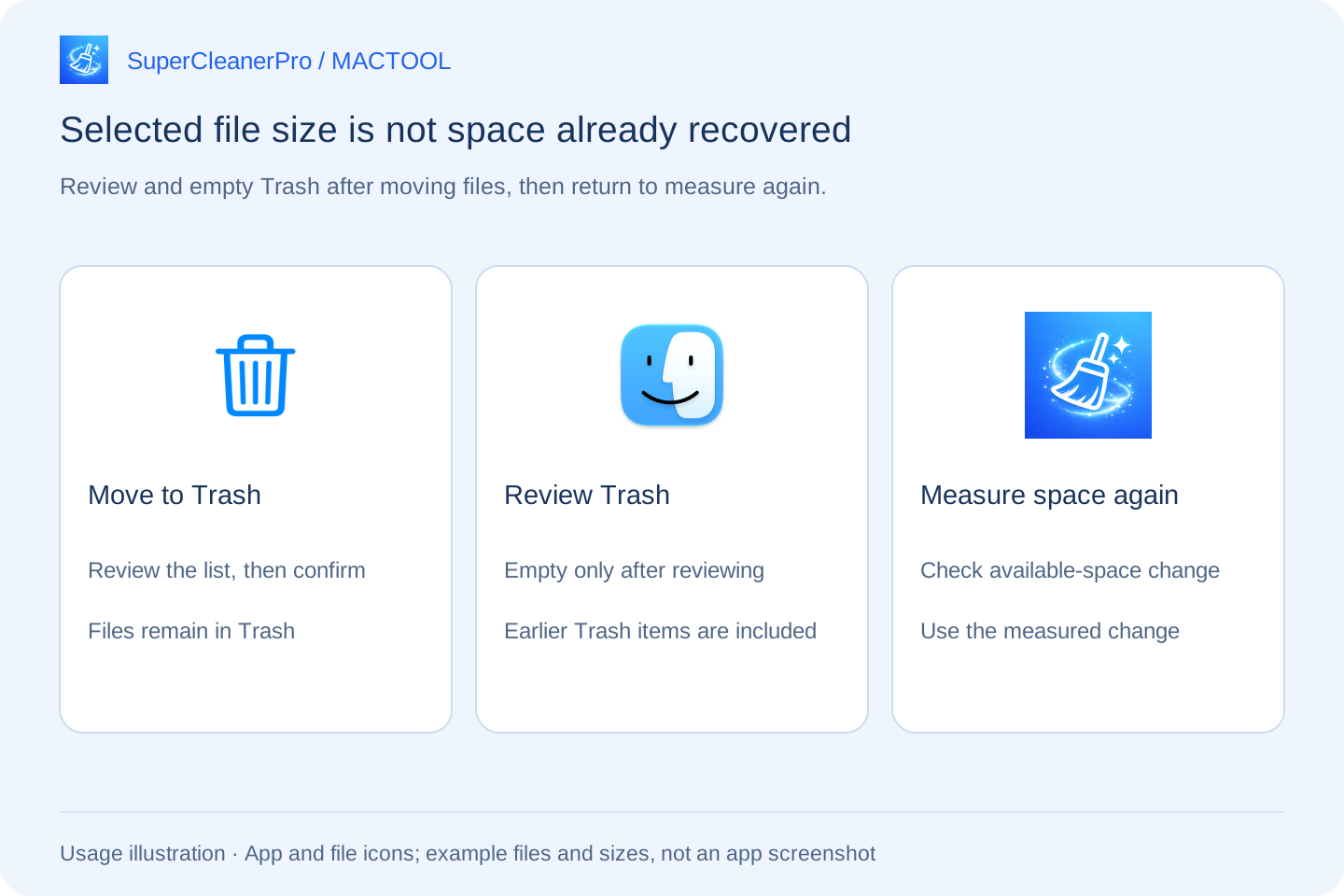
Other apps writing files can also affect available space. Use the measured Available-space change to see the actual result rather than relying only on the total size of a removal list.
If you want to start with unwanted software, see uninstalling apps and choosing their associated data. Find features and downloads on SuperCleanerPro or the Mac App Store.
Frequently asked questions
Does setting a 10 GB goal guarantee that much recovered space?
No. The goal guides your review. What you can remove depends on the folders and files you choose, and selected file sizes are not the same as disk space already recovered.
Does Suggest duplicates select every large file?
No. It selects recommended duplicate copies. You still review installers and large personal files yourself.
Why are files inside subfolders missing from the results?
Free up space checks only files directly inside the selected folders. Add a particular subfolder to the selection if you want to review its files.