
Docker taking up space on Mac? Find its data files before cleaning resources
You have run a few databases and test environments locally. The containers are now stopped, yet your Mac is still short of storage. Docker may keep that data inside a disk file, whose size alone does not tell you what can be removed.
SuperCleanerPro’s Docker Cleanup finds Docker.raw and Docker.qcow2, shows their locations and sizes, and presents Docker cleanup commands. It helps you locate the storage and understand the next action; it does not automatically delete Docker’s data file.
Check where Docker stores its data
Choose Docker Cleanup and Start Scan. Complete any required folder access prompt. The current feature looks under ~/Library/Containers/com.docker.docker/Data.
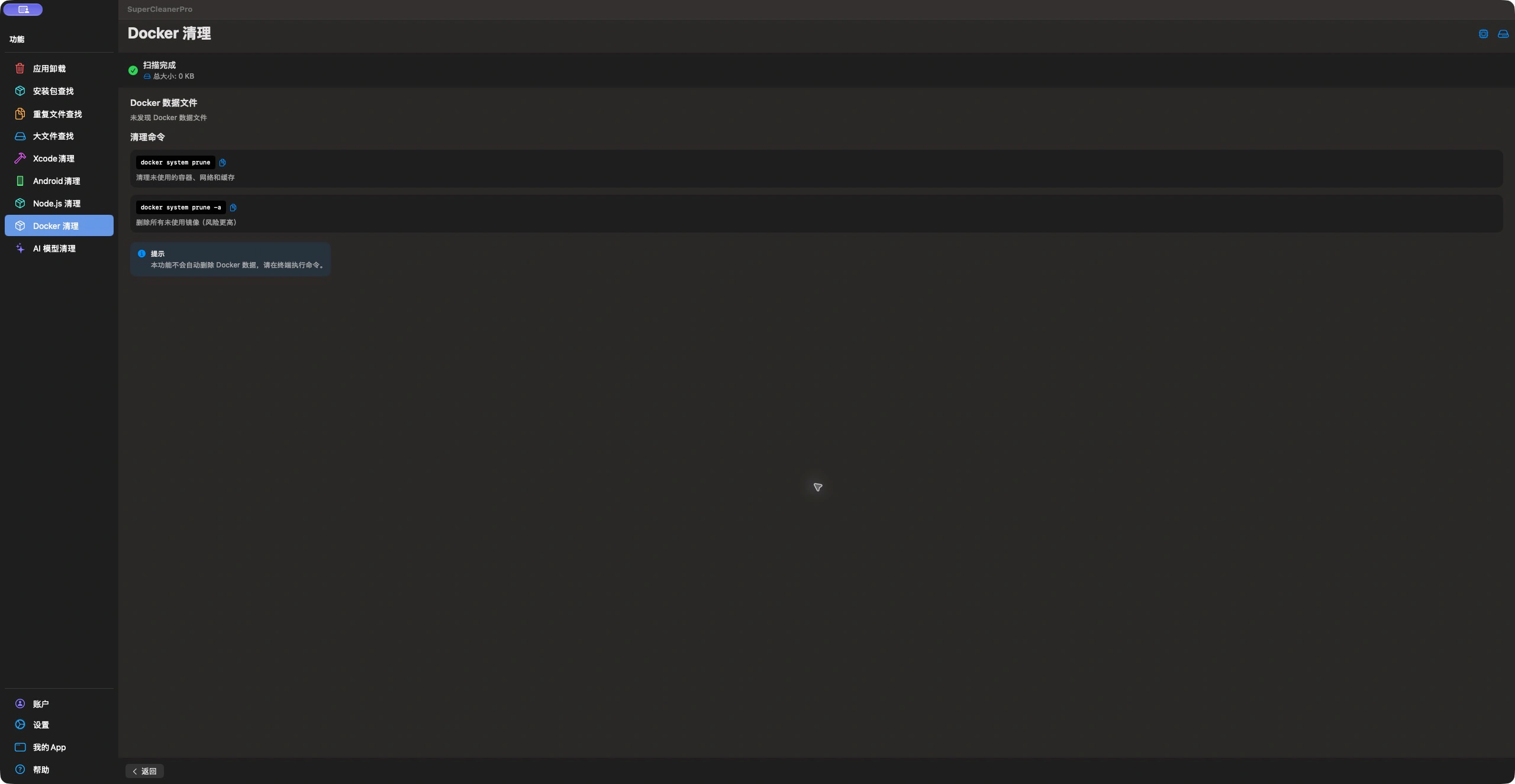
This Mac had no matching data file at that location, so it shows 0 KB. The screenshot demonstrates the actual command guidance; no command was executed. Your result depends on installation, disk location and access permissions.
If a file is found, review its path and storage size, then inspect resources in Docker Desktop. If no file is found, check whether you moved the disk or use a different container environment. A 0 KB result does not establish that the whole Mac has no Docker data.
A large Docker disk is not an ordinary disposable cache
A Docker data file can contain storage used by your local environments. Deleting the whole file is much broader than removing a few unwanted images or stopped containers. Persistent database contents deserve a separate review and backup.
Start by deciding which environments you still need, then use Docker’s own resource cleanup controls. A container being stopped does not, by itself, mean you no longer need it.
Understand the two commands shown in the app
| Command | Scope | Review first |
|---|---|---|
docker system prune |
Stopped containers, unused networks, dangling images and unused build cache | Containers to keep and cache you can rebuild |
docker system prune -a |
Also includes images not referenced by a container | Offline image needs and download costs |
These distinctions follow Docker’s command reference. An unused image is not necessarily old; a newly downloaded image may not yet be referenced by any container.
The app’s copy button only copies a command. You run it yourself in Terminal and review Docker’s confirmation. SuperCleanerPro does not execute it in the background.
Review resource usage, then check storage again
Start Docker and inspect the local environments you want to retain. docker system df can show Docker’s resource usage before making a deletion decision. That inspection command is separate from prune, which removes resources.
After confirming the scope, choose the appropriate cleanup action. Do not add automatic confirmation or volume-removal options just to pursue a larger number. Volumes may contain persistent database data and require their own decision.
After cleanup, compare Docker’s resource report and macOS free storage. They measure different things; a data file’s displayed size is not a guarantee of what one cleanup will reclaim.
If Docker is not the main source, use the SuperCleanerPro overview to review Node.js dependencies, Android development data, or AI models.