
Android development filling your Mac? Review SDKs, NDKs, AVDs and caches
Several SDK platforms, multiple NDK versions and a few virtual devices can leave a Mac short of storage. Removing the Android Studio app alone does not necessarily remove those separate development directories.
SuperCleanerPro’s Android Cleanup groups those locations so you can see which category deserves attention, then inspect individual versions. Find the large category first; decide what is obsolete from your actual projects.
Separate tools and virtual devices from caches
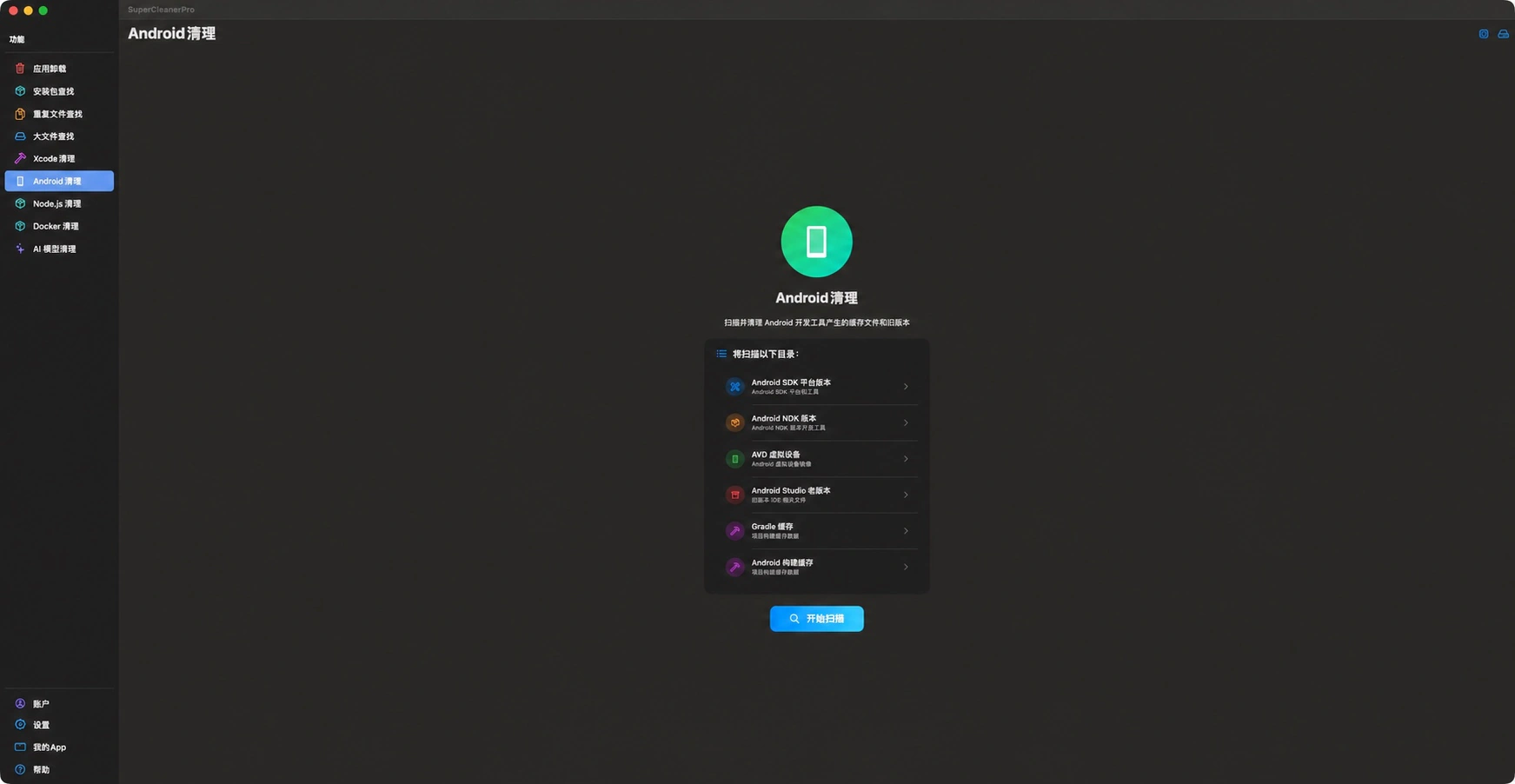
An actual scan setup screen. The listed tools and virtual devices are not interchangeable with disposable caches.
| Category | Why it can grow | What to check first |
|---|---|---|
| SDK platforms | Several Android API versions may be installed | The platform versions required by current projects |
| NDK versions | Native projects may require different toolchains | Any version pinned in project configuration |
| AVD virtual devices | Devices retain their runtime data and test state | Whether the device and its data are still needed |
| Old Android Studio data | IDE upgrades may leave version-specific directories | IDE versions, settings and plugins you want to retain |
| Gradle and Android build caches | Builds and dependencies accumulate data | Whether dependencies can be downloaded and builds repeated |
The current feature checks SDK platforms and ndk under ~/Library/Android/sdk, ~/.android/avd, Android Studio version data under Google’s application support directory, ~/.gradle/caches and ~/.android/build-cache. It does not treat every Google application support file as Android waste or manage every SDK component.
Expand the largest result and identify the version
Stop builds and virtual devices, quit Android Studio, then choose Android Cleanup and Start Scan. Complete any required folder access prompt.
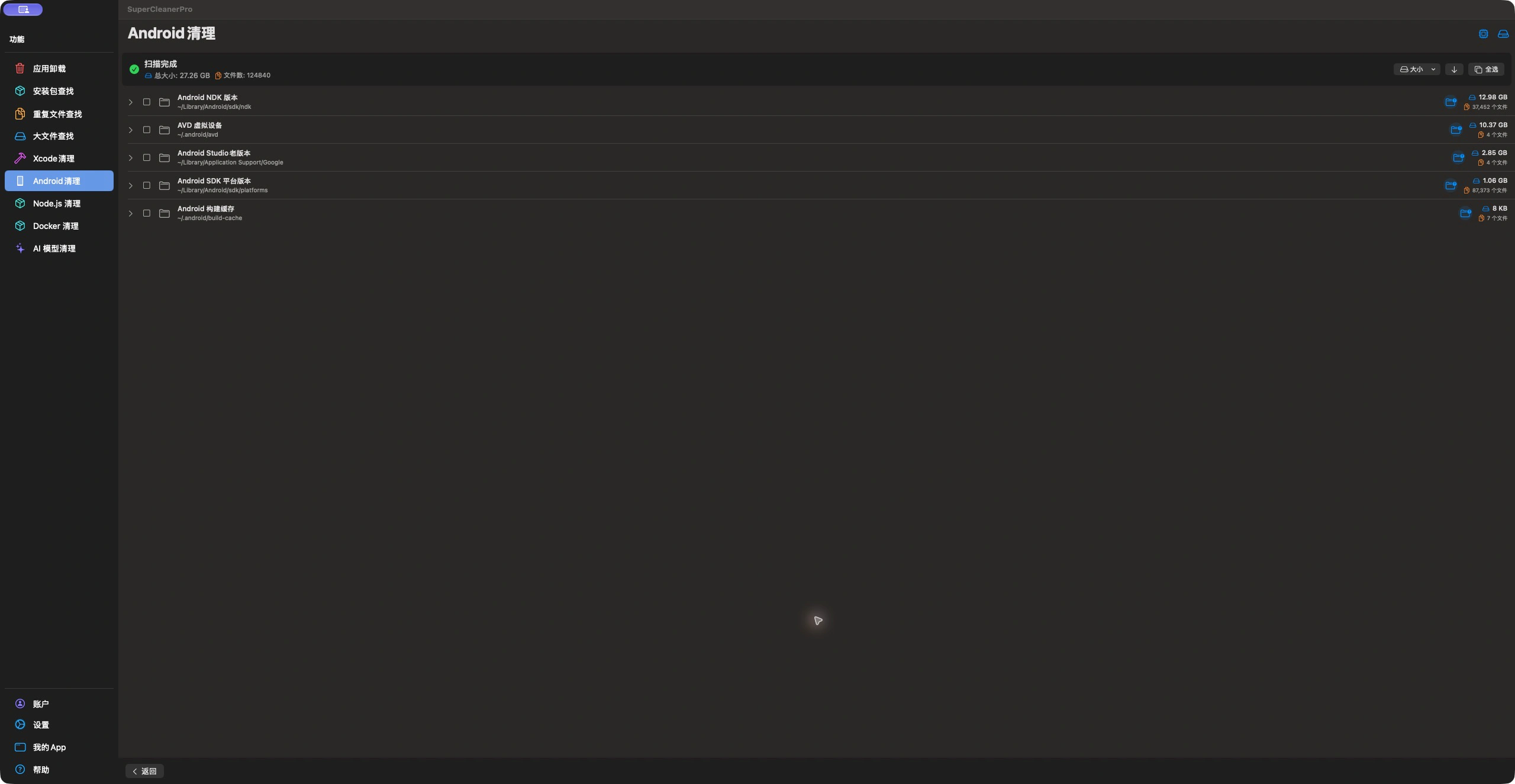
NDKs and AVDs lead this particular scan. These are measurements from one Mac, not a claim that all of that storage is removable.
Expand a large category and use the Finder button to inspect a specific version or device. Keep an NDK required by a maintained project. Review a retired demo device’s test data before deciding it can go.
You can cross-check installed components in Android Studio’s SDK Manager; Android’s official instructions explain that view. Storage size helps prioritize a review, while project requirements determine whether a component is still needed.
Clean selected items in small batches
Select individual versions or devices you have reviewed rather than immediately selecting a whole category. Use the cleanup button, check the count and size in the confirmation, then move the selected items to Trash.
Removing caches may require downloads or regeneration during the next build. Keep them when you need reliable offline development. Gradle’s directory documentation explains its managed caches. Old IDE data can also contain settings and plugins you need for a rollback.
Review the completion report, then verify the projects you still maintain before deciding whether anything needs restoring from Trash. Check its other contents before emptying it.
If these categories do not explain the missing space
Custom SDK paths, other emulator components, downloaded installers and project directories can lie outside this feature’s scope. Use DiskTreeSize to inspect the actual development folder, review old installers, or return to the SuperCleanerPro overview.