How to Uninstall Mac Apps and Choose Which App Data to Remove
You no longer use an app and want it off your Mac. You also want to know whether its caches, settings and downloaded resources are taking up space. The app icon in Applications does not tell you how much data is stored elsewhere.
SuperCleanerPro shows app size and app data separately. Review the folders, select what you no longer need and keep anything you still use. After uninstalling, check which items were successfully moved to Trash.
Find the app and review its storage
Open App Uninstaller in SuperCleanerPro and select the unwanted app from the list. Use the search box to find its name if you have many apps installed.
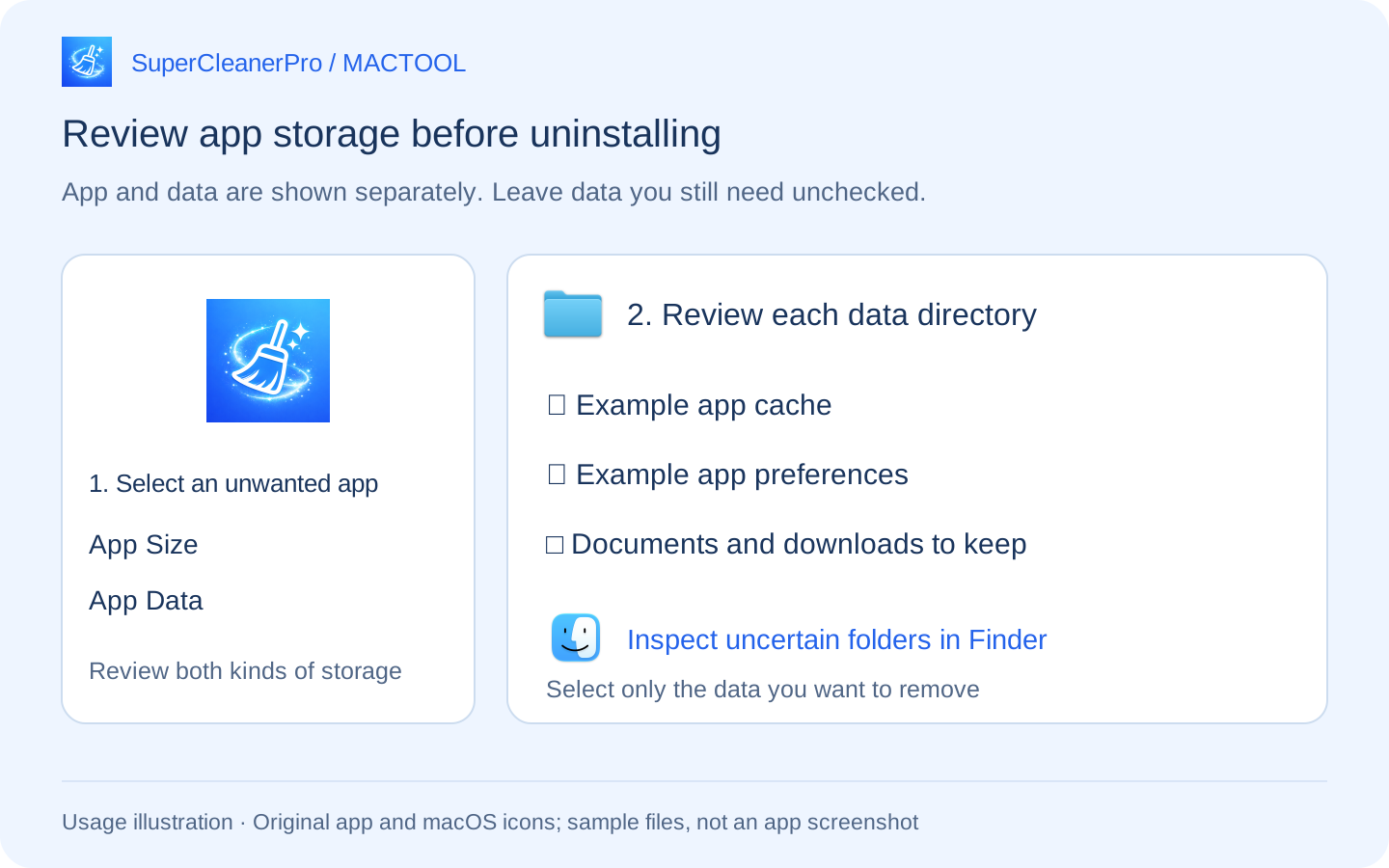
The details panel shows App Size, App Data and Total. A small app may have downloaded substantial offline resources, so reviewing both categories helps you decide what to inspect.
If permission is needed, follow the prompt to authorize the relevant location, then review its data directories.
Choose which data to remove
Expand Data Directories to see the listed folders and their sizes. Select folders individually, or open a folder in Finder to inspect it first.
App data is not always disposable cache. It can include documents, databases, offline resources and saved preferences. Keep files you still need and select only folders you want to remove. There is no reason to delete the entire Library folder to uninstall one app.
Click Uninstall to enter the cleanup options and review “Move selected app data to Trash”:
- Leave the option enabled to include the data folders you selected, and check the displayed list.
- Turn it off to remove only the app itself.
- To keep some data, leave those folders unchecked before proceeding.
Removing an app and removing its data are separate decisions. Keeping useful data may make sense if you expect to reinstall the app later.
Confirm the uninstall, then check the result
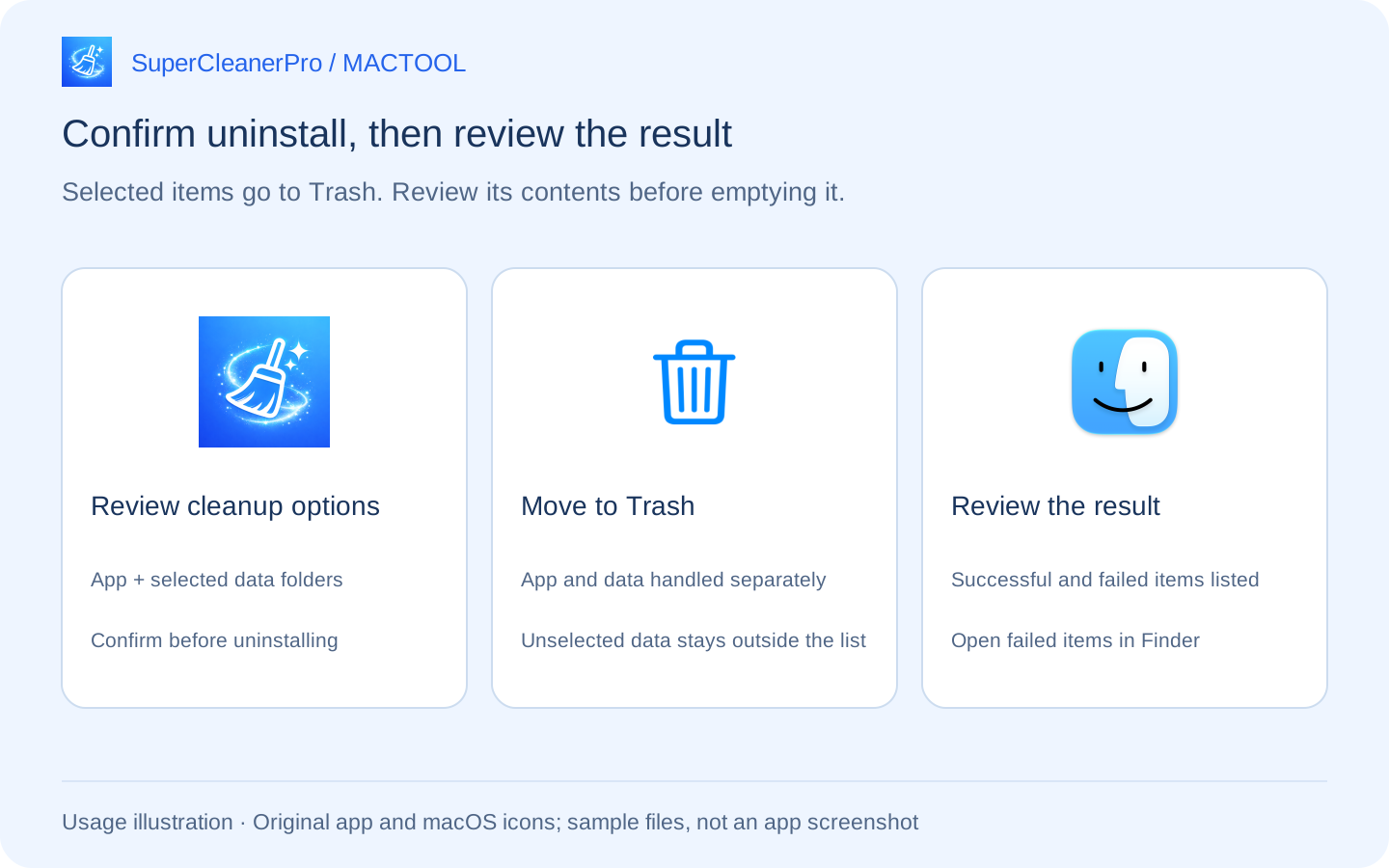
Quit the app you want to remove. Review its name and the selected data folders, then confirm. SuperCleanerPro attempts to move the app and each selected data folder to Trash separately.
The result page lists successfully handled items and items that need manual attention. For a failed item, open its location in Finder from the result page and inspect the file. Failed items are not presented as successfully removed.
Why has available space not increased yet?
Moving files to Trash and emptying Trash are different actions. Files continue to use disk space while they remain there.
Review the uninstall result and open Trash. Once you have checked that nothing needs to be restored, empty it. Trash may also contain unrelated files from earlier deletions, which will be removed at the same time. Check your Mac's available disk space afterward rather than treating the app's displayed Total as a guaranteed amount of recovered space.
Common questions
Why inspect app data if I can just drag the app to Trash?
Preferences, caches and downloaded resources may be stored outside the app. Inspecting the associated folders lets you decide what to include. Different apps store data differently; removing an app does not automatically mean you have only deleted half of it.
Does this find every leftover from apps I removed earlier?
This guide covers selecting an installed app, reviewing its associated data and uninstalling it. Finding old leftovers after the app has already been removed is a different task. The steps here are not a whole-disk orphan-file scan.
What if I need space but want to keep my apps?
Start by reviewing unwanted installers, duplicate copies and large personal files. Uninstalling apps is one option, not a requirement for recovering space.
Find the features and download links on SuperCleanerPro, or visit the Mac App Store.
Frequently asked questions
Does dragging a Mac app to Trash remove all of its data?
Not necessarily. Preferences, caches and downloaded resources may live outside the app bundle. Review associated data before deciding what to remove.
Can I uninstall an app while keeping some of its data?
Yes. Leave folders you want to keep unchecked, or turn off the option to move selected app data to Trash.
Will uninstalling immediately free the displayed amount of space?
Files still occupy storage while they remain in Trash. Check the result and Trash contents before emptying it. Use the disk's available space reading to assess the actual change.