Xcode taking up space on Mac? Review build data and archives
You finish a few demo projects. Their source folders are small, but free space on your Mac keeps shrinking. Xcode also stores files outside those folders: generated build data, device debugging support and archives created when packaging releases.
Review which category is large before choosing what to remove. SuperCleanerPro's Xcode Cleaner brings these common locations into one view. Check their sizes, expand folders and inspect the actual contents in Finder.
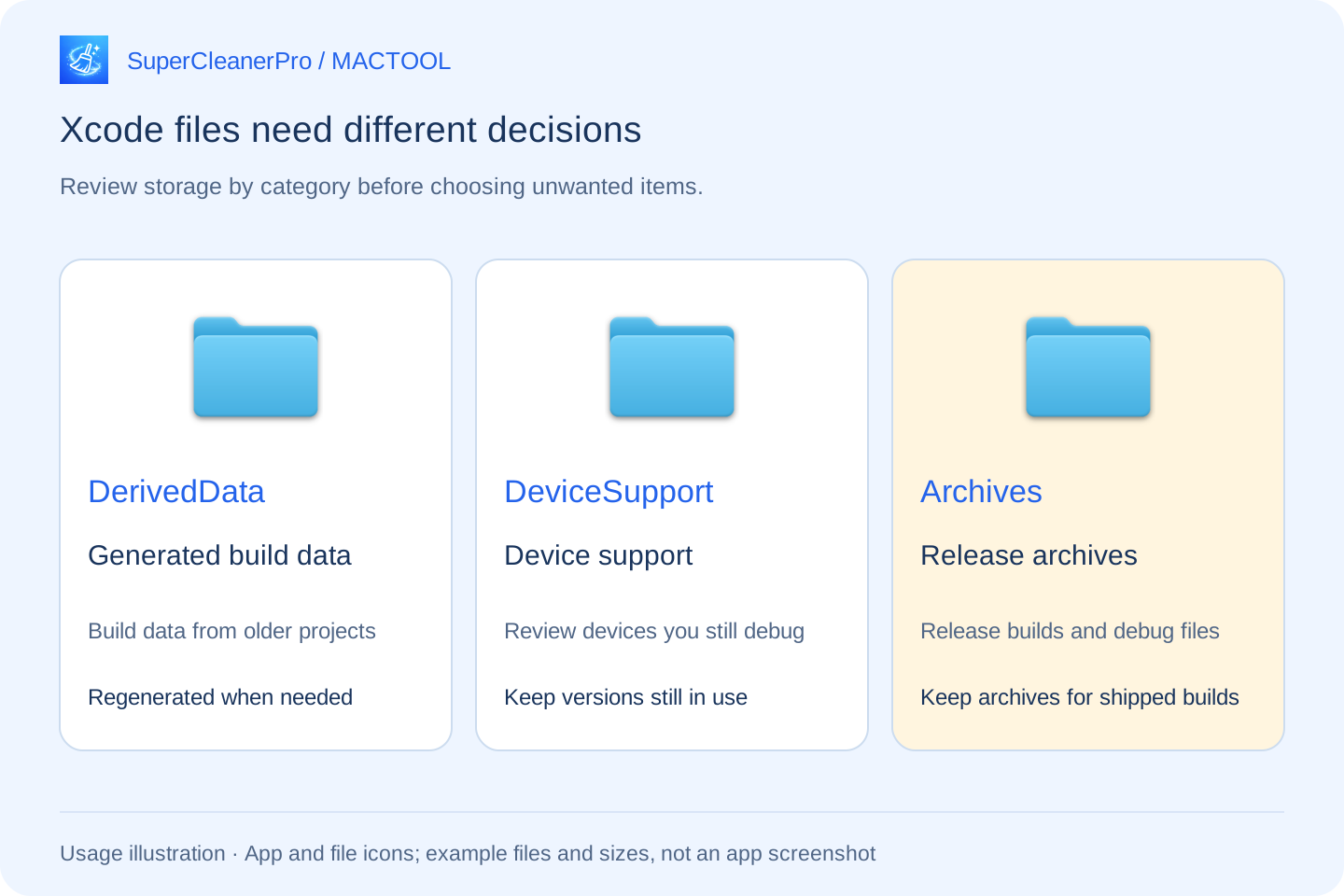
Separate generated data, device support and archives
DerivedData contains generated build and indexing data. It is a useful place to review old projects you no longer develop. When you use a cleaned project again, Xcode must regenerate relevant data; the next build and indexing work may take longer.
Device support files are used for device debugging. The app checks iOS, macOS, tvOS and watchOS support directories separately. Review the devices and system versions you still debug, and keep those you need. An older date alone does not make a version unnecessary.
Archives store packaged builds and debugging information. Their purpose differs from ordinary caches. Apple recommends retaining archives uploaded, exported and distributed to users so that you can investigate crashes in those builds. See Apple's device log guidance.
Scan and review the largest folders first
Finish any running build, then close Xcode. Open Xcode Cleaner in SuperCleanerPro and click Start Scan. Follow any Library folder access prompts.
After scanning, review the size of each category. The list starts with larger items. Expand entries with subfolders to see which folders account for the space.
For example, an older demo project's folder may stand out inside DerivedData. Use the folder button to inspect it in Finder and confirm that it belongs to a project you no longer work on. Do not select your current project's data simply because the names look similar.
Select only old data you have reviewed
Start with generated data from old projects, then review device support versions you no longer use. Treat archives as a separate decision.
To identify an archive, open Window → Organizer in Xcode and check the app, version and date. Apple's Archives organizer guide describes how to manage them. Keep shipped versions. Review and back up unshipped test archives before discarding them too. If a scan entry represents an entire dated folder, inspect every archive inside it before selecting that folder.
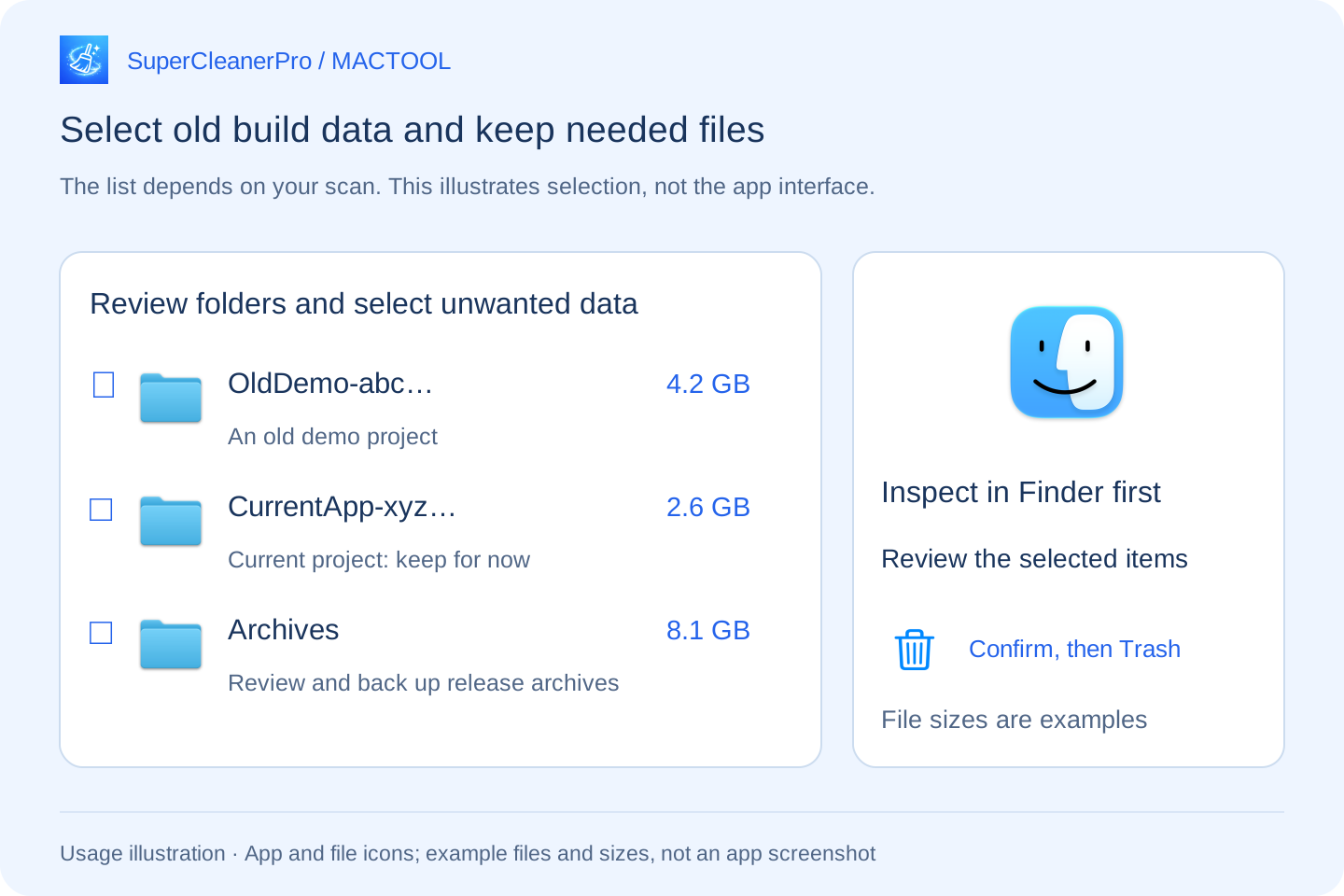
Select the items you want to handle and click Clean Selected. Review the item count and total size in the confirmation prompt. The app moves selected items to Trash and reports the outcome, including failures.
Moving files to Trash does not immediately reclaim the same amount of disk space. Check that you will not need to restore them, review other Trash contents and then empty Trash. You can reopen your current project and continue working; removed generated data is recreated when needed.
If space is still low, locate other large folders
This page checks DerivedData, Archives and the platform device support directories. Simulator data is stored separately, so this scan is not a complete accounting of every developer folder.
If these categories are small, use DiskTreeSize to locate large directories before choosing what to organize. Downloaded Xcode or other software installers can also be reviewed separately.
Find features and download links at SuperCleanerPro and the Mac App Store.
Frequently asked questions
Does cleaning DerivedData delete my project source code?
This feature handles Xcode's generated data directory, separate from your source project. Inspect the selected path in Finder first. Xcode needs to regenerate relevant data when you open and build the project again.
Can I remove every archive?
Do not treat archives as disposable caches. Retain archives for shipped versions because they contain the matching build and debugging information. Review and back up any unshipped test archives before discarding them.
Does this page clean simulators too?
The Xcode Cleaner page described here checks DerivedData, Archives and platform device support directories. It does not include simulator directory cleanup.