Open Large Logs on Mac: Fast Reading, Search, and Navigation with LogStudio
A log of several hundred megabytes, or even gigabytes, should not mean waiting at every step. You want to open it, move through it, and find the error. LogStudio optimizes large-log opening, search, and scrolling on Mac so you can start reading promptly and reach the part you need.
For server logs, failed requests, and finding a few useful entries in a large text file, those everyday actions matter.
Open the log and start reading
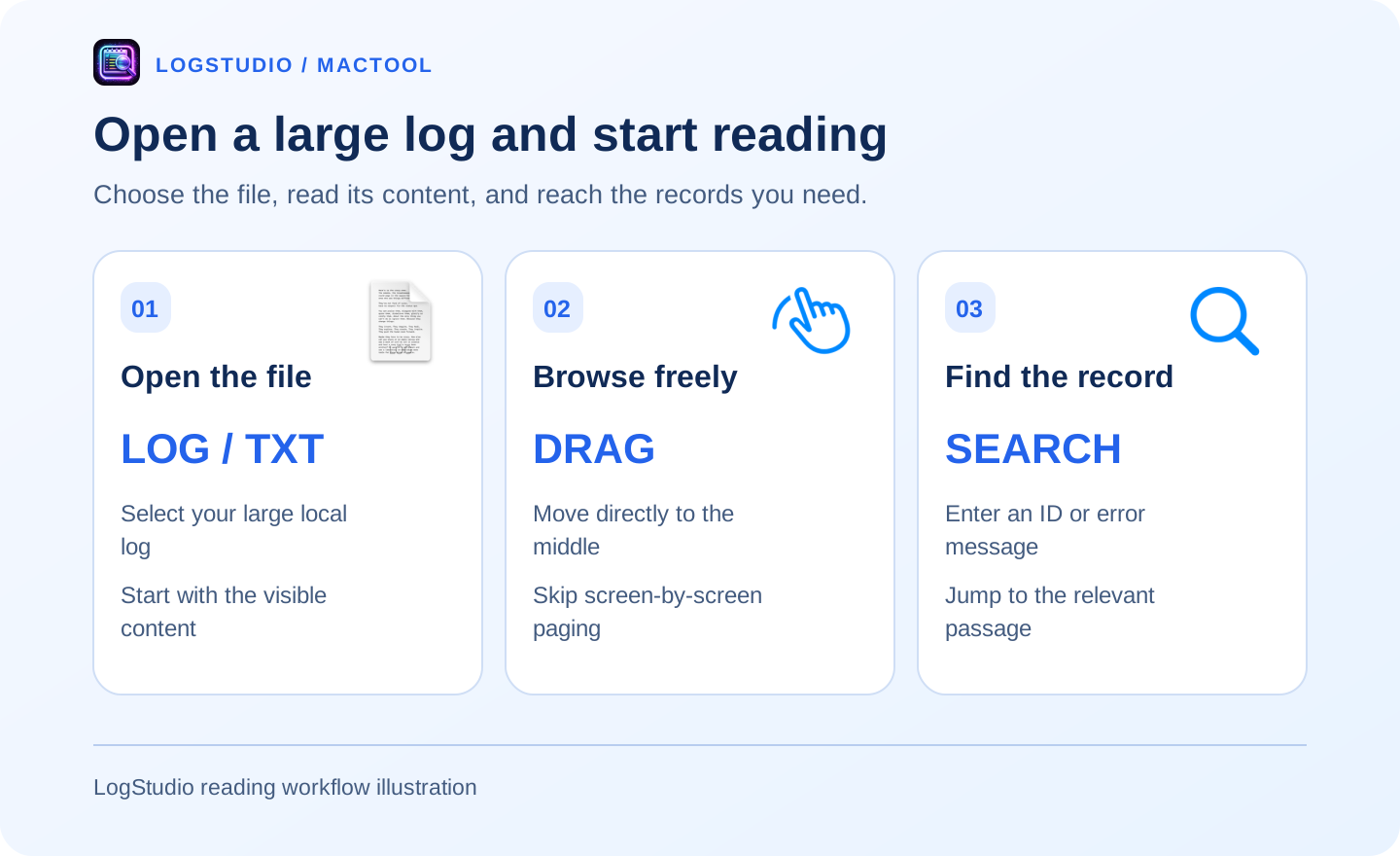
Choose Open File in LogStudio and select your .log or .txt. Completed content appears while the rest loads, so you can begin reading. Loading progress is visible, and you can cancel if you need a different file.
If a split prompt appears, you can choose to open without splitting and read the whole log. Select a local file directly, or access a server log through SSH/SFTP.
Drag to the part you want to read
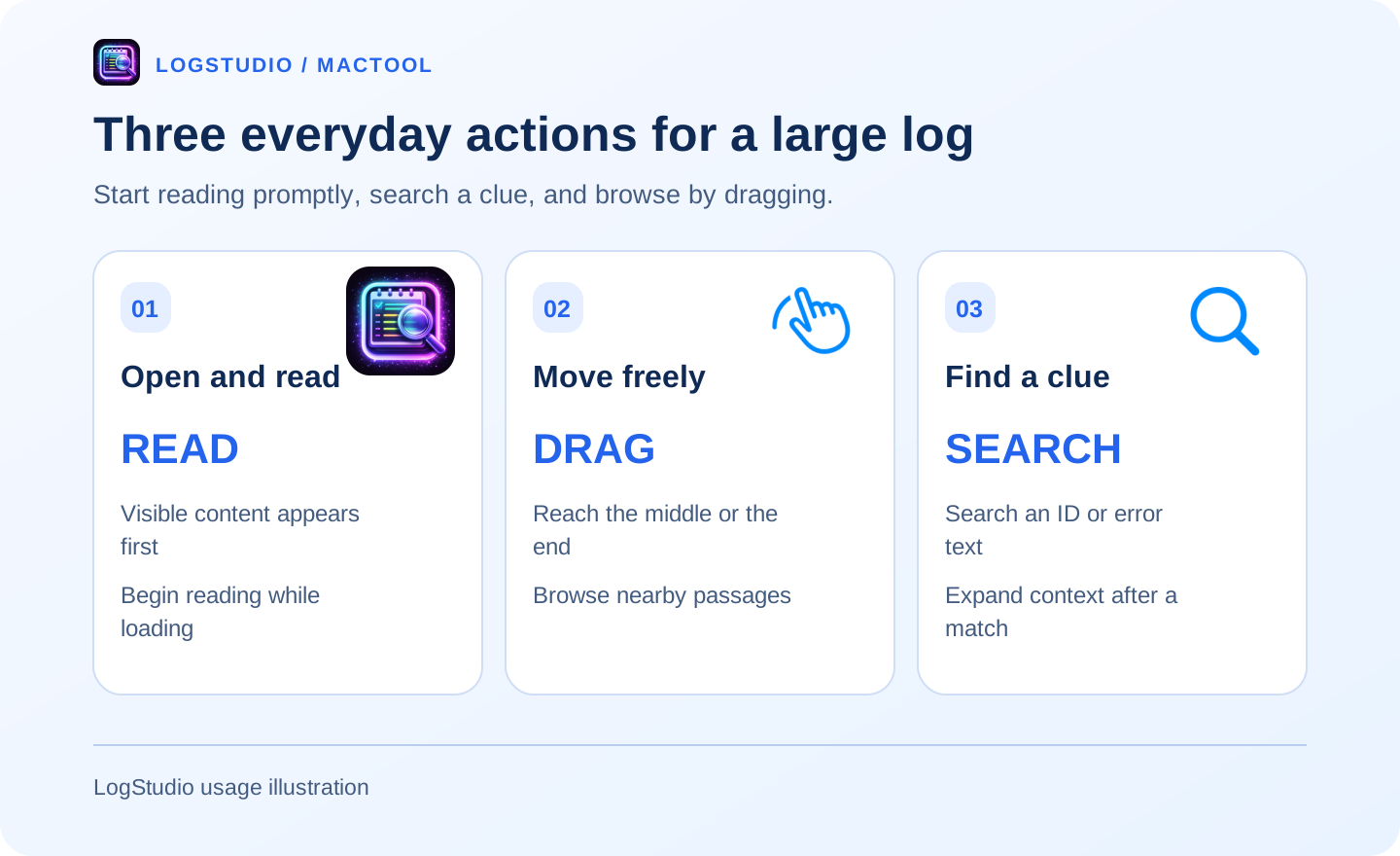
Opening is only useful if browsing feels comfortable too. LogStudio improves fast scrolling and scrollbar dragging. Drag to the middle, or jump to the bottom for recent entries, without paging through hundreds of thousands of lines.
Line-number hints help you see where you are. Recognizable timestamps can also provide time hints when you are looking for an incident.
Search a keyword to find the record
Search an error message, filename, or request ID. For example, request-42 brings you to the relevant request among many similar messages. Add level or time filters when you need a narrower view.
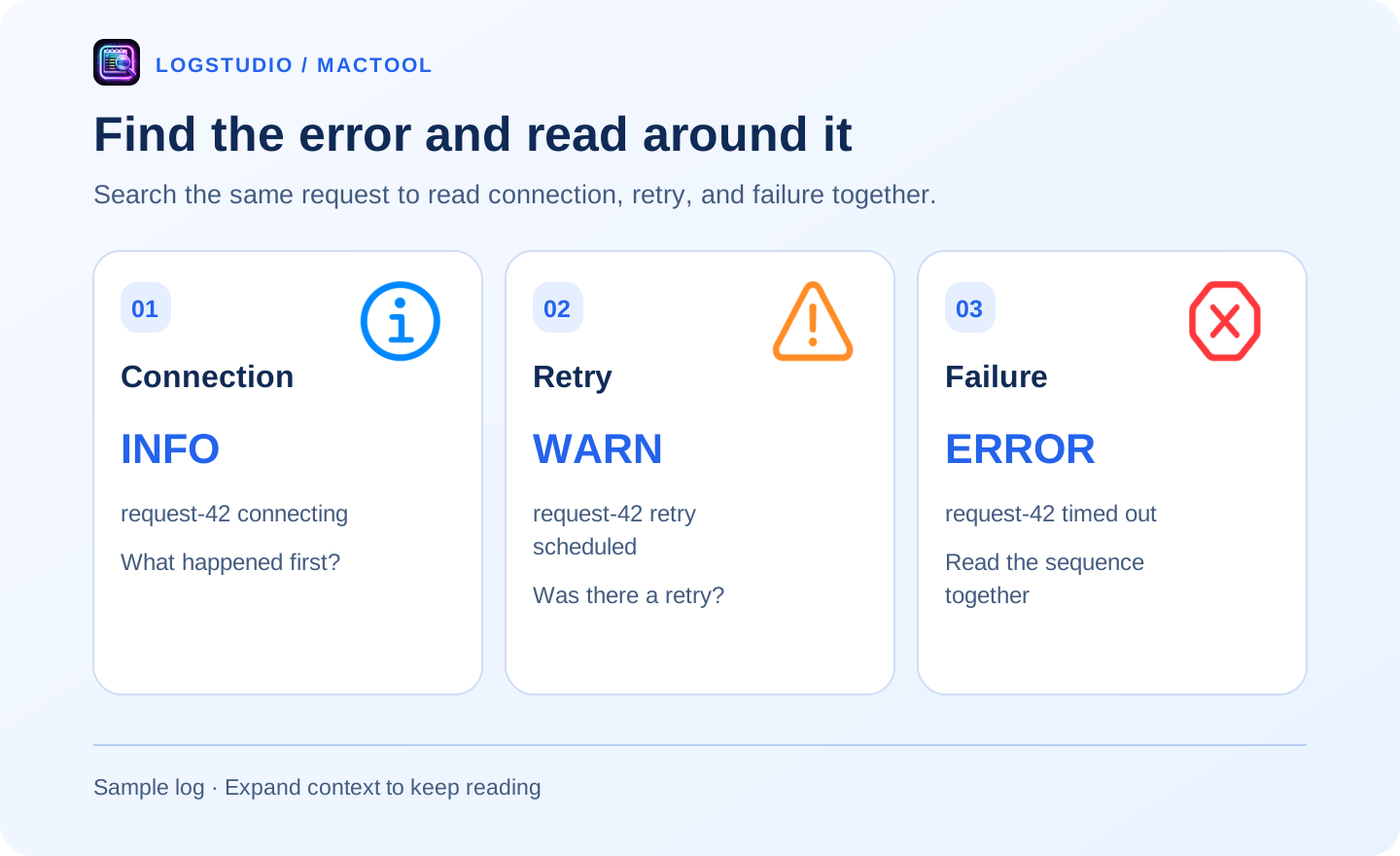
Read more than ERROR alone. Connection, retry, and failure can appear on separate lines:
INFO  request-42 connecting
WARN  request-42 retry scheduled
ERROR request-42 timed out
This is sample data. Reading the connection and retry alongside the timeout makes the sequence clearer.
Expand nearby lines and share the useful part
LogStudio lets you expand search context and copy the excerpt. You can read nearby messages without repeatedly finding the same location in the original view, and share a short useful passage instead of the entire log.
Back and forward navigation let you revisit locations you have checked. Original line numbers make it easier to explain where the error occurred and what preceded it.
Continue with quick log search and navigation, or the million-line reading guide.
Suitable files
LogStudio is intended for line-based text logs such as LOG, TXT, and line-based JSON. File structure and storage affect speed. Read visible content while loading continues, and let loading finish before searching the whole source.
Use Console for macOS system messages and archives. LogStudio requires macOS 13 or later; see the product page or the Mac App Store.
Frequently asked questions
Can LogStudio open large log files?
Yes. It is designed for reading large text logs, including LOG, TXT, and line-based JSON content.
Can I search and scroll after opening?
Yes. Search keywords or request IDs to locate records, or drag the scrollbar to the middle or end of the file.
Does viewing change the source file?
LogStudio is for reading and investigation. Use a text editor to modify and save source text.