
Search Large Logs on Mac: Jump to Errors and Read Nearby Lines
After opening a large log, you usually want an answer: where is the error, and what happened to this request? LogStudio provides keyword search, result navigation, and context expansion to reach the useful part directly.
Search the request identifier
Click Search, enter an identifier such as request-42, and search. Results show relevant text and original line numbers. Click a result to jump to its location.
Use Previous and Next to move between matches without re-entering the query. Without an ID, search a distinctive error, filename, or other recognizable text. Case-sensitive and regular-expression options are available for more specific matching; regular expressions match text by a pattern.
Expand the lines around the error
An ERROR alone often leaves the cause unclear. Expand the result to read nearby records and see what preceded it. The copy button shares that passage with a colleague.
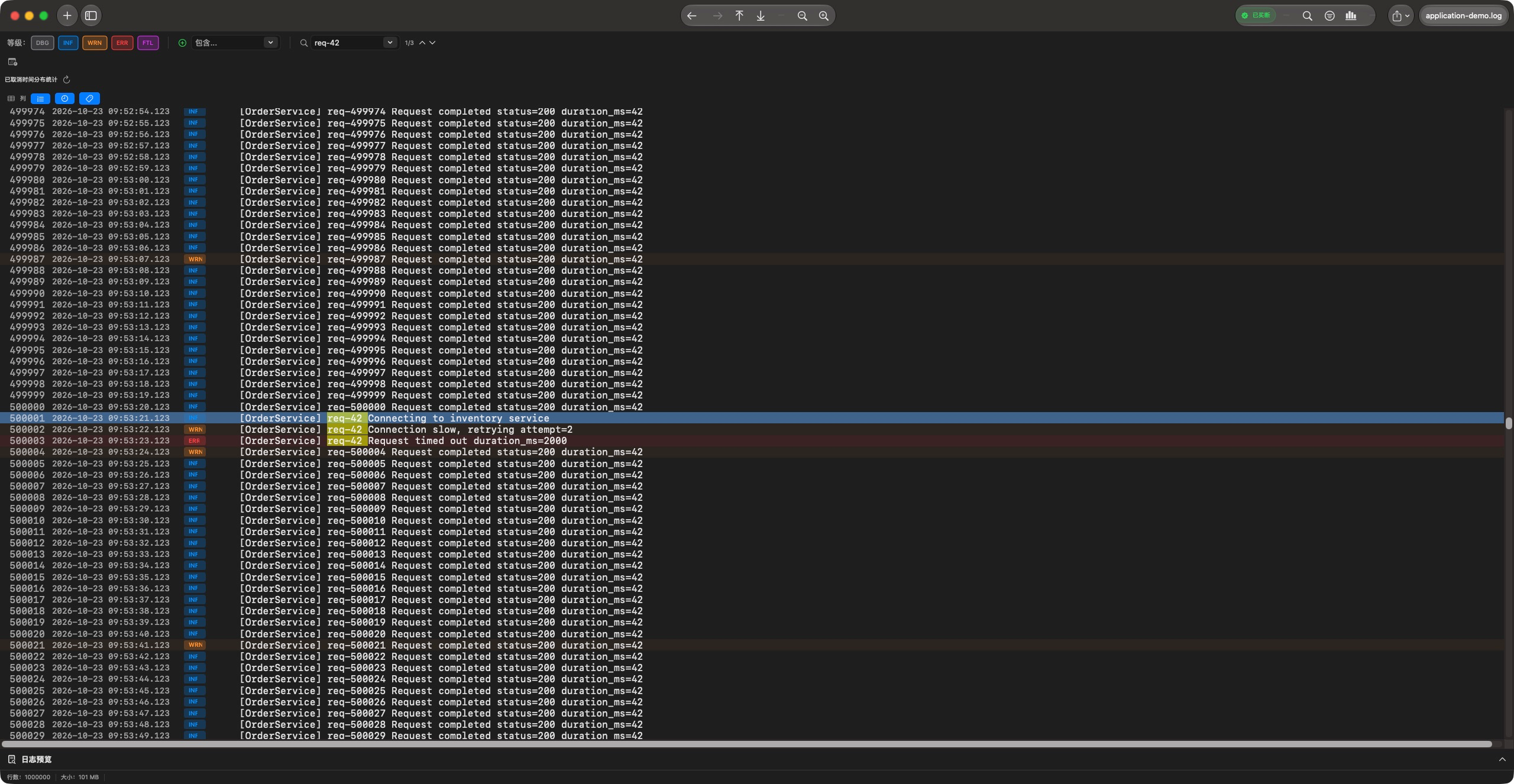
Actual App screenshot: searching for req-42 finds three matches and keeps the related records visible together. Screenshots in this guide show the Chinese interface with sample logs.
In this sample, the last line reports a timeout, while the earlier entries describe connection and retry:
INFO  request-42 connecting
WARN  request-42 retry scheduled
ERROR request-42 timed out
Context expansion lets you keep reading immediately after finding a match, without hunting for the same location elsewhere.
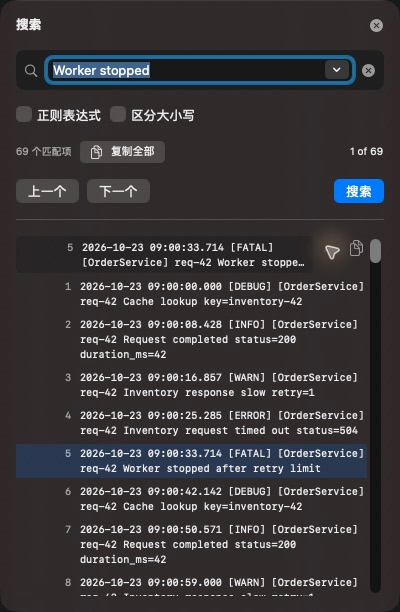
Actual App screenshot: search for Worker stopped, then expand a result to read up to ten lines before and after it. The copy button preserves the result and its context.
Narrow a crowded result
The level buttons at the top control which records appear. To keep errors and fatal entries, leave ERR and FTL enabled and turn off DBG, INF, and WRN. LogStudio shows the matching line count while preserving each entry's original line number. Click Clear All to restore all records.
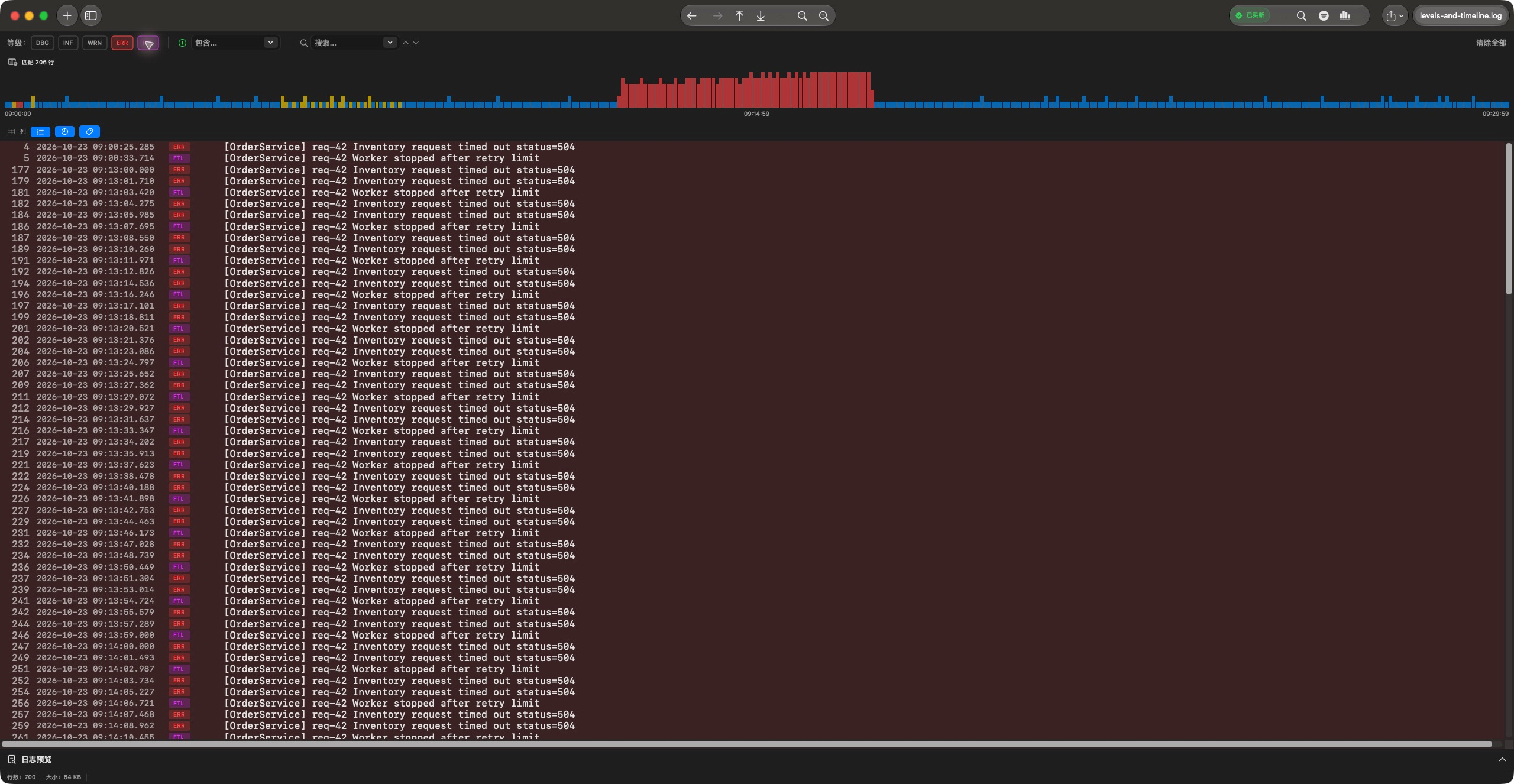
Actual App screenshot: filtering the 700-line sample leaves 206 error and fatal entries. This count belongs to this sample file.
Use the Time Range button for a particular incident period, or add an include-text filter for a component or request.
Start with an exact identifier and add filters as needed. To explain a failure, keep relevant INFO and WARN entries too: they often describe the target and retries.
Keep browsing after the jump
After navigating to a result, drag the scrollbar to read more before or after it. LogStudio improves scrolling in large files and filtered views, making it easier to move between a match and a broader passage.
Back and forward revisit earlier reading locations. Include the source filename and original line number when sharing.
Read visible entries while a file loads, and finish loading before searching the whole file. Check the time zone when using time filters. Continue with the exception guide or large-log opening steps.
Find features and downloads on LogStudio's page.
Frequently asked questions
Can I search a request identifier?
Yes. Search the identifier, click a result to reach its entry, and use Previous or Next to continue through matches.
How do I read nearby records?
Use the expand button beside a result to view context, or its copy button to copy the relevant excerpt.
Can I show only errors?
Yes, use level filters. Show nearby INFO and WARN records again when you need the preceding sequence.