
Mac disk full? Find the large files worth reviewing first
Your Mac is running out of storage, but you do not want to uninstall the apps you use every day. Old videos, disk images and archives may be scattered across several folders. Their names alone do not tell you where to start.
SuperCleanerPro’s Large File Finder filters by file size, then shows where each result lives. Start with the largest candidates, inspect their locations, and keep the files you still need.
Set a minimum size before scanning
Choose Large File Finder in the left sidebar. The size selector offers 100MB, 200MB, 500MB, 1GB and 2GB; the default is 500MB. Starting with 1GB or 2GB can make the first review more focused. Lower the threshold if you need to include smaller files.
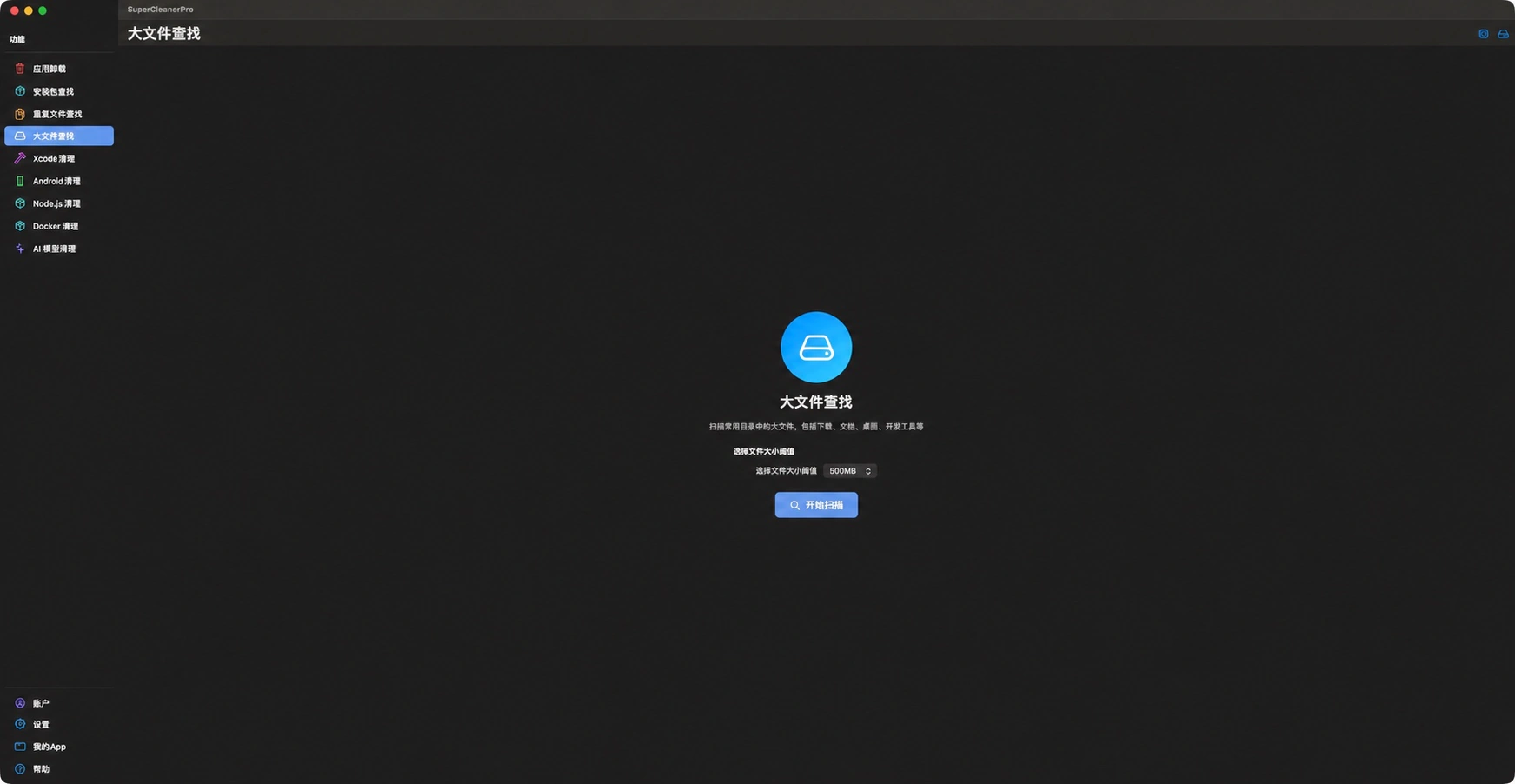
This is the actual scan setup screen. Starting a scan finds files; it does not delete them.
Know which folders are included
The current feature checks Downloads, Documents, Desktop, Movies, Music, Pictures and Steam’s application data under the user’s Library, including accessible subfolders. If a folder access prompt appears, check its location before granting access.
This is a search of common locations, rather than a complete inventory of every disk. External drives and custom locations outside that scope need a separate review. Use DiskTreeSize if you first need to identify the largest folders across a chosen disk or directory.
Use size to set priorities and paths to make decisions
Results show names, sizes and locations. Sort by size to review the largest entries first, or switch to modification date or file type. A modification date does not establish when you last used a file.
A finished video export with a separate backup may be a useful candidate. An equally large source video, virtual-machine file or work disk image may still be essential. Use the Finder button to locate the file and identify the work it belongs to before selecting it.
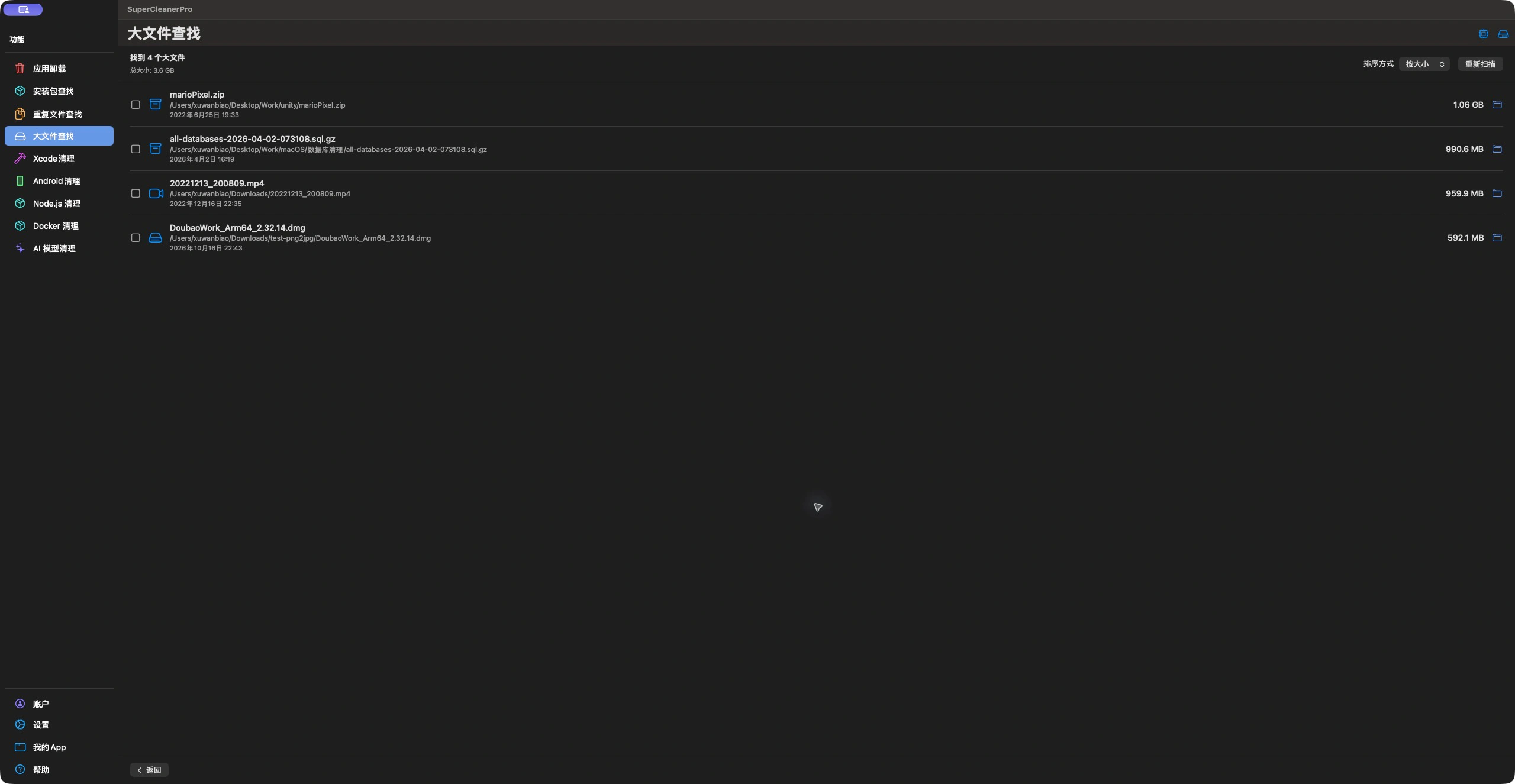
These are files found on this Mac at capture time. Results vary, and none of the listed files has been deleted for this screenshot.
Remove only the files you have reviewed
Close programs using the target files. Select the unwanted items, check the selected count and size, and use Move to Trash. Review the confirmation before proceeding, then check the success and failure report.
Files in Trash generally still occupy storage. Restore anything you need before reviewing the rest of Trash and emptying it. The scan total is not a promise of reclaimable space: some results may be files you choose to keep.
If the missing space is not one large file
Check the threshold, scan scope and folder access first. Many smaller files inside one large folder can also consume substantial storage without appearing in a high-threshold file search.
For those cases, review Node.js dependencies or Xcode data, or choose another tool from the SuperCleanerPro overview.