Large Other or System Data on Mac? Find the files before cleaning
Your Mac's storage settings show a large System Data category, but do not identify the particular folder responsible. Browsing Library yourself produces unfamiliar names and little guidance about which files you still need.
Locate the folders first, then decide how to organize them. A storage category reports a total; it does not tell you whether each file is disposable. SuperCleanerPro helps organize several common file types, rather than deleting the whole System Data category.
System Data is a category, not a folder to empty
Apple describes System Data or Other as Apple and third-party files that do not fit a more specific storage category. It does not identify one fixed directory or mean that every included file is unwanted. See Apple's storage guidance.
On macOS Ventura 13 or later, open System Settings → General → Storage. On older versions, use About This Mac → Storage. Decide whether you need more available storage or want to understand a particular category's size.
Find where the space goes first
If you do not know which directory is large, start with DiskTreeSize to locate folders related to System Data. Inspect the larger directories, identify the app or files inside, and verify the contents in Finder.
Look for files whose purpose you can explain: downloaded installers, generated data from old projects or local models you tried and stopped using. A folder being in Library, or resembling an old app's name, is not enough to declare it disposable.
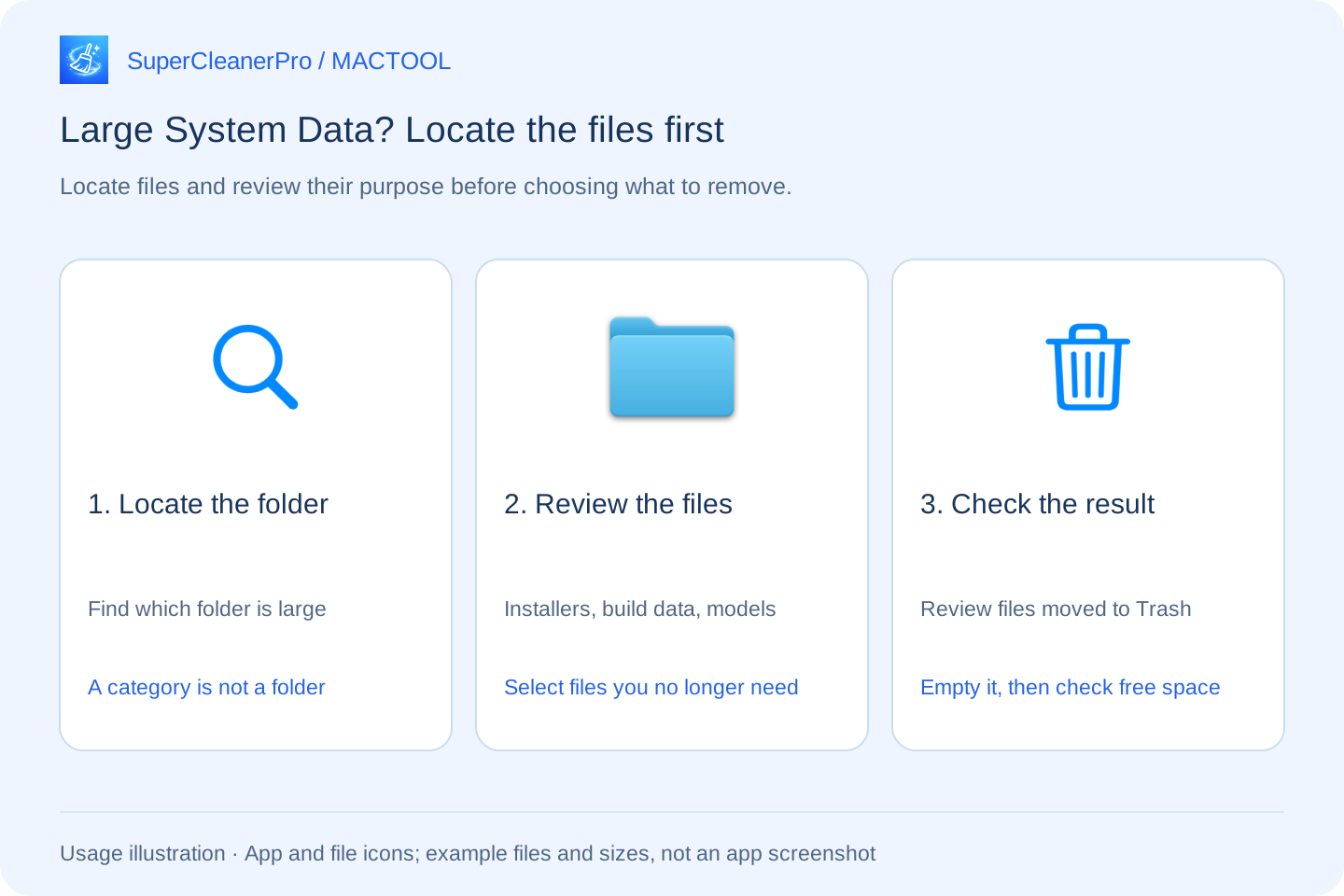
Choose the workflow that matches the files you found
Many downloaded installers: use SuperCleanerPro's Installer Packages view to review DMG, PKG and related files by size. Confirm installation is complete and you no longer need that installation source. See reviewing old installers.
Large Xcode data: use Xcode Cleaner to review DerivedData, device support and archives. Old generated build data and archives for shipped versions serve different purposes. See reviewing Xcode files separately.
Many local AI models: use AI Model Cleanup to find supported large model files. Expand directories, identify each model and select only unwanted files. See finding large AI model files.
An app you no longer need: use the uninstall feature to review the app and its associated data, selecting what to keep or remove. See uninstalling apps and selected associated data. If you already removed the app, do not assume this feature automatically finds every orphaned file.
Each feature has its own scanning scope. These workflows help organize identified files you no longer need. They do not guarantee a fixed reduction in a storage category or treat every cache, backup and app data file as unwanted.
Check available storage after removal
Review selected files and confirm the move to Trash. Files in Trash usually still occupy space. Check that you will not need to restore them, review other Trash contents, then empty Trash.
Return to Storage and check available capacity. macOS updates its category statistics automatically, but removing specific files does not guarantee an identical decrease in System Data. Organizing Downloads may mainly affect other categories.
To work toward a concrete amount of available space, continue with organizing Downloads around a 10 GB target. The target guides file selection; it does not promise the same result on every Mac.
Find features and download links at SuperCleanerPro and the Mac App Store.