Too many AI models on your Mac? Find the large model files
You download a local chat model, then try a few image models. Eventually, you only use one regularly. The others remain in Downloads or different app data directories. When your Mac runs low on storage, you may no longer remember which files belong to which model.
SuperCleanerPro's AI Model Cleanup helps you find larger model files, review their sizes and locations, and select files you no longer need. You do not have to guess from names alone or empty an entire app data folder.
Find where the large model files are stored
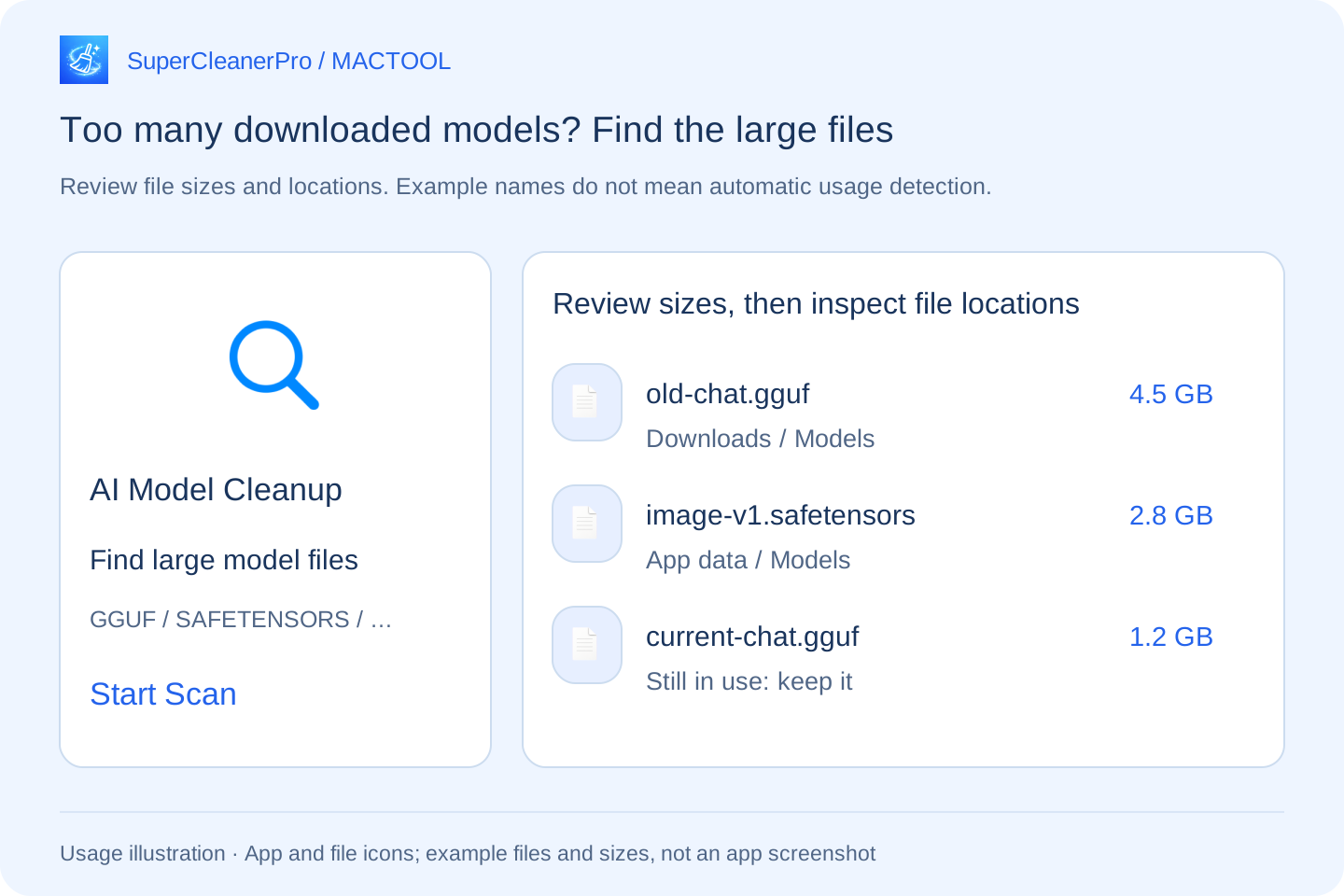
Open AI Model Cleanup and click Start Scan. Follow any directory access prompts.
The app checks Downloads and configured common cache, app data and model directories. These include default model locations for LM Studio and Draw Things. If you changed a model's storage location, check your actual path.
After scanning, review which location is large, then expand its entry to inspect model files. Files such as .gguf and .safetensors can help you recognize models you tried earlier. The list shows files; it does not automatically decide that they are unwanted.
Start with unused versions, not simply the largest file
Suppose you tried two chat models but now use only one. If the older model is large, use the folder button on its parent directory to open that folder. Locate the file using the listed name and relative path, then check the original AI app to confirm which model is currently in use.
Keep or back up models you still use, versions required by your workflow, and files you trained or modified that would be hard to replace. Different model versions are not necessarily duplicate files.
A model may require multiple files. Finding one large file does not mean the other parts are unnecessary. Removing a single part can prevent the app from loading the model. Confirm that you no longer need the whole model before deciding what to remove. Keep files whose purpose is unclear.
Close the program using the model, then select specific files
First quit the program using the target model. In the scan results, select only model files you have confirmed are unwanted and click Clean Selected. Review the item count and total size, then confirm the move to Trash.
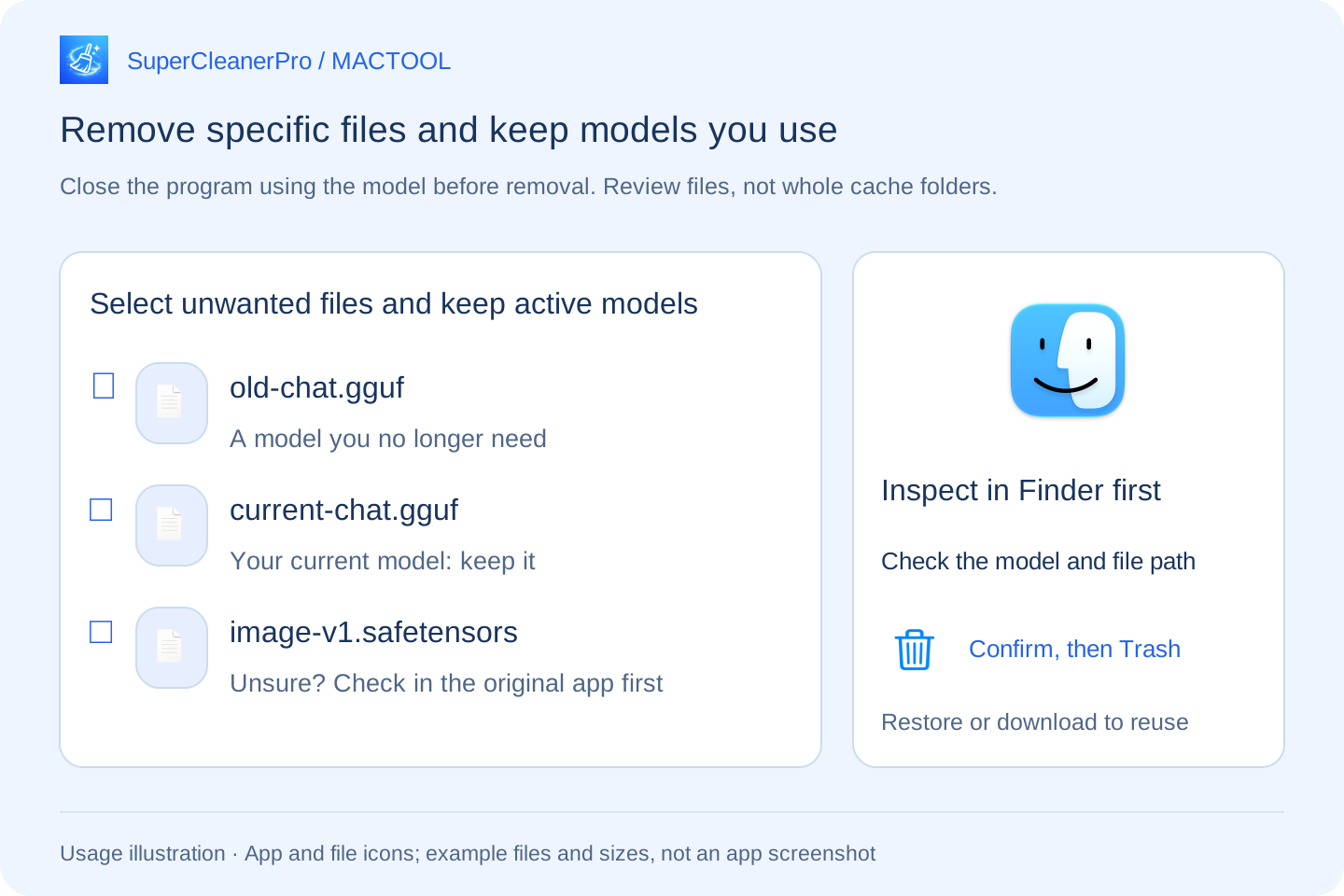
The app reports the outcome, including failures. If you need to undo removal, restore the files from Trash to their original locations. Once you are certain you will not need them, review other Trash contents and empty Trash to reclaim their disk space.
To use a removed model later, restore its files or download it again. Removing downloaded model files is separate from deleting conversations or generated images; this workflow selects the model files themselves.
“Unload” may only release memory
An AI app's Unload action may remove a model from memory while leaving its downloaded files on disk. For example, LM Studio's loading and unloading guide describes these actions as managing models in memory.
If disk space does not increase after you close a chat app, check whether its downloaded models remain. To reclaim storage, organize the files on disk; stopping the model addresses a different resource.
If a model is missing, check its format and location
The current scan shows common model files occupying at least 512 MiB, approximately 537 MB. Supported extensions include GGUF, Safetensors, CKPT, PT, PTH, BIN, ONNX and LiteRTLM.
Smaller files, symbolic links, files without these extensions and models in other custom folders may not appear. A directory being included does not guarantee that every model managed by an app will be identified.
To find what makes an entire folder large, use DiskTreeSize to locate large directories. For Downloads containing models and other personal files, continue with organizing around a storage target.
Find features and download links at SuperCleanerPro and the Mac App Store.
Frequently asked questions
Does the app decide which models are unused?
No. It finds files and shows their sizes and locations. Decide whether a model is still needed based on your AI apps and workflow.
Why is a model missing from the results?
The scan shows supported model files in configured directories that occupy at least 512 MiB. Custom locations, smaller files, files without supported extensions and symbolic links may not appear.
Can I keep using a model after removing its file?
You need to restore the original file or download it again. A model may require several files; removing one part can stop the model from loading. Confirm you no longer need the whole model before removal.