Find and remove old DMG and PKG installers on Mac
The app is installed, but its .dmg or .pkg remains in Downloads. Months later, you may have several versions of the same installer alongside files whose purpose you no longer remember. Before deleting anything, you need to find those files and decide which ones still matter.
SuperCleanerPro's Installer Packages view brings them into one list. Review the largest files first, inspect their locations, and remove only the copies you no longer need. You do not have to empty the whole Downloads folder.
Find the Mac installer files first
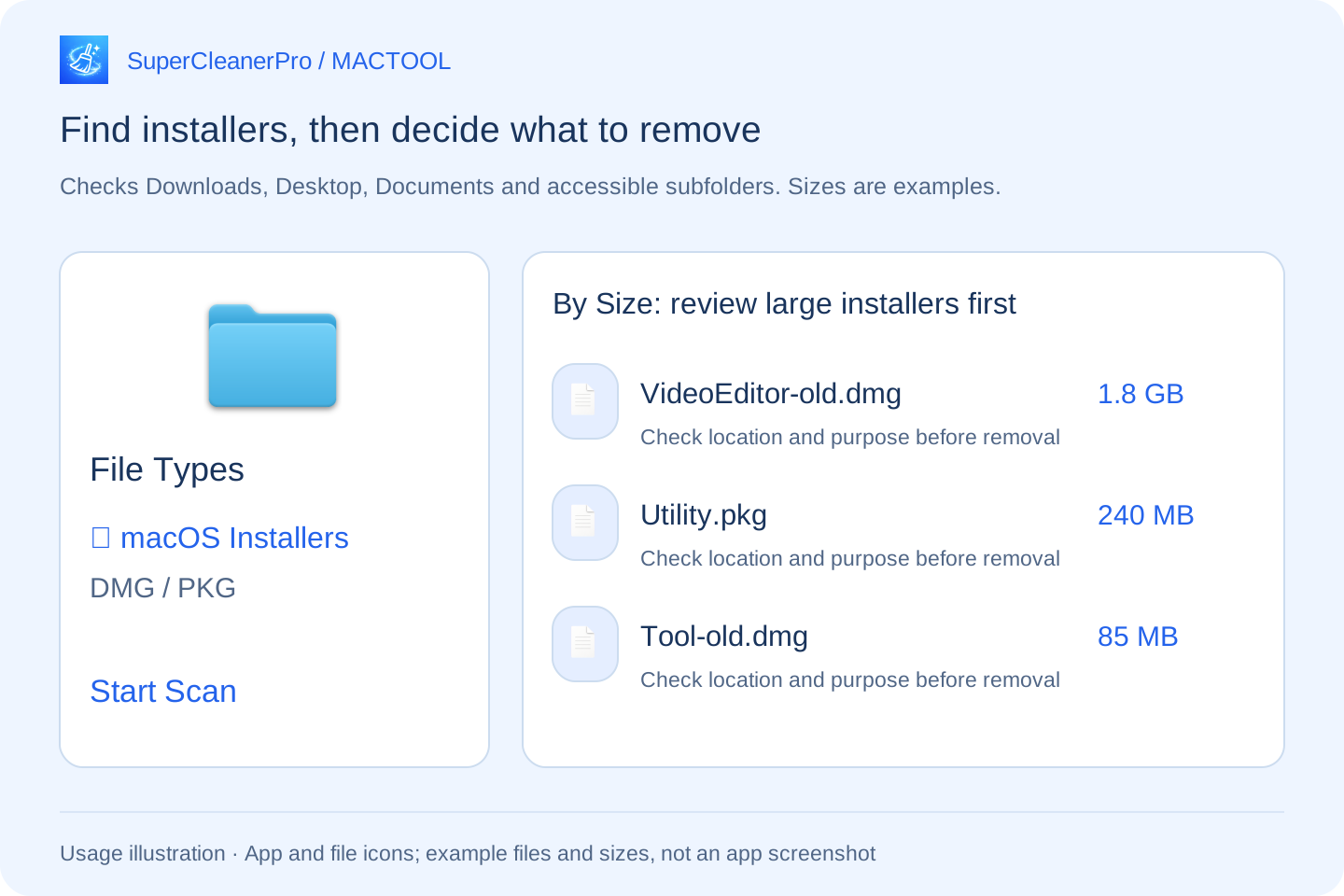
Open Installer Packages and choose macOS Installers under File Types. If you only want to organize Mac installers, deselect other categories you do not need, then click Start Scan. Types are selected by category; the macOS category includes DMG, PKG and related formats.
The scan checks Downloads, Desktop and Documents, including accessible subfolders. Follow any folder access prompts. Finding a file does not automatically remove it.
Sort by size and review the largest candidates
Each result shows the file name, type, modification date and size. Choose By Size to put the largest installers first. By Date and By Type offer other ways to review the list. The date is the file's modification date, which may differ from its download or installation date.
Suppose an older VideoEditor-old.dmg is much larger than the other files. Use its Finder button to inspect the location, then decide whether you still need that version or want an installer available for offline reinstallation.
A work tool's required version, an installer you cannot easily download again, or a deliberate reinstall backup may be worth keeping. Large or old does not automatically mean unwanted. The app finds candidates; you make the decision.
Removing an installer is different from uninstalling an app
A downloaded installer is the source used to install software. The installed app is usually in Applications. Confirm installation is complete and the app opens from Applications before deciding whether to remove its downloaded installer.
If an app still runs from a mounted DMG disk image, finish installing it according to its instructions first. Do not discard an installation source that is still in use.
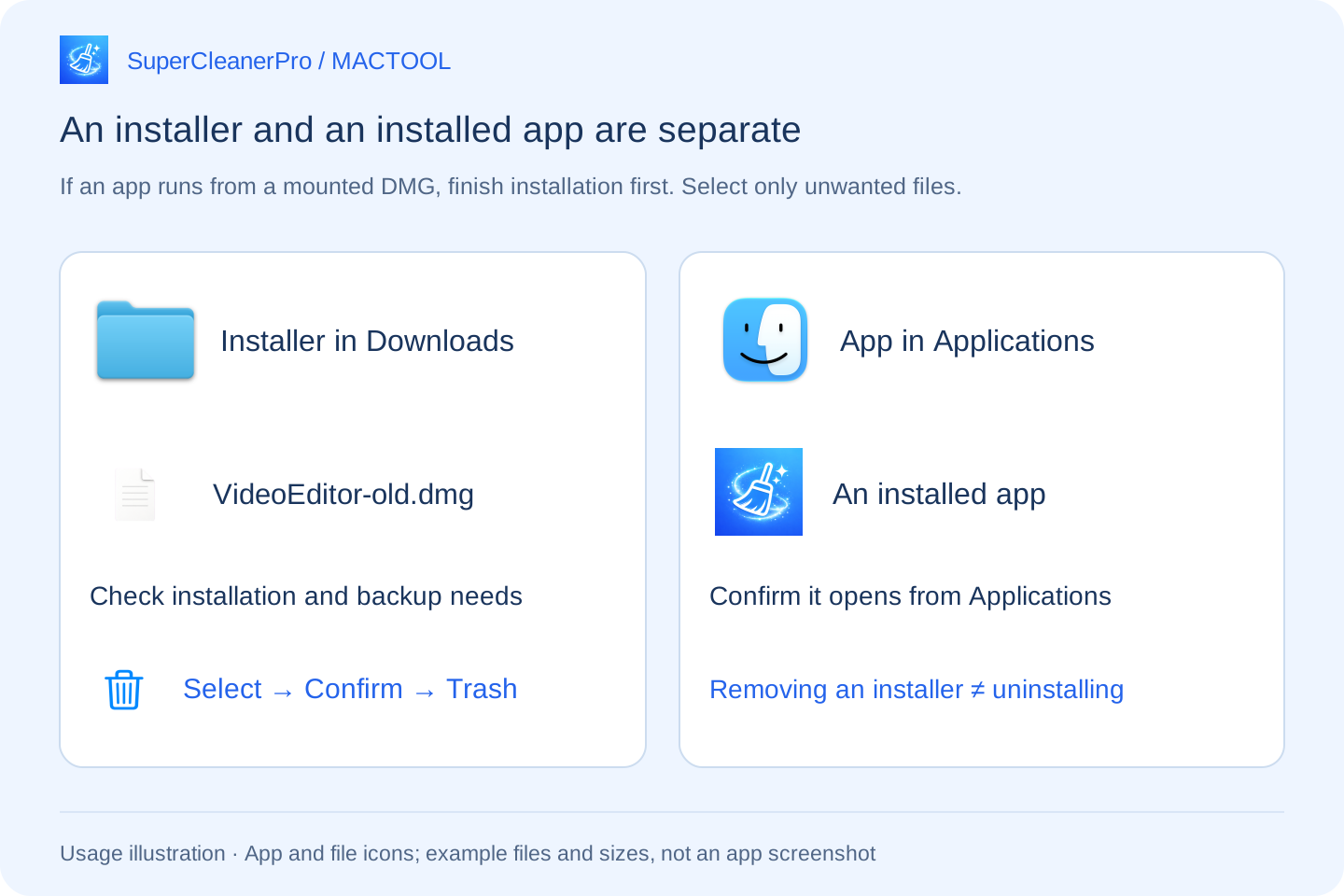
To remove the app itself and review its associated data, use the uninstall feature instead. See uninstalling Mac apps and selected associated data.
Select only the installers you no longer need
Select unwanted files individually, then use Move to Trash. Review the file count and total size in the confirmation prompt before proceeding.
The app reports successful and failed removals. Files in Trash usually still occupy disk space. Check that you will not need to restore them, then review and empty Trash. Make sure other items in Trash are also safe to discard.
If you still need more space, continue with organizing Downloads around a storage target or finding duplicate files with different names. Find the app and download links at SuperCleanerPro and the Mac App Store.
Frequently asked questions
Does deleting a DMG or PKG uninstall the app?
Removing a downloaded installer is separate from uninstalling an installed app. First confirm installation is complete and the app opens from Applications. If it still runs from a mounted disk image, finish installing it first.
Does the app decide which installers are unnecessary?
No. It lists installer files, sizes and locations. You decide whether to keep an installer for offline reinstallation or a specific older version.
Which folders does the installer scan check?
Downloads, Desktop and Documents, including accessible subfolders. Follow any folder access prompts before scanning.