
 PicCaddy.app
PicCaddy
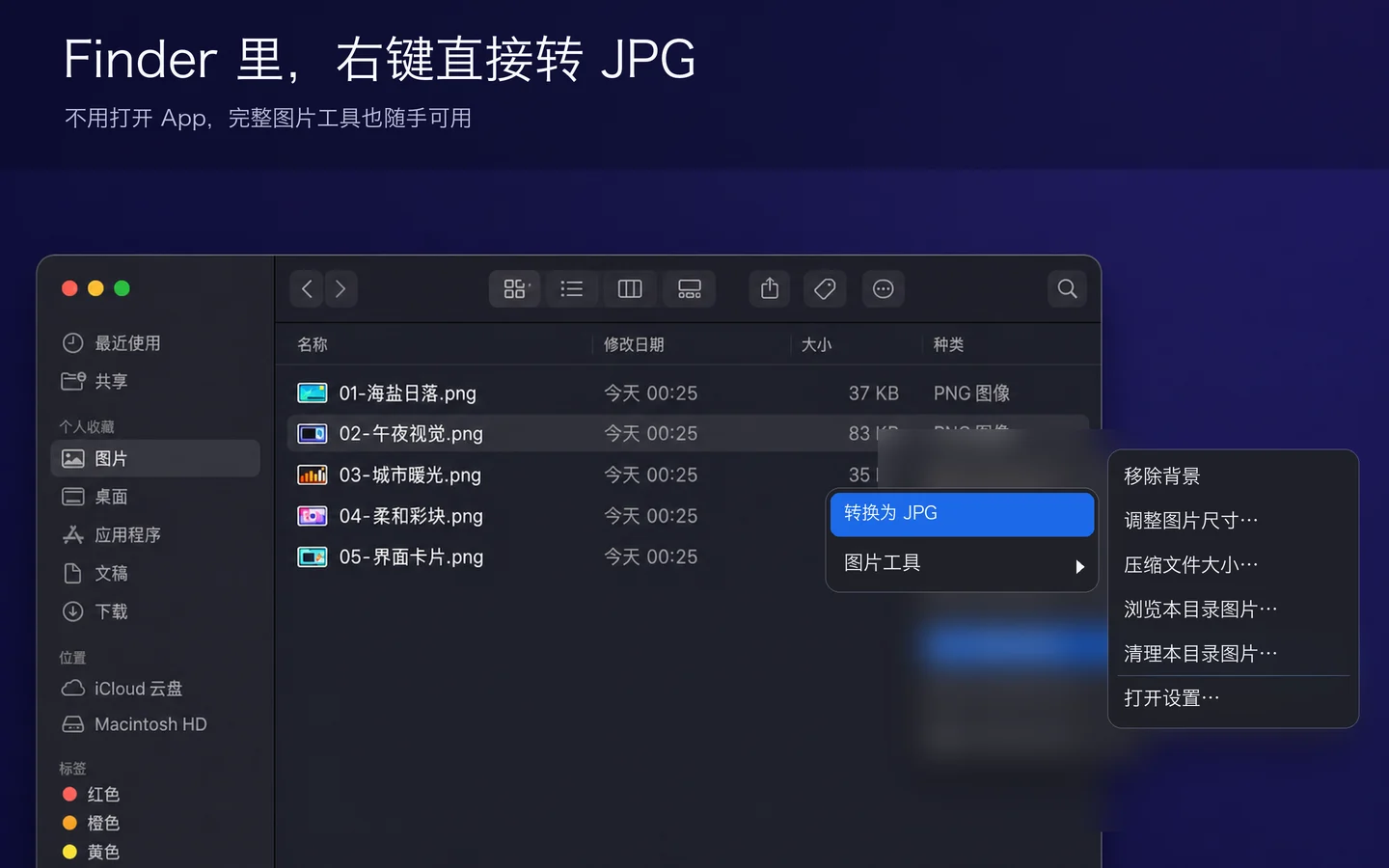
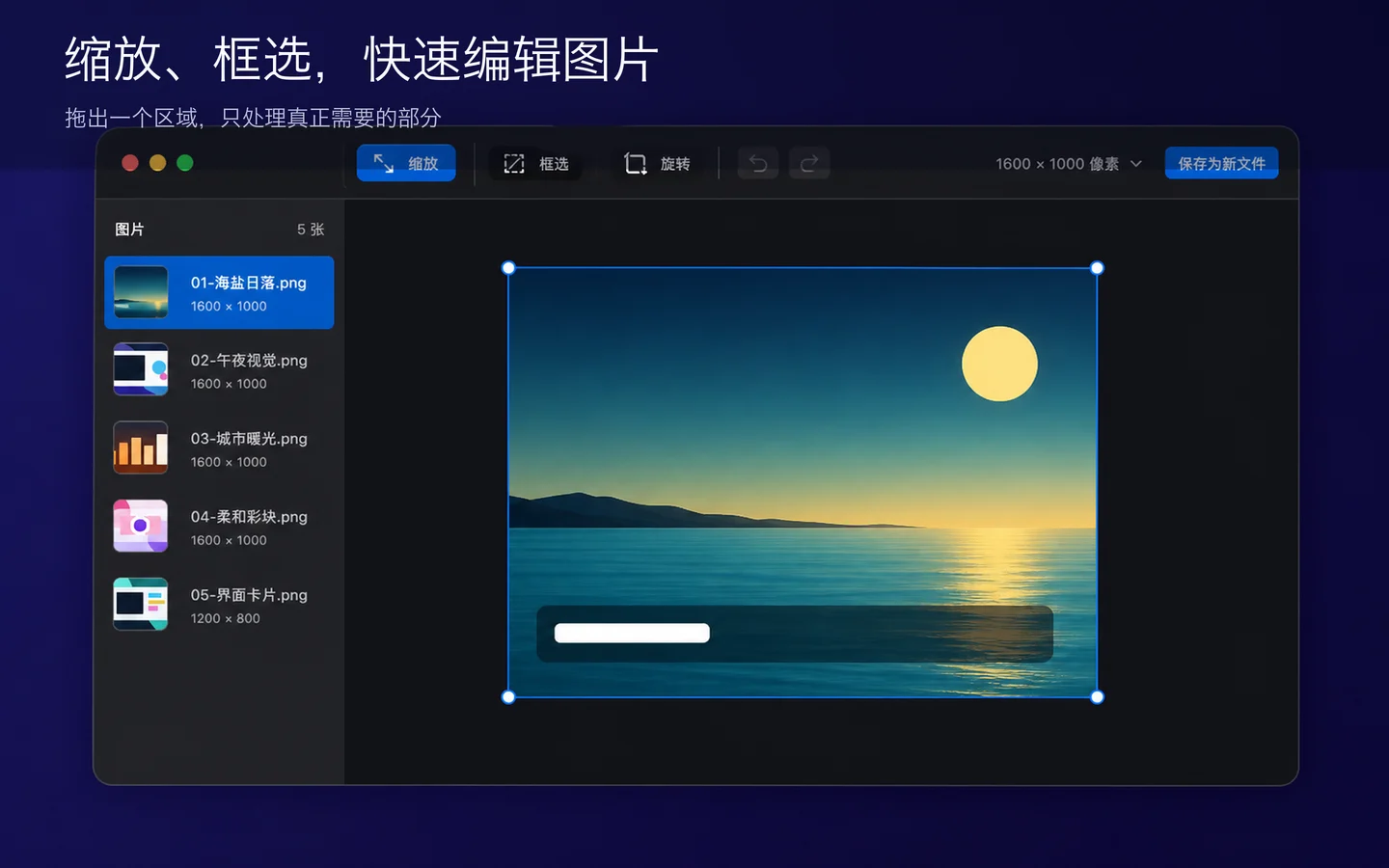
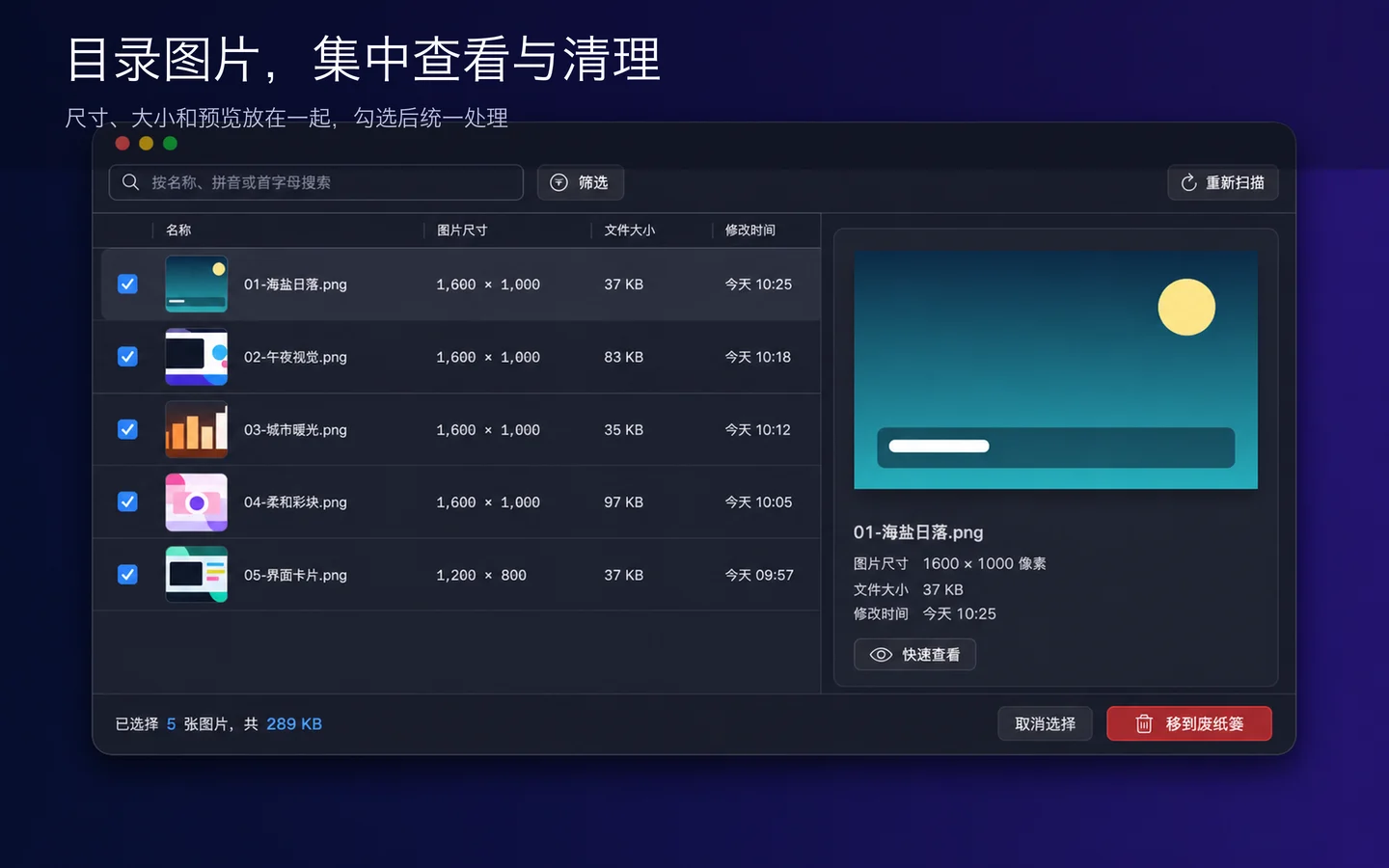
Finder Image Tools and Automatic ConversionConvert PNG to JPG in Finder and automate large PNGs from your clipboard or a folder. Browse with Previous and Next, then find images to clean up by name, file size, and modified date.
In breve
- Piattaforma
- macOS
- Categoria
- Utilities
- Versione
- 1.0.3
- Aggiornato
- 2026-09-16
- Scarica
- Mac App Store ↗
- Informativa sulla privacy
- Informativa sulla privacy
PicCaddy Support
Need help with conversion, folder access, the context menu, or another issue? Email the developer for support or to suggest a feature.
Include your app version, macOS version, steps to reproduce, and any error message. Screenshots with personal information removed can help. Do not send passwords or private original images.
Why am I asked to select a folder?
The app uses the macOS sandbox. When a context-menu action first needs access to a folder, select that folder in the system dialog shown by the main app. Permission is saved locally. Cancelling leaves files untouched; select the folder again if it moves or permission expires.
What if the context menu is missing or conversion fails?
Open the main app and check that the PicCaddy extension is enabled in System Settings. For conversion, select PNG files and check folder write access and available disk space. If the issue persists, email the error message to the support address above.
Screenshot

Funzioni principali
Articoli funzioni, confronti e domande frequenti
Non ci sono ancora articoli disponibili.